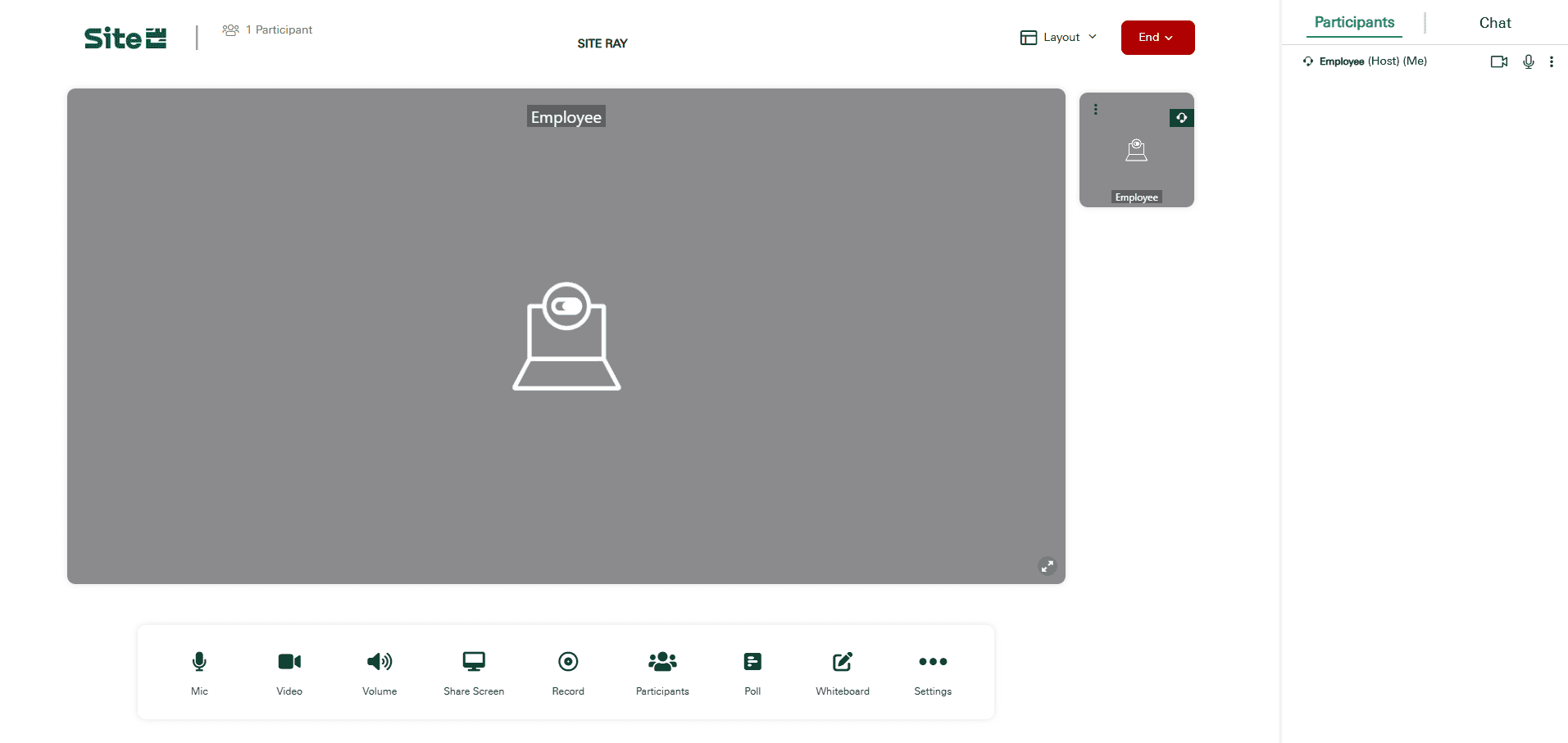
SITE Ray Manual
Login Page:
Visit SITE Ray login page to create or join a meeting.
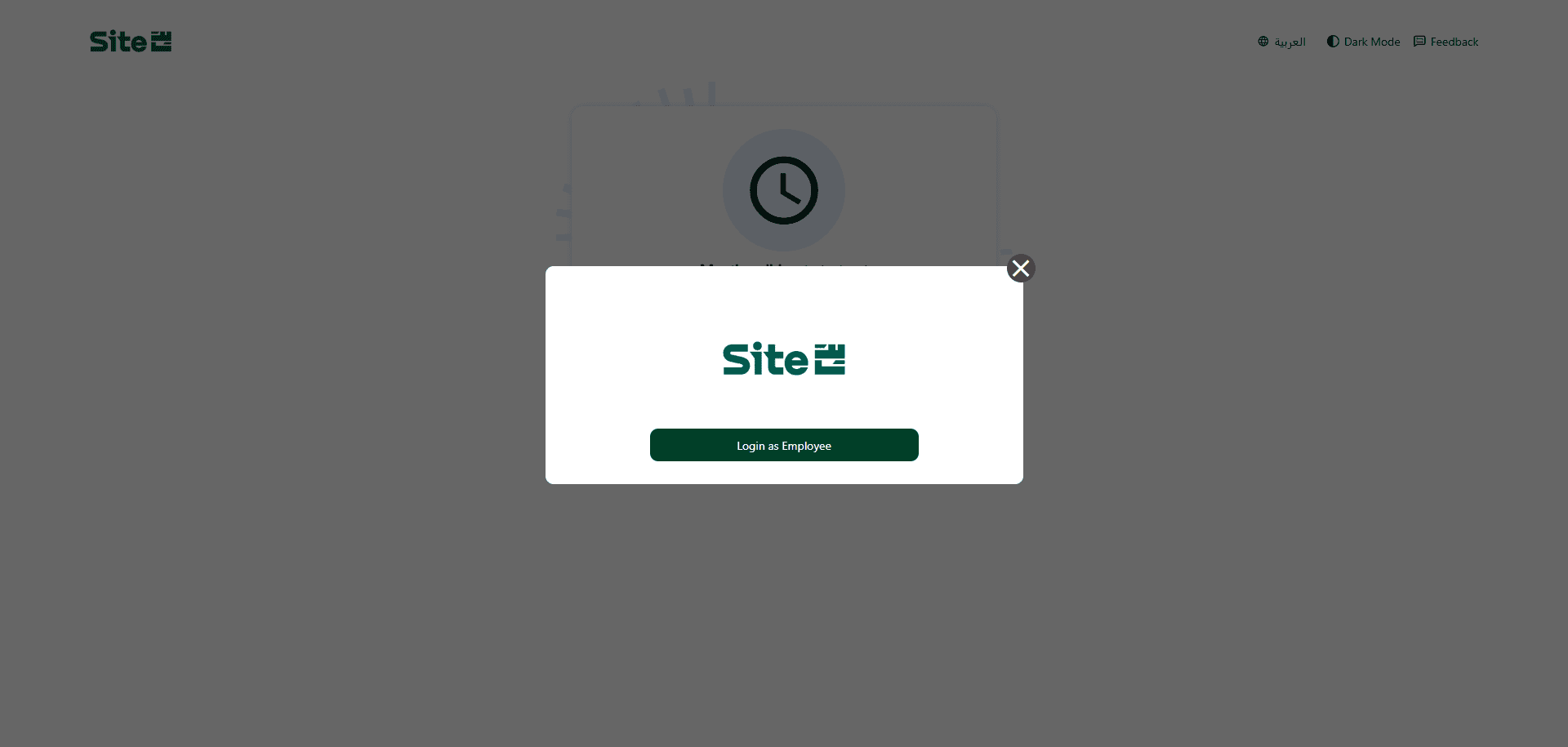
Click on Login as Employee.
Schedule and Create Meeting
Through SITE RAY Main Page
From the main page, click on "Create a new room" or “Create Live Stream” or join a meeting through Meeting URL.

Add meeting details, then Click on "Host" to start the meeting.
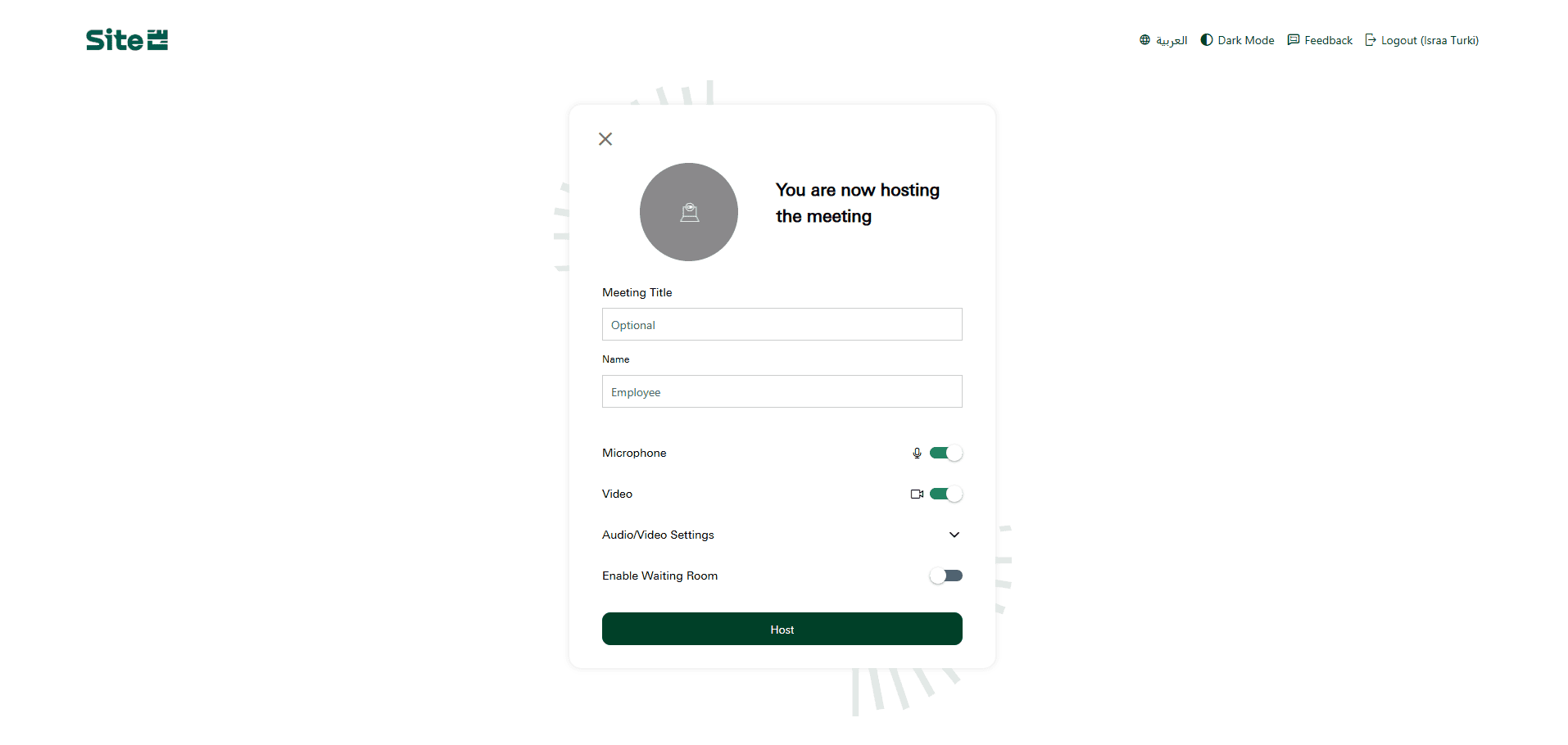
From meeting Setting, view Room Information and Click Copy next to “Meeting Link (for access)” to Share meeting URL with participants.
Schedule and Create Meeting
Through Email Plugin
Open your outlook inbox
Click on SITE RAY’s "Schedule Meeting" from the top toolbar.

Or from your outlook calendar click new meeting then SITE RAYS ’s "Add a Meeting" from the top toolbar.
The meeting room details will appear in the body of the message.
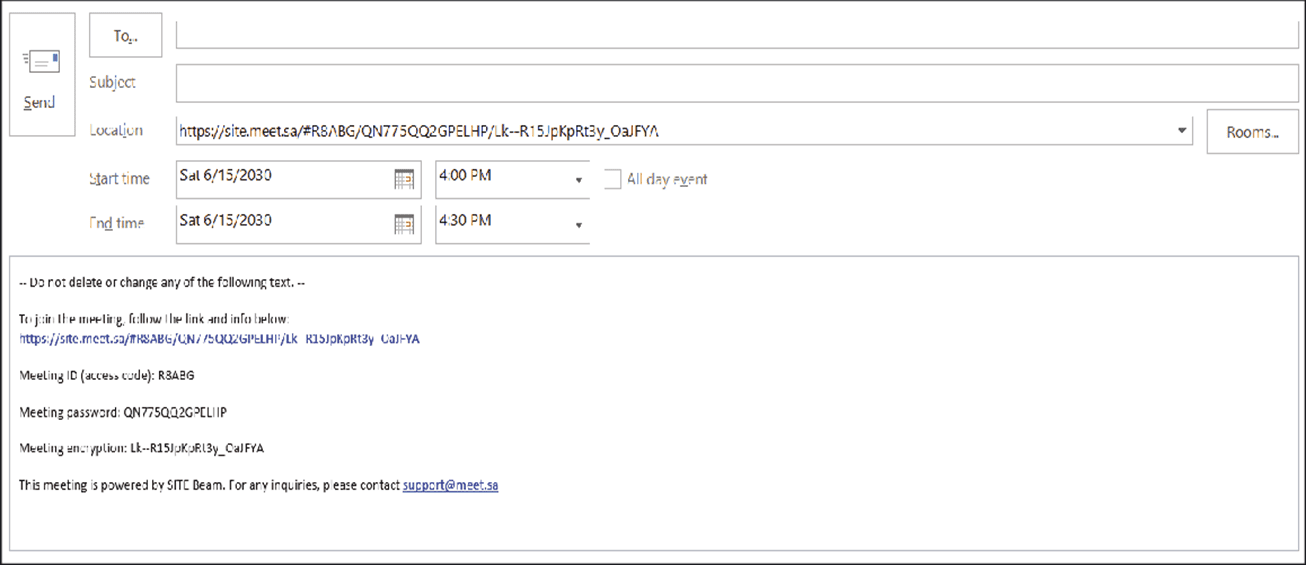
Add your meeting information then share the invitation with participants.
Join Meeting
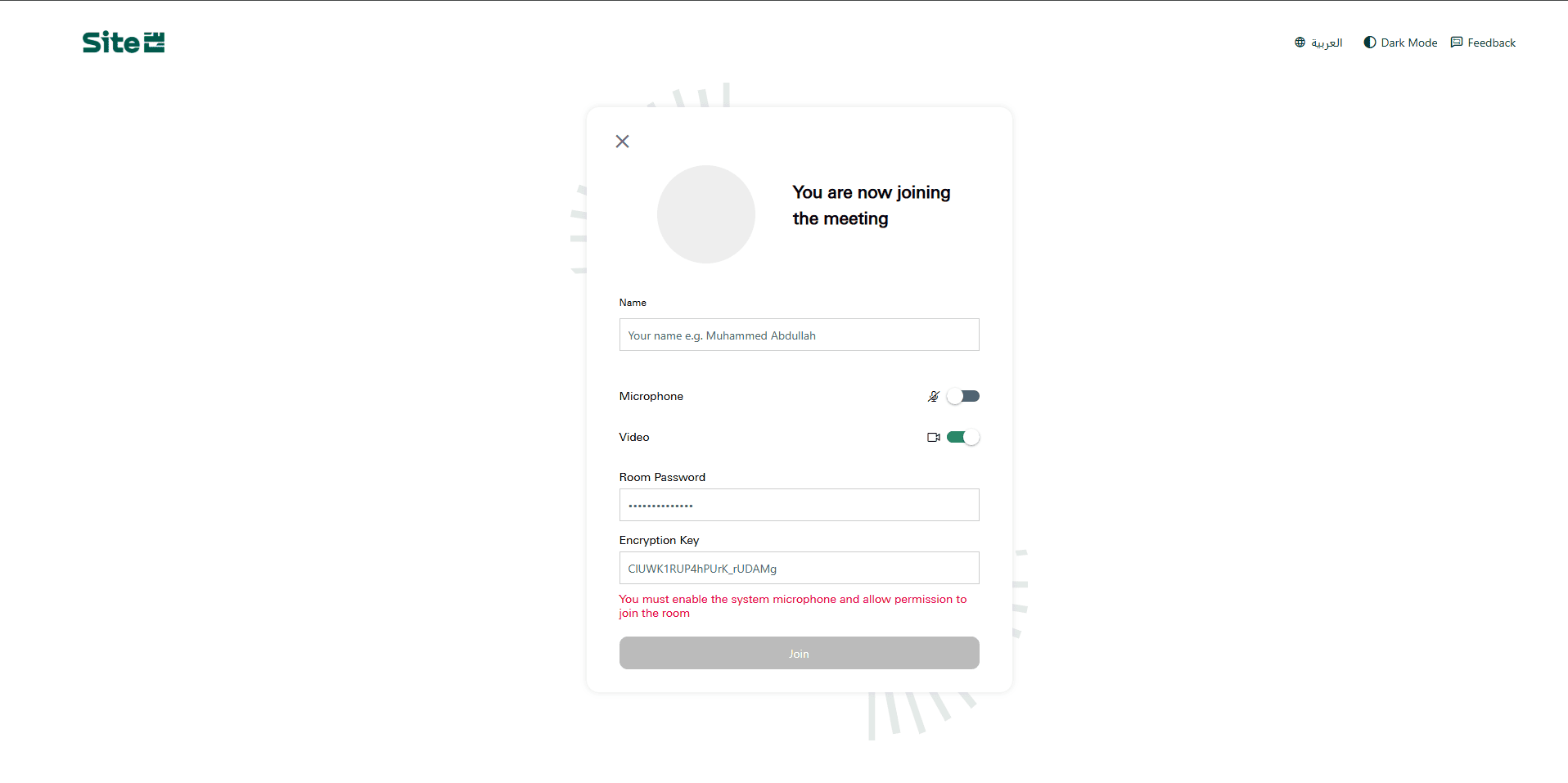
You can join a meeting through the browser or mobile app. Click on the meeting invite link to join the meeting
Allow permission for your microphone and camera, then enter the room settings.
Enter you name
Toggle your microphone and camera on or off
If you are a participant, enter the room password and encryption key
Click on Join to join the meeting.
Meeting Features