Support - User Manual
Overview
The purpose of this document is to fulfill your requirements by applying a systematic approach to know how and when to use the necessary tools within SITE Support Portal.
Access to SITE Support
1.1: Support Website can be accessed through this link: https://support.cloud.site.sa
1.2: After Accessing the website click on “Clients”. 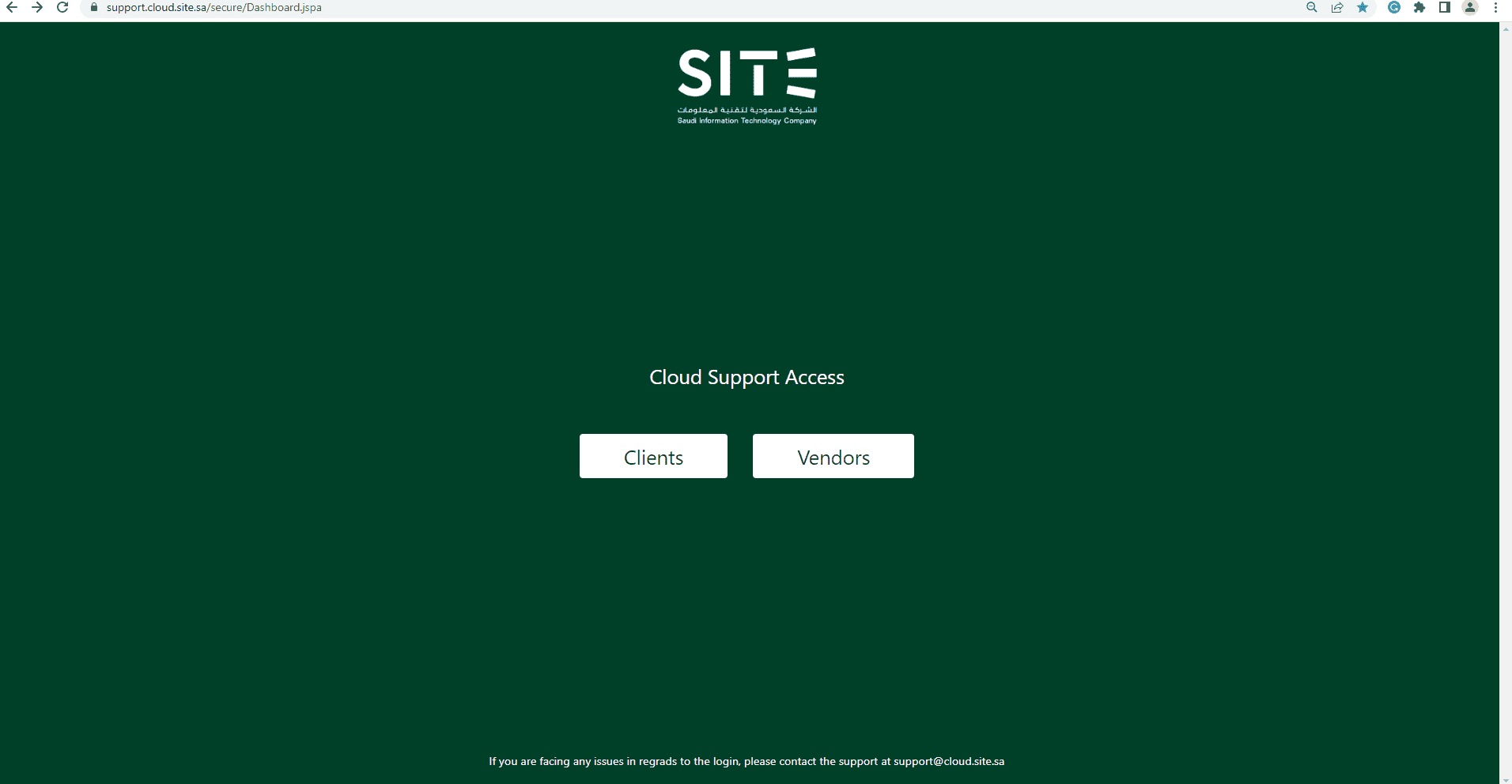
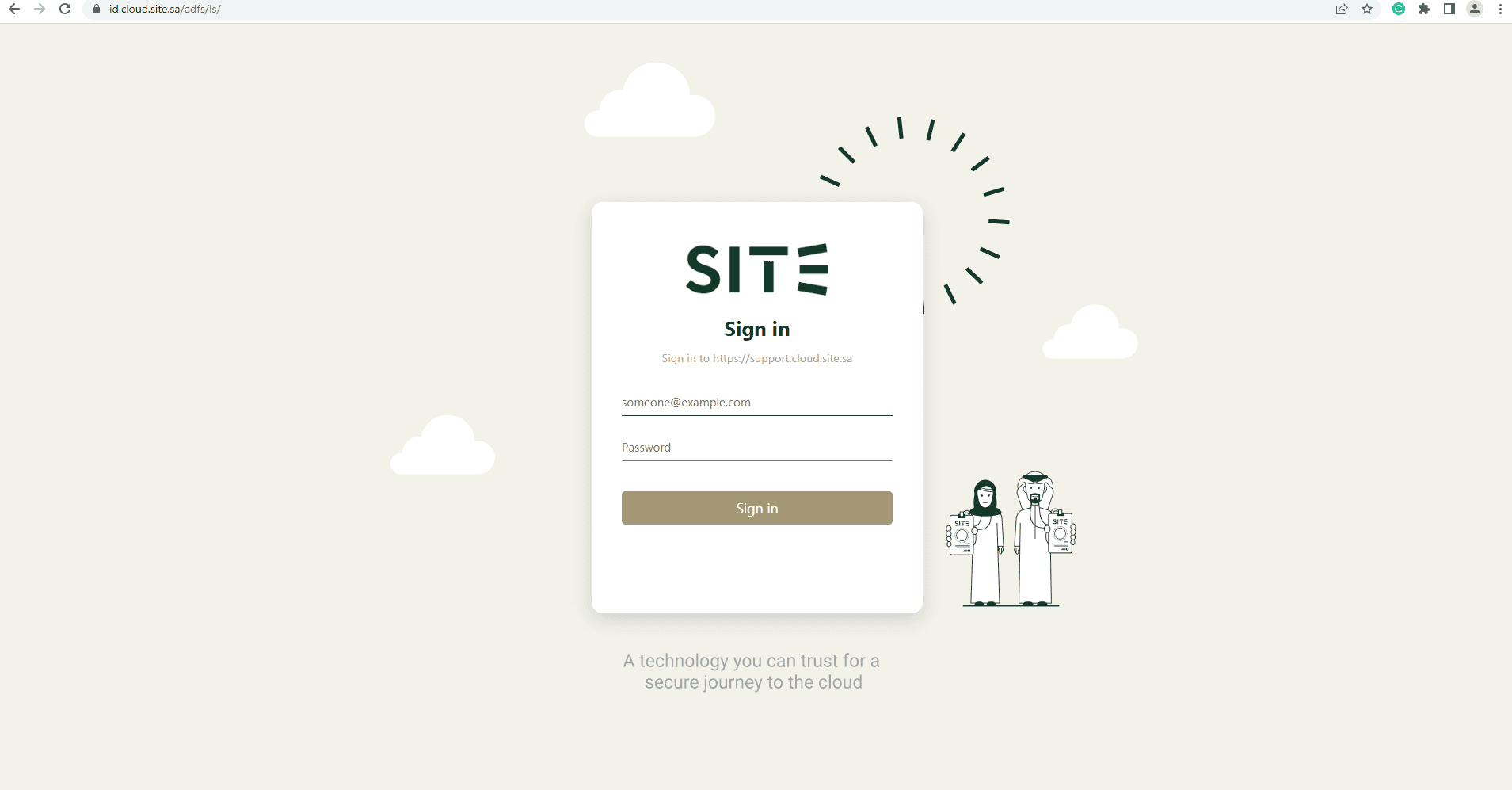
1.3: Insert your credentials “Email and Password”
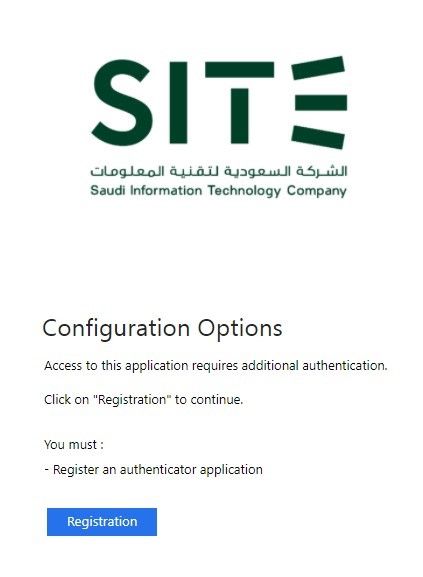
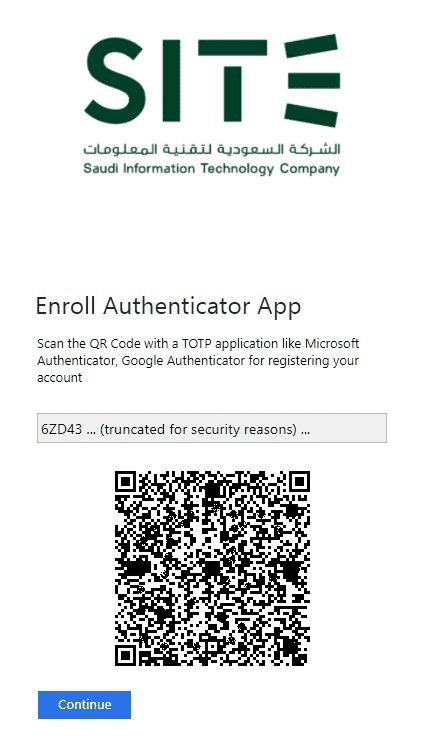
1.4: Click on Registration, and scan the code to enroll in using any authenticator app.
(Ensure that the registration process only happens at the first time you log in)
1.5: Scan the code.
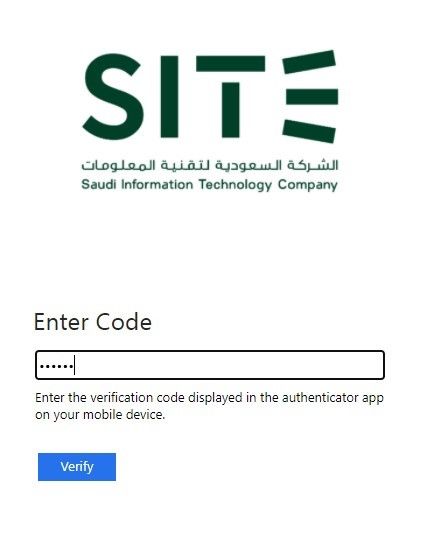
1.6: Enter the code.
Support Portal Guidliness
After registration and enrolling in 2FA, you can access the main page for the support portal.
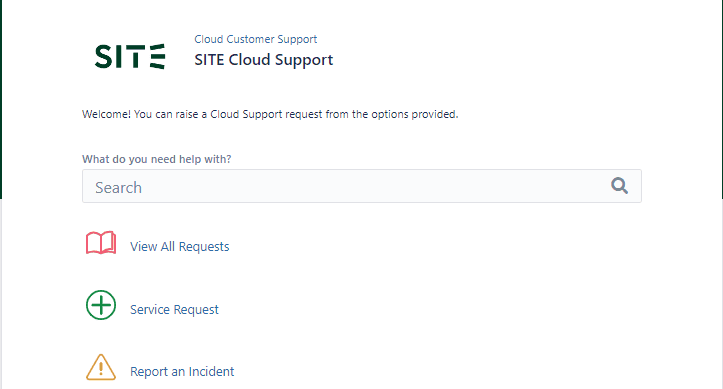
In the center of the page, you will see the above four options:
• View All Requests: which you will be able to see all opened & closed tickets.
• Service Request: Which you will be able to request a service.
• Report an Incident: Which you will be able to report an incident.
• Service Release Request: If you need to publish a new service for eg; Website.
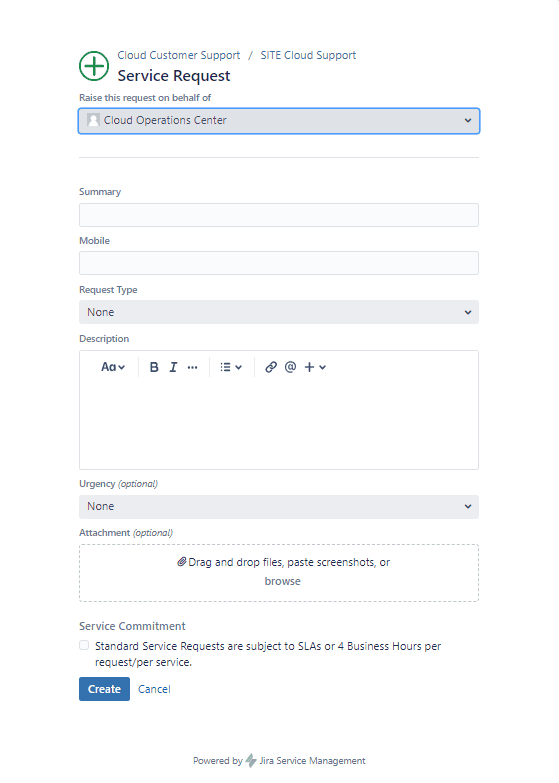
2.0: When you click on “Service Request” you will be able to see the below form where you have to fill all the required fields then click “Create” to post your request.
2.1: When you click on “Report an Incident” you will be able to see the below form where you have to fill all the required fields then click “Create” to post your request.
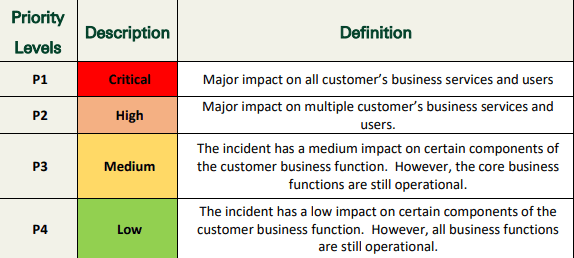
Please consult the SITE Incident Priority Figure located at the bottom of the page to determine the priority level of your incident.
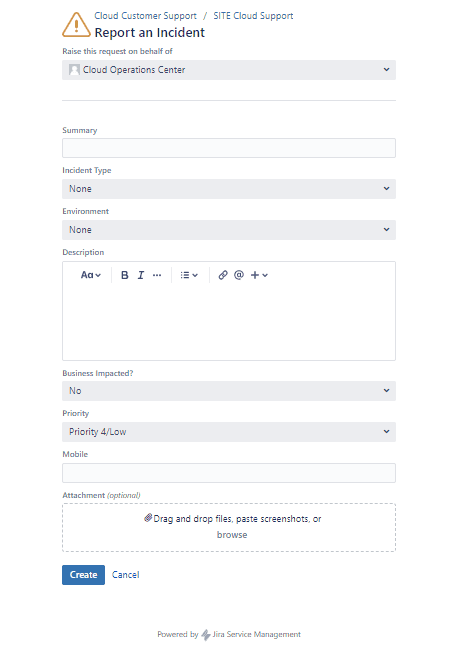
2.2: When you click on “Service Release Request” you will be able to see the below form where you have to fill all the required fields then click “Create” to post your request.
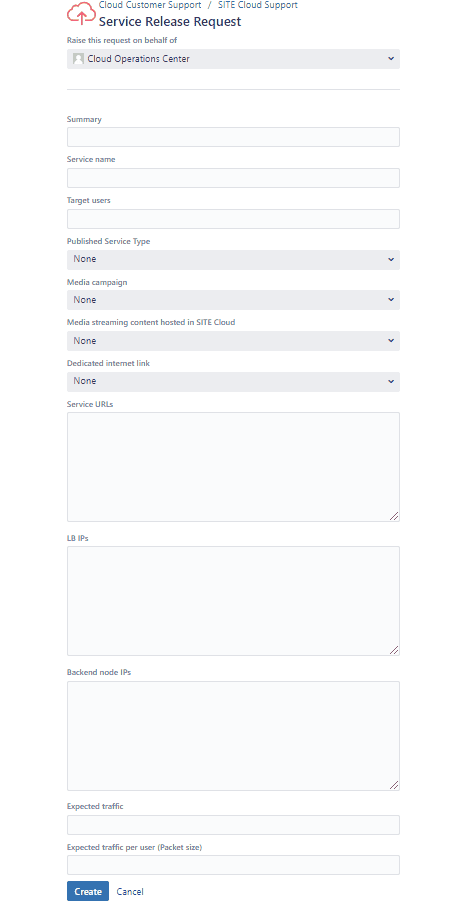
2.3: After submitting your request, you can view all of your requests by clicking on the “View All Requests” button.
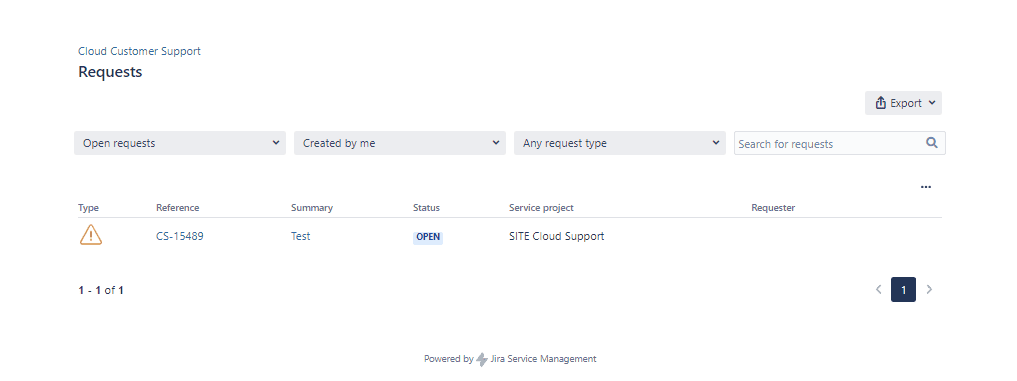
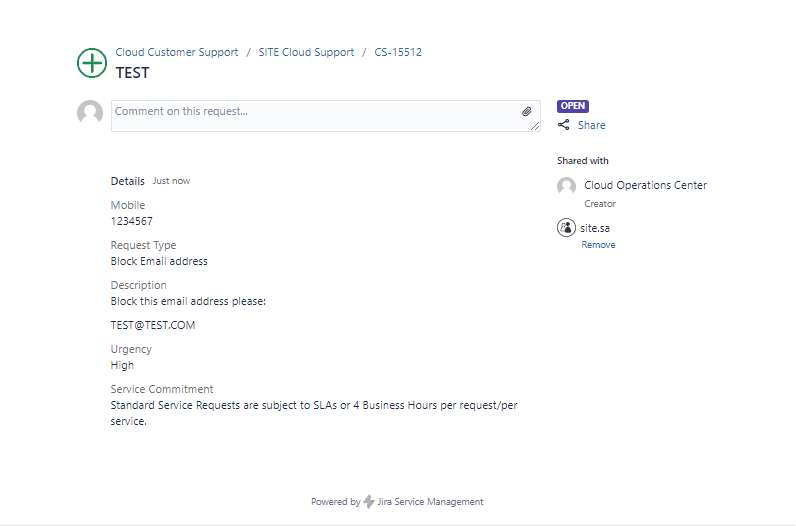
2.4: Select the specific request you wish to modify or add a comment to.
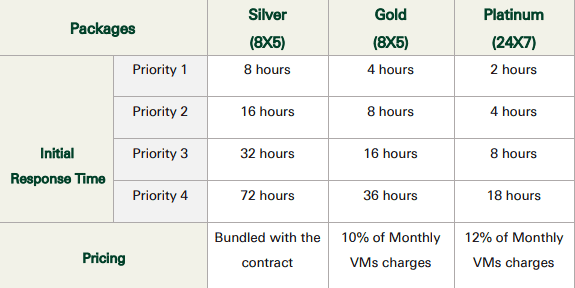
Incident Priority
SLA (Response Time)