


Allocate IP and Assign IPs to VM
Allocate IP and Assign it to VM.
SITE Cloud has 3 types of IP; Private, Public and Shared IP. Each one of them can be assigned to the network interface from the portal.
- Private IP: can be assign to VM network interface for network communication.
- Public IP: can be assign to VM network interface for internet communication.
- Shared IP: can be assign to VM network interface for communicate with other tenant.
Note that Public IP can’t be assigned on HSA zone.
1. Allocate IP.
Before assign any type of IP we need to allocate an available IP first to assign it to VM.
First Login to Cloud Portal.
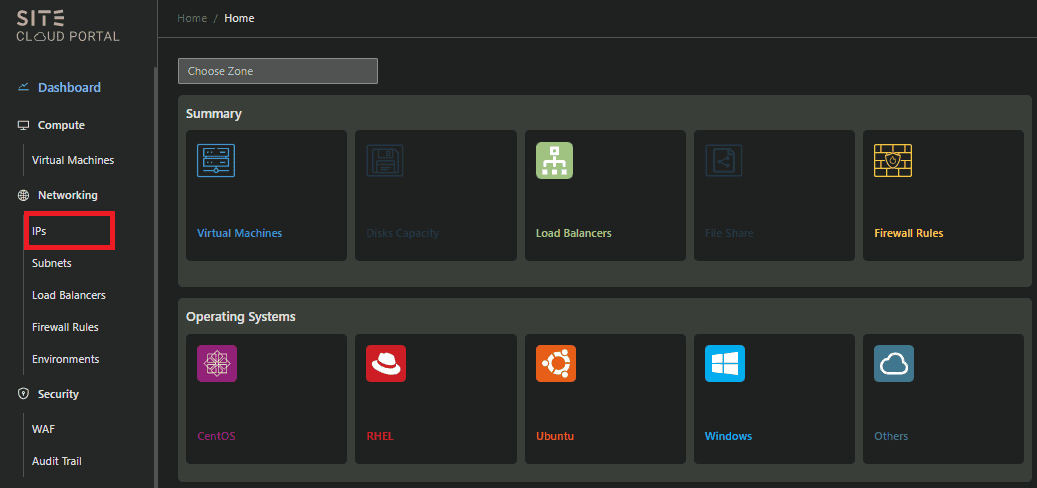
From Cloud Portal go to “IPs” tab in Networking.
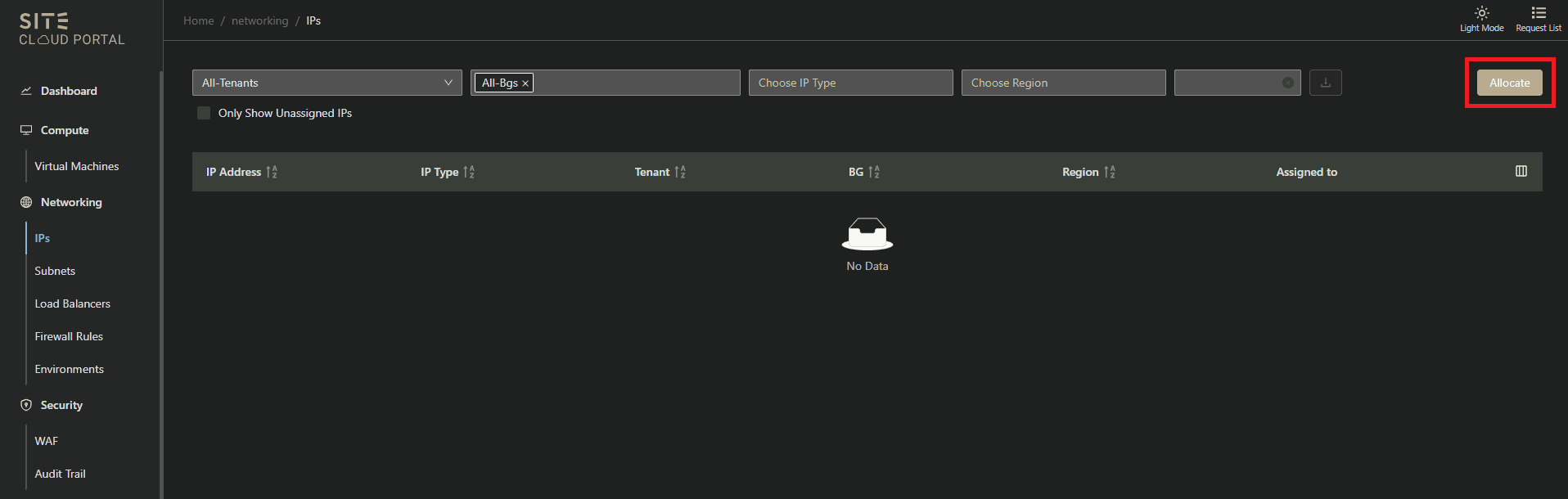
Go to “Allocate”.
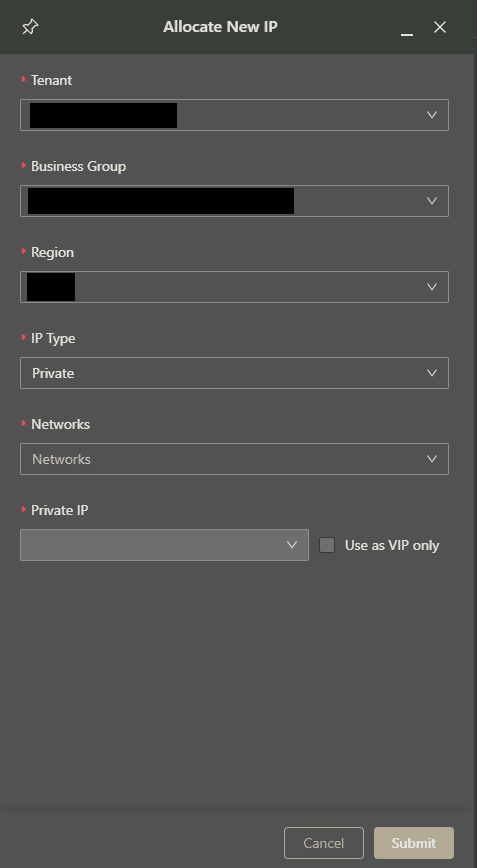
Fill up the required fields. Tenant, Business Group, Region and IP Type. Then chose the Network subnet that you want to allocate the IP from. Then select the IP.
Now you can assign the IP to the VM.
2. Assigning IP to the VM.
From “Compute” go to “Virtual Machines”.
Search for your VM using VM ID.
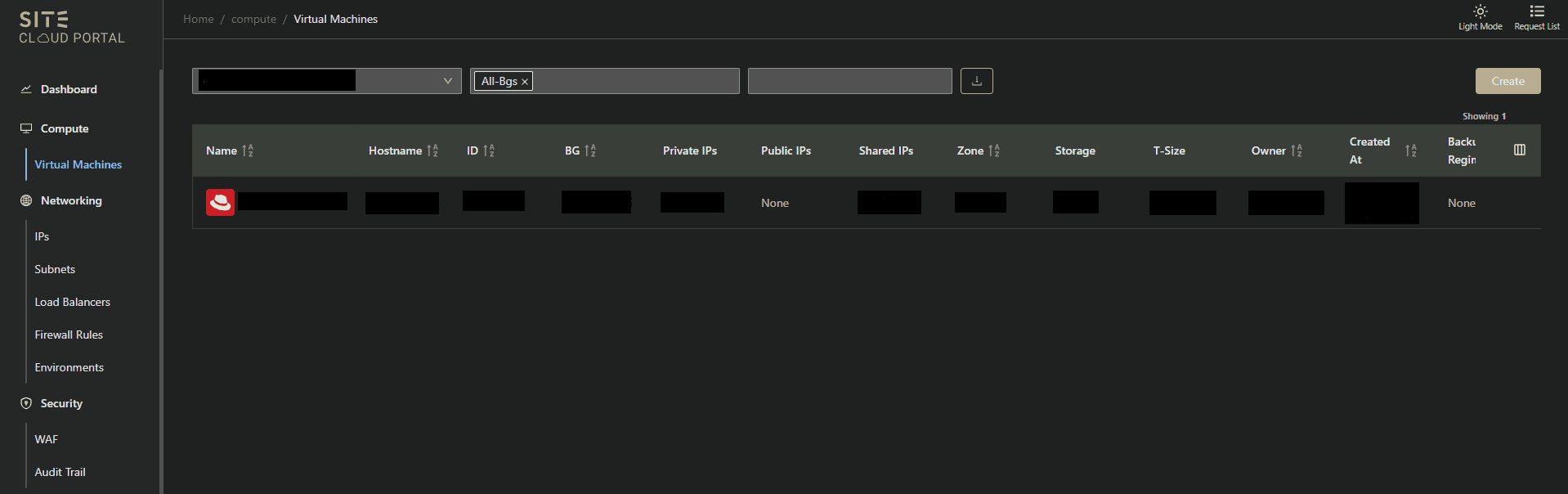
Go to “Networks” and hover on the network adapter that the IP will be assigned to.
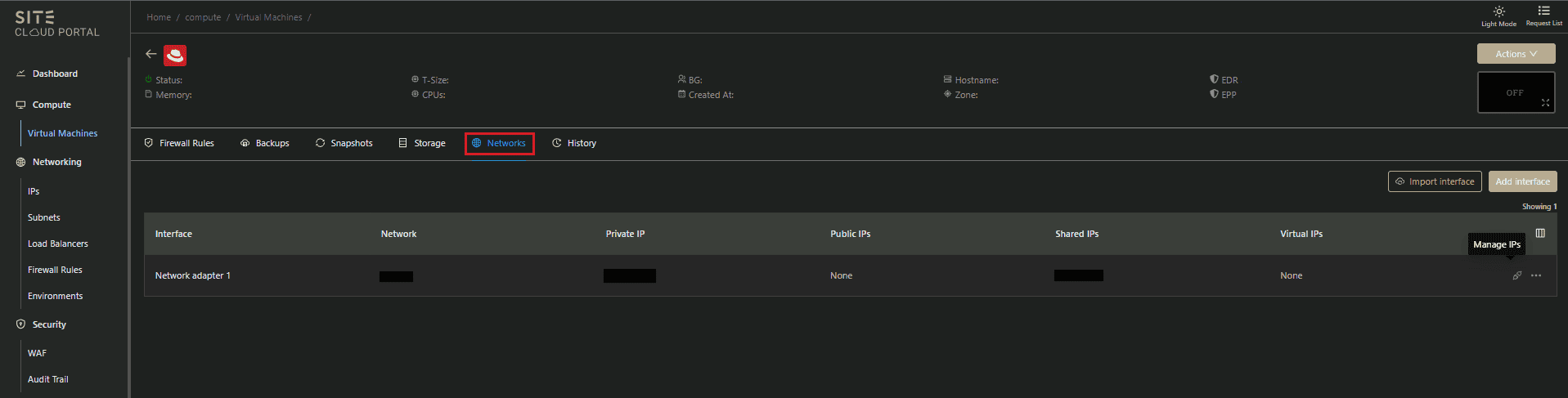
Note If the interface (Network adapter) is not shown you can add new interface from “Add interface”
Go to “Manage IPs” button and you can find the IP, assign it to the VM private, public or shared IP as you need.
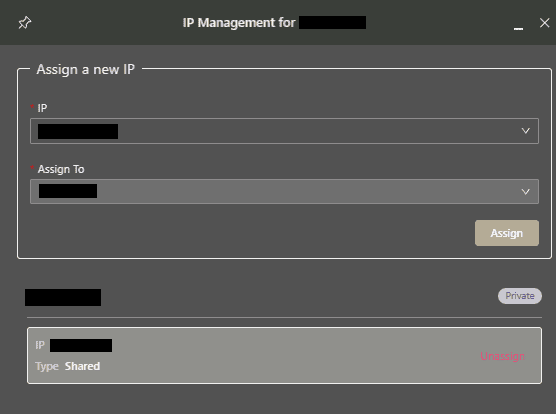
You can also find Unassign option from “Manage IPs” button.