


Certificate Manager
Overview
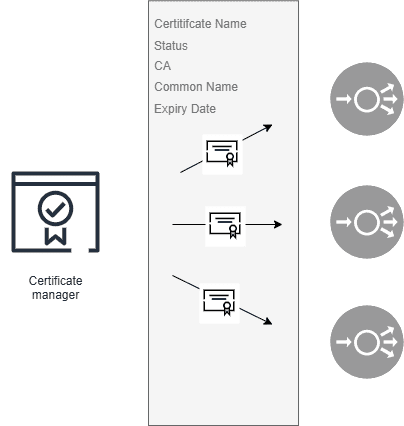
Certificate Manager is a centralized dashboard that allows you to manage SSL/TLS certificates across your cloud infrastructure. You can import certificates issued by any Certificate Authority (CA), associate them with cloud resources such as load balancers, and update them when renewed.
This tool helps maintain service availability and security by giving you full visibility into certificate status and associations.
Getting Started
Accessing Certificate Manager
Log in to your Cloud Dashboard.
Navigate to Certificate Manager under the Security section.
Key Features
1. Certificate Manager Inventory
The main dashboard provides an overview of all your imported certificates. Each entry includes:
Certificate Name
Status: Valid, Expiring Soon(certificate has less than 3 months), Expired
Associated Resources
Expiration Date
You can filter and sort the table to quickly locate certificates by status or association.
2. Adding a certificate
You can add new certificates issued by third-party CAs, or CAs you trust, or your own self-signed certificates.
Steps to Add new certificate:
Click on the Add Certificate Button.
- Select the method for adding the certificate
- Add PFX Certificate – Upload a .pfx file that contains both the certificate and its private key. A password will be required to complete the import.
- Add Certificate using Private Key – Import an existing certificate along with its private key. Use this if certificate and private key are already available.
- Generate CSR and Import Certificate – Choose this if you need to generate a Certificate Signing Request (CSR) before importing the certificate. Save CSR for later button can be used if the signed certificate is not ready yet.
- Add Certificate Using Saved CSR – Add certificate by selecting one of your saved for later CSRs. Use this option if you have generated the CSR earlier.
- Fill the certificate general information:
- Business Group
- Certificate Name
- Description
- Fill Certificate Signing Request (only applicable if you choose “Generate CSR and Import Certificate” method
- Fill Certificate Key Chain information
Click Save to complete adding the certificate.
*Private keys are securely stored and not exposed after adding the certificate.
3. Managing Certificates
From the associate/manage action on each certificate, you can:
- View certificate details
- Update the certificate after external renewal
- Associate certificate with other resources
- Disassociate the certificate from a resource
4. Monitoring Expiration
Each certificate shows its expiration date and current status:
- Active: Valid and not nearing expiration
- Expiring Soon: Nearing the expiration date (less than 3 months)
- Expired: The certificate is no longer valid
The Certificate Manager does not automatically renew certificates. You must handle renewal externally with your CA and then update the certificate in the system.
Updating a Certificate After Renewal
When a certificate is renewed through your Certificate Authority:
- Import the update certificate to the Certificate Manager.
- Click on the actions button for the targeted certificate.
- Click Manage.
- Dissociate the existing certificate
- Associate the new certificate.
- Save changes.
Best Practices
Maintain external reminders for renewal at least 90 days before expiration.
Periodically review certificates for expiration and relevance.
Ensure the full certificate chain is included during import or update.
Disassociate and delete unused certificates to keep your inventory clean.
Support
For questions or assistance, please refer to the Support Center or contact our support team directly.