


Reach the internet from HSA, how to setup your own proxy in SSA
This manual will guide you through the process of setting up TinyProxy on a Ubuntu Virtual Machine (VM) that resides in the SSA (Standard Security Assurance) zone of your tenant. The purpose of this setup is to provide controlled internet access for VMs in the HSA (High Security Assurance) zone that cannot reach the internet directly. By using TinyProxy, you can securely manage and monitor internet access for these VMs.
Getting Started
Prerequisites
Before you begin, make sure you have the following:
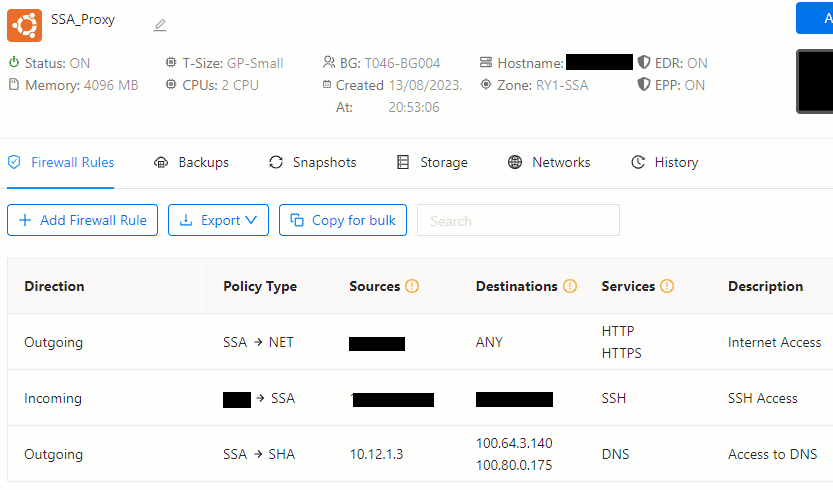
- A Ubuntu 20.04 VM running in the SSA zone, and has access to the internet on ports 80/443/53.
- SSH access to the Ubuntu VM with administrative privileges.
- Basic knowledge of Linux command-line operations.
Steps
1. Update the System
Log in to your Ubuntu VM via SSH and ensure your system is up-to-date:
sudo apt update
2. Install TinyProxy
Install the TinyProxy package using the following command:
sudo apt install tinyproxy
3. Configure TinyProxy
Edit the TinyProxy configuration file to customize the settings:
sudo nano /etc/tinyproxy/tinyproxy.conf
Modify the configuration as follows:
- Port - Set the port on which TinyProxy will listen (e.g., 3128).
- Allow - Configure the IP addresses or ranges that are allowed to use the proxy (e.g., Allow 0.0.0.0/0).
- Anonymous - Disable anonymous access.

- Save the file and exit the editor.
4. Restart TinyProxy
After making changes to the configuration, restart the TinyProxy service:
sudo systemctl restart tinyproxy
5. Configure Firewall Rules
Allow the connection to your proxy VM on proxy port (tcp/3128) using SITE Cloud Portal.

6. Configure Proxy on VMs
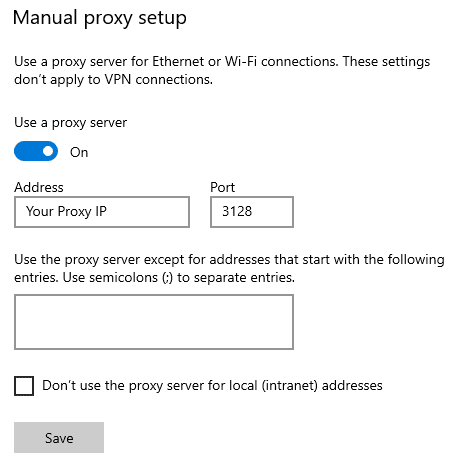
- Windows VM
- Select the Start button, then select Settings > Network & Internet > Proxy.
- Under Manual proxy setup, turn on Use a proxy server.
- Save
- Linux VM
- vi /etc/environment
- Add the following lines containing your proxy IP and port.
http_proxy=http://your_proxy_IP:3128/
https_proxy=http://your_proxy_IP:3128/

- Save the file and exit the editor.
Safety and Security
1. Firewall Rules Ensure that your VM firewall rules allow incoming connections on the Proxy port (3128) only from necessary sources.
2. Regular Updates Keep your Ubuntu system and TinyProxy software up to date by regularly applying updates and security patches.
3. Monitoring and Logs Regularly review TinyProxy logs located in /var/log/tinyproxy/tinyproxy.log to monitor proxy activities. Analyze the logs for any unusual or unauthorized access attempts.
Remember that security is paramount when setting up a proxy server in SSA. Incorrect configuration or mismanagement could potentially expose your HSA VMs to security risks. Always follow best practices and consult with your organization's IT security personnel if necessary.
Glossary and References
TinyProxy: A lightweight, open-source HTTP/HTTPS proxy server.
SSH: Secure Shell, a protocol for securely accessing a remote server over a network.
References: TinyProxy Documentation: http://tinyproxy.github.io
Ubuntu Documentation: https://help.ubuntu.com