


Vector Store
Introduction
Our Vector Store product provides a scalable and efficient way to manage, query, and retrieve high-dimensional vector data for applications such as semantic search, retrieval-augmented generation (RAG), and recommendation systems. It allows you to seamlessly store, index, and search embeddings generated from our Inference APIs or other sources, without needing to manage infrastructure or scaling manually.
With just an API key, you can connect your application to the Vector Store and start building intelligent, context-aware systems that rely on vector similarity search.
Overview
Here’s an overview of what you can do with Vector Store:
Store and Manage Vectors
Ingest your vector data and metadata into a managed store optimized for similarity search. Each vector entry can include associated metadata, making it easy to filter and query based on both semantic meaning and structured attributes.
Perform Similarity Search
Execute fast and accurate similarity searches across vectors to find the most relevant vectors for your input query.
Integrate with Other AI Platform Products
Vector Store integrates seamlessly with our Embedding Inference and Document Parsing products. Extract text from documents, generate embeddings from the extracted text, then immediately store them for efficient retrieval in downstream RAG pipelines.
Getting Started: Creating an API Key
To start using the Vector Store, you’ll need to create an instance and get an API key. Follow the steps below to get started in the Cloud Portal.
Step 1: Open the Product Page
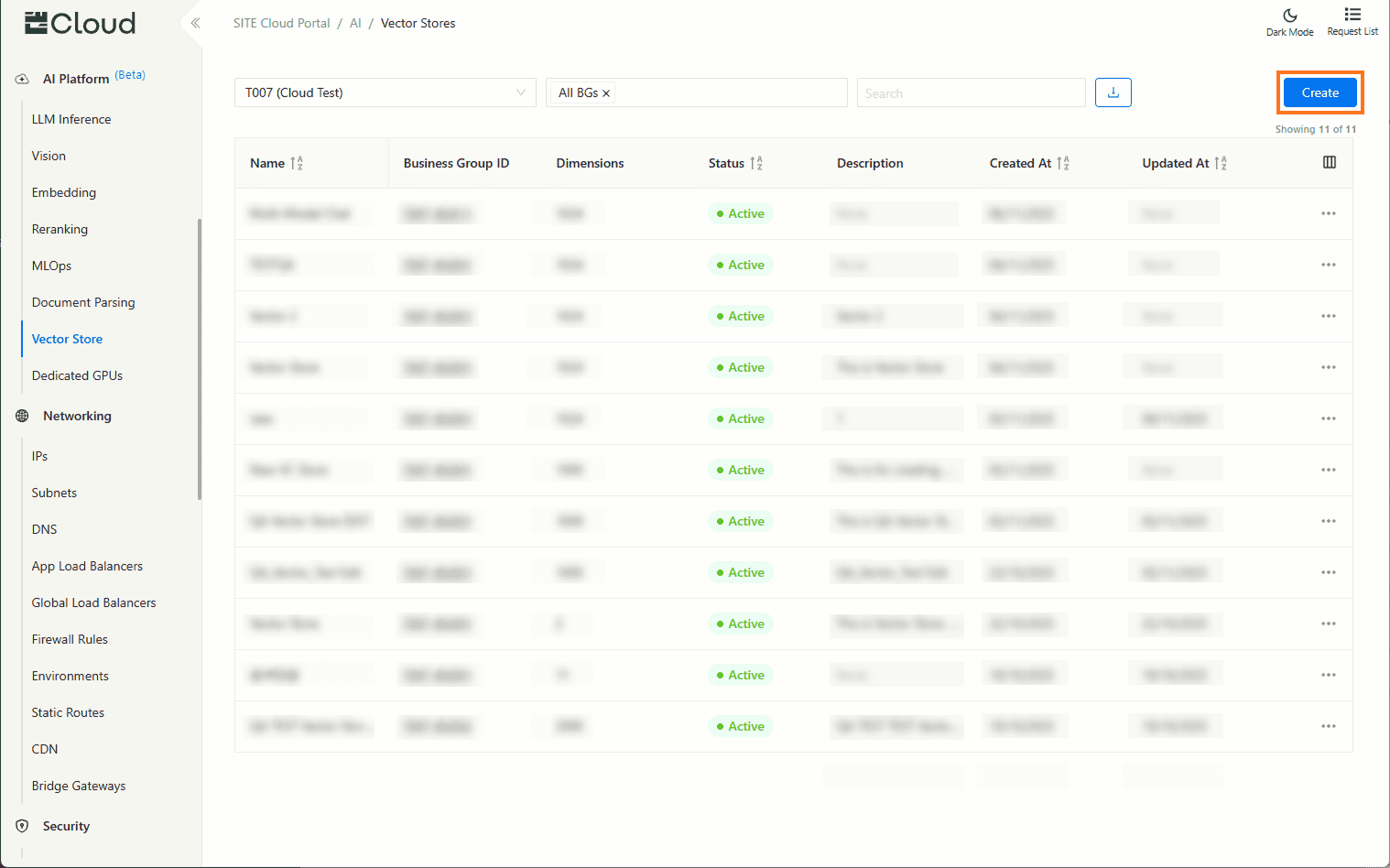
In the Cloud Portal, navigate to Vector Store to view and manage your existing stores, then click Create.
Step 2: Start Creating a New Vector Store
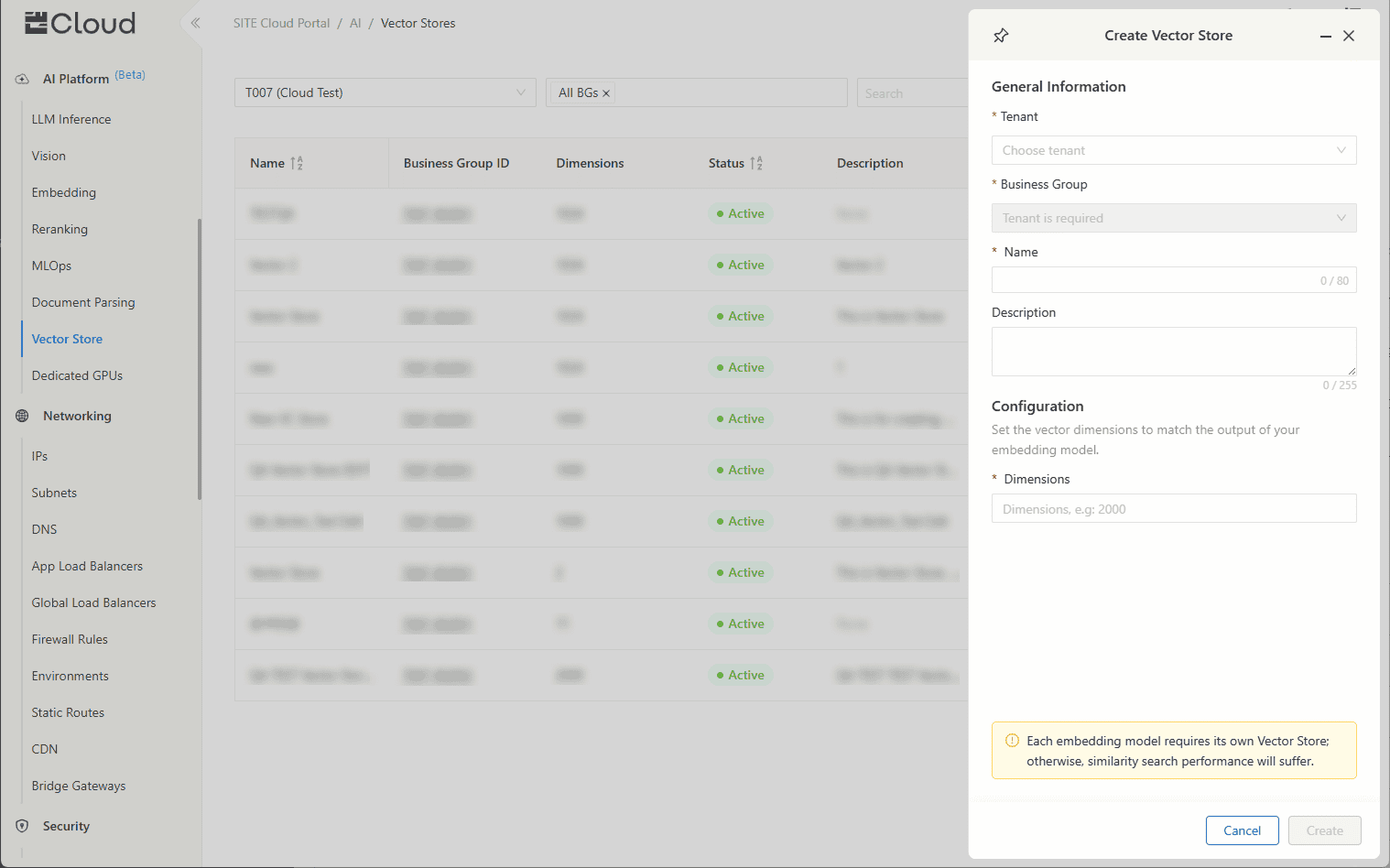
Fill in the required details, and an optional description. In the Dimensions field, enter the vector dimensions that matches the output of the embedding model you intend to use with the Vector Store.
Note: Only a single embedding model should be used with each Vector Store; otherwise, similarity search performance will suffer.
Step 3: Copy Your Key and Endpoint
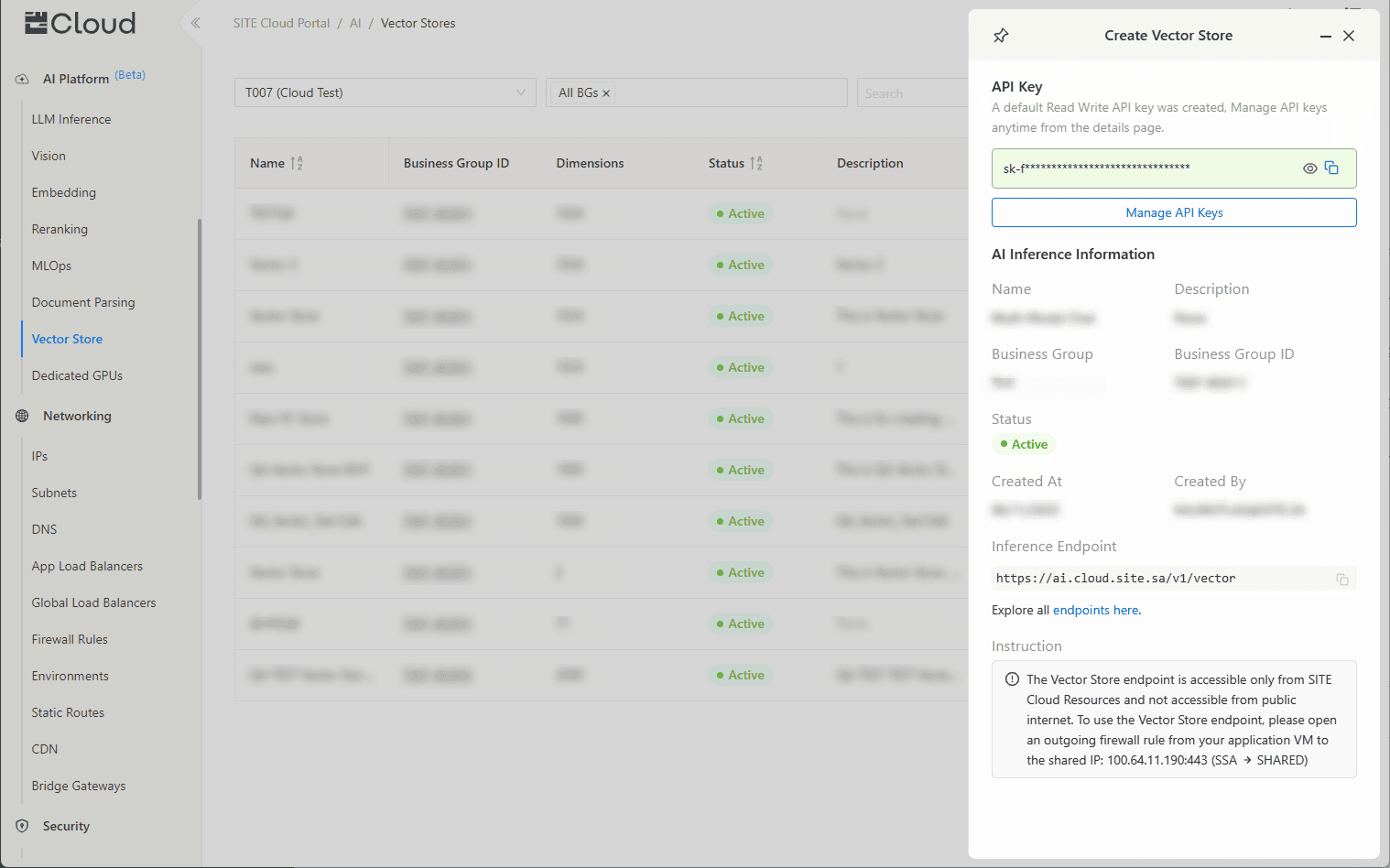
And that's it! Once created, your API key and endpoint will be displayed.
A default Read & Write API key will be created by default. You can always create additional Read or Read & Write keys form the Vector Store details page.
Creating Additional API Keys with Specific Permissions
In addition to the default API key, you can create additional API keys with specific permission levels to better manage access to your Vector Store.
Step 1: Navigate to the API Keys Tab
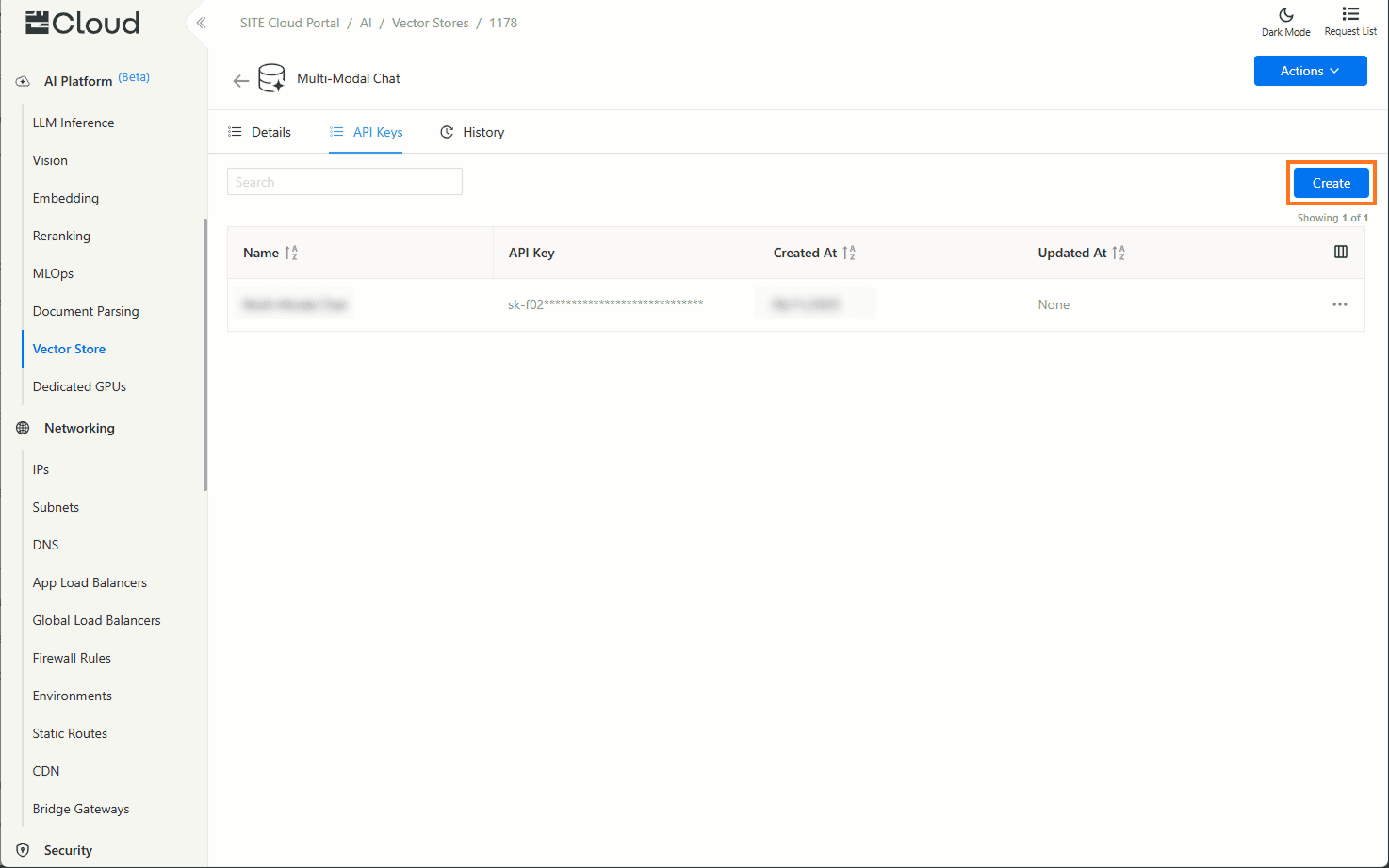
From your Vector Store details page, go to the API Keys tab, then click Create.
Step 2: Provide Key Details and Set Permissions
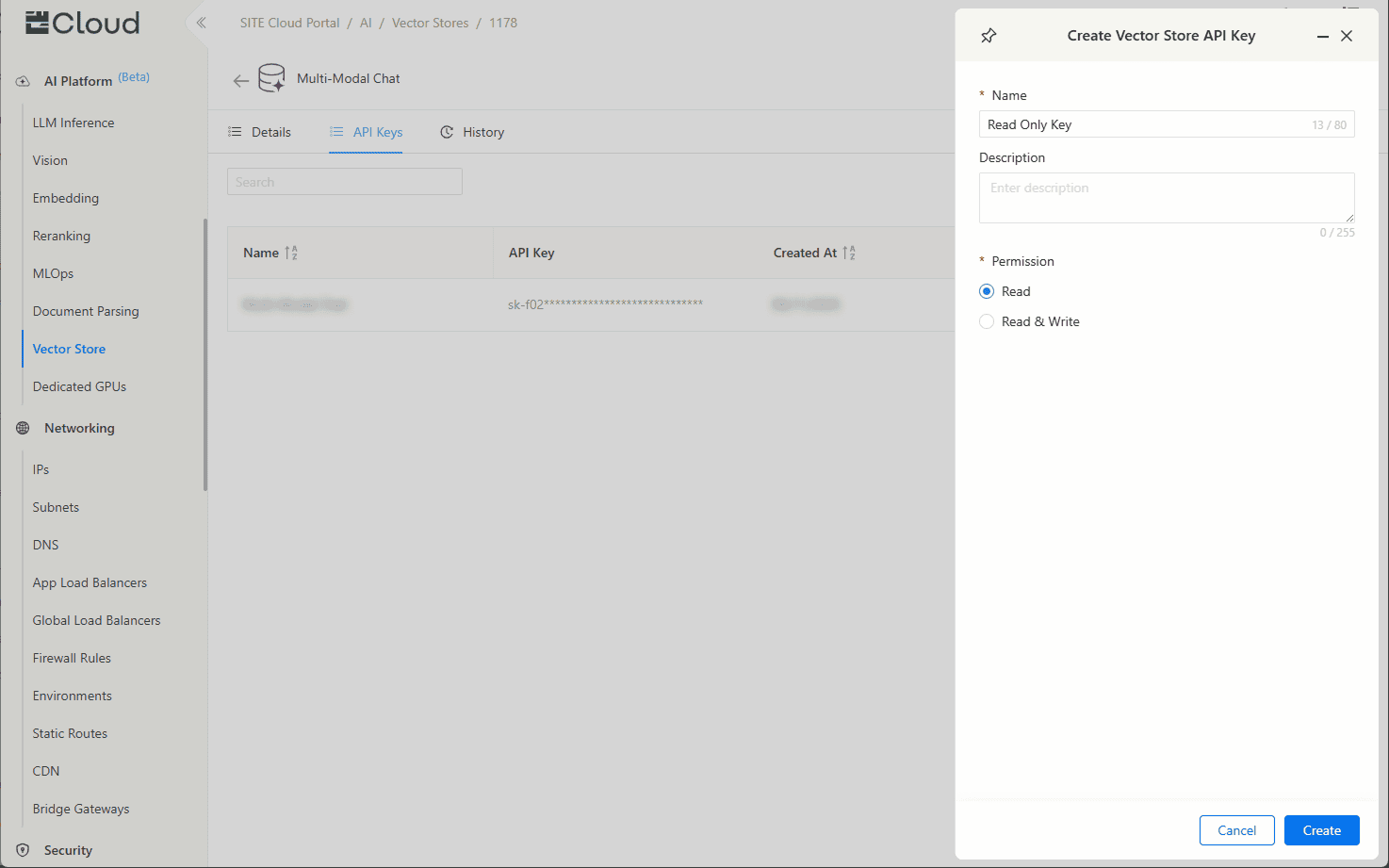
Fill out the following fields:
Name: The name of the API key.
Description (optional): Add context or usage notes.
Permission: Choose one of the following options:
- Read: Allows read-only access (e.g., for search or retrieval operations).
- Read & Write: Allows both read and write access (e.g., for inserting, updating, or deleting vectors).
Step 3: Confirm and Copy Your Key
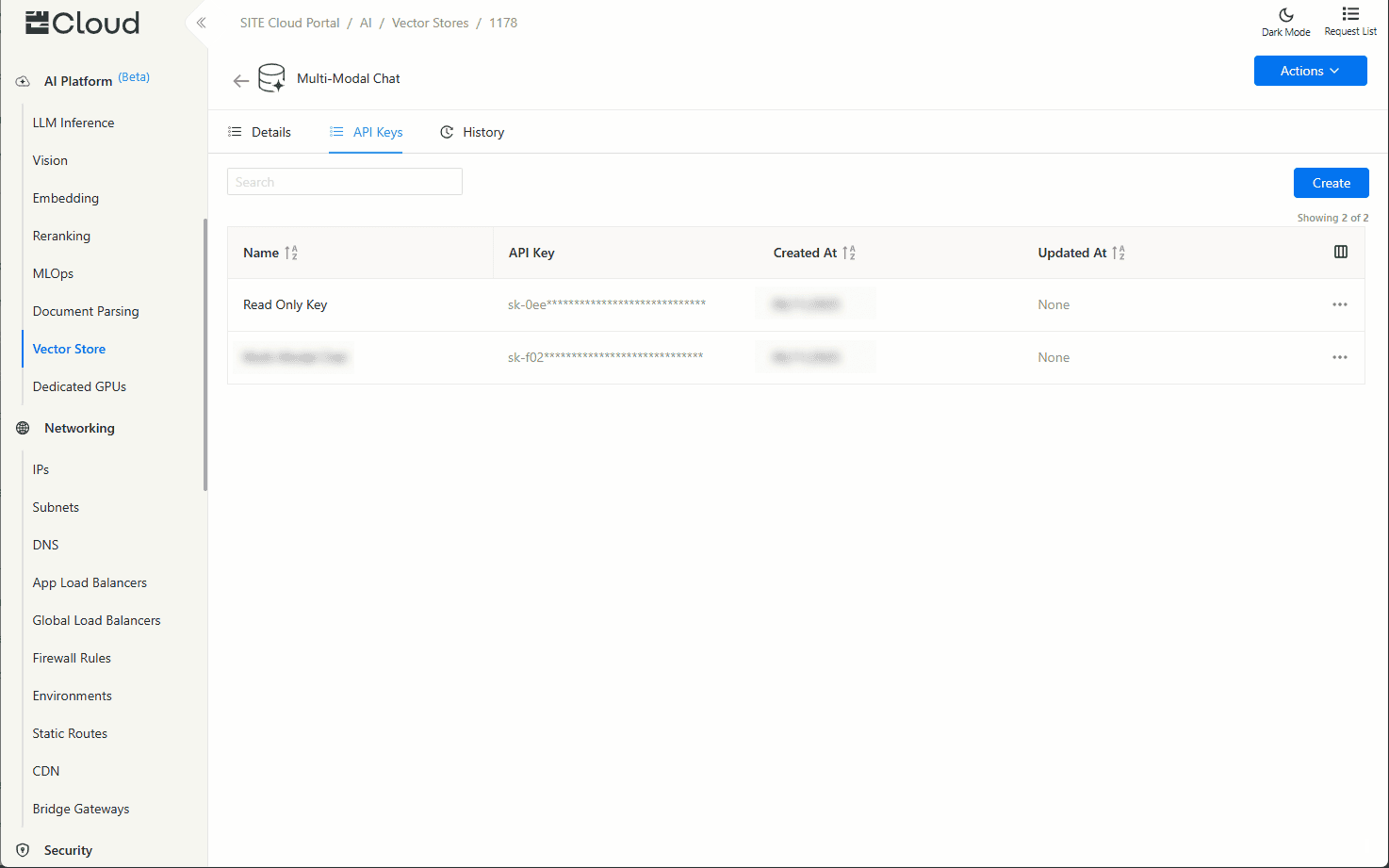
After you create the key, it will appear in your list of API keys.
Limits
The default limit is 500,000 records per Vector Store instance.
Custom limits can be configured per instance to support larger-scale or specialized use cases; please reach out to your designated Service Delivery Manager for more information.
- Step 1: Open the Product Page
- Step 2: Start Creating a New Vector Store
- Step 3: Copy Your Key and Endpoint
- Step 1: Navigate to the API Keys Tab
- Step 2: Provide Key Details and Set Permissions
- Step 3: Confirm and Copy Your Key