


SITE PAM Access
What is SITE PAM?
SITE PAM Access is an innovative solution that empowers our clients and partners to efficiently and securely access their virtual environments hosted on SITE Cloud while maintaining control and visibility over their systems, data, and workloads.
SITE Cloud Access Service Features
The SITE Cloud Access Service introduces a range of powerful features designed to streamline your virtual environment access:
Rapid Deployment Get up and running in no time with our easy-to-deploy solution.
Multi-layered Security Design Safeguard your virtual environment with our comprehensive security framework.
Multi-Factor Authentication (MFA) Enhance security with multiple authentication layers.
Single HTTPS Entry Point Reduce potential attack surfaces with a single, secure point of entry.
Session Monitoring Keep track of user sessions for heightened security and control.
Native RDP and SSH Access Controls Manage remote desktop and secure shell access with ease.
Compliance-Ready Audit Trails Meet regulatory requirements with automatically generated, unalterable audit logs.
Integration with SITE MDR Technology Stack Seamlessly integrate with our advanced Managed Detection and Response solutions.
Overall, SITE Access plays a critical role in safeguarding your organization and most sensitive assets by enforcing strict controls, accountability, and monitoring over privileged access, thereby reducing the attack surface and enhancing overall cybersecurity posture.
Guided Steps for using SITE PAM Access
1- Open the Cloud Access Portal through this link: https://access.cloud.site.sa
2- Sign in using the credentials provided by SITE team during your onboarding process.
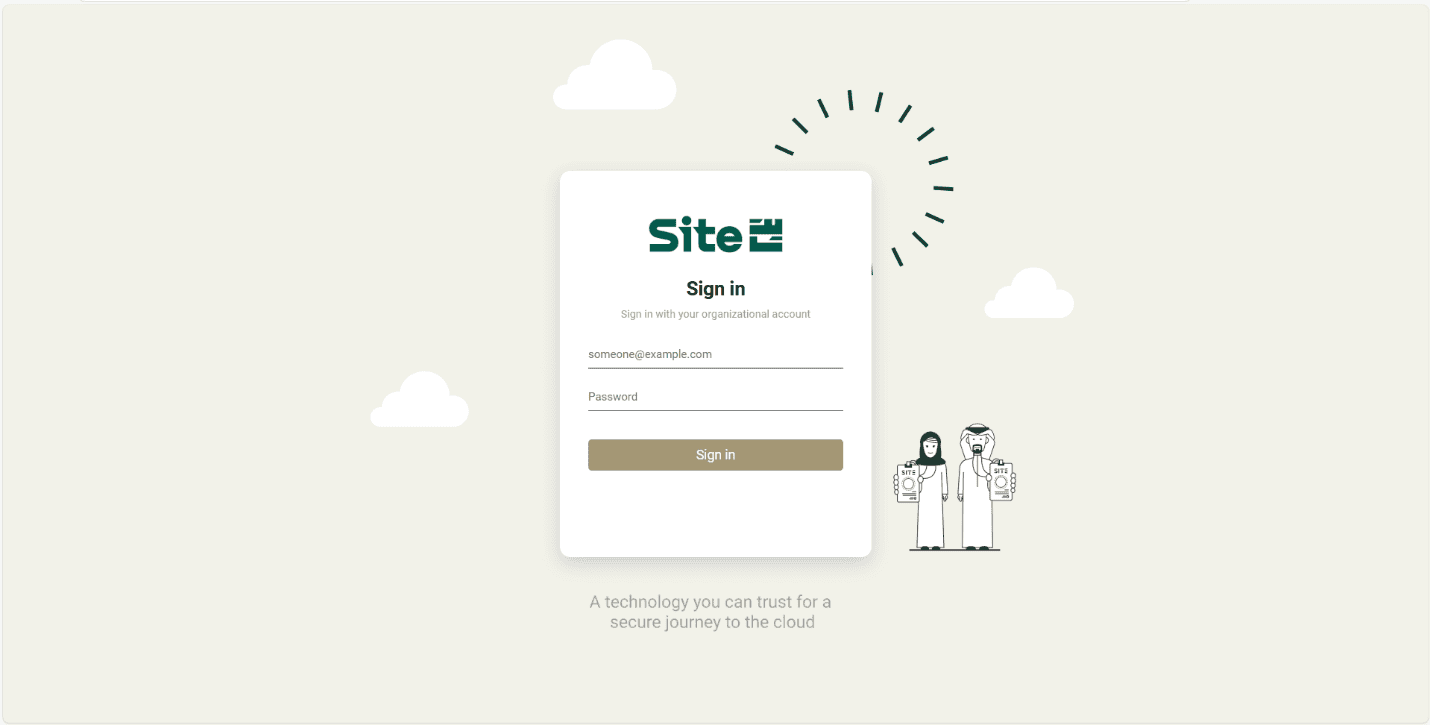
*Note: In case of password issue please use this link to reset: https://reset.cloud.site.sa/
For how to: https://docs.cloud.site.sa/MyCloudPortal/user-reset-password
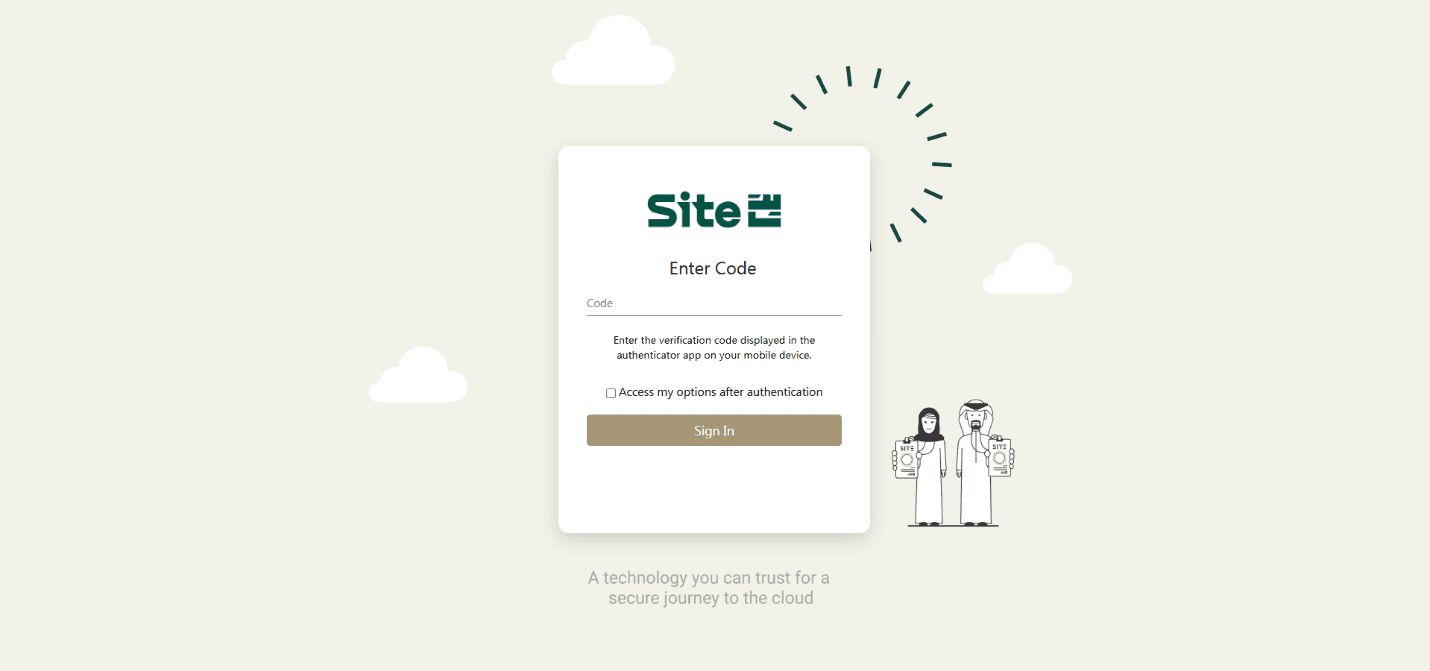
3- Here, you will need to enter the OTP generated by your MFA app, which was set up by SITE team during your onboarding process.
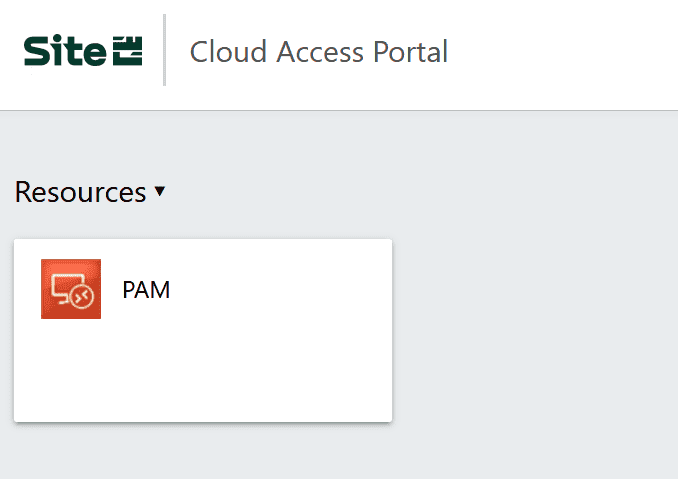
4- After you sign in, you can access the PAM that appears in the portal.
5- Download the RDP configuration to start accessing the service.
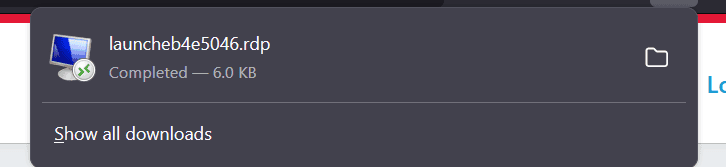
6- Run the downloaded RDP file
- Enter the same credentials you used to log in to SITE access, but without including the domain.
- Keep the “Target” field empty.
- Don't change the “Login” field and only type the password
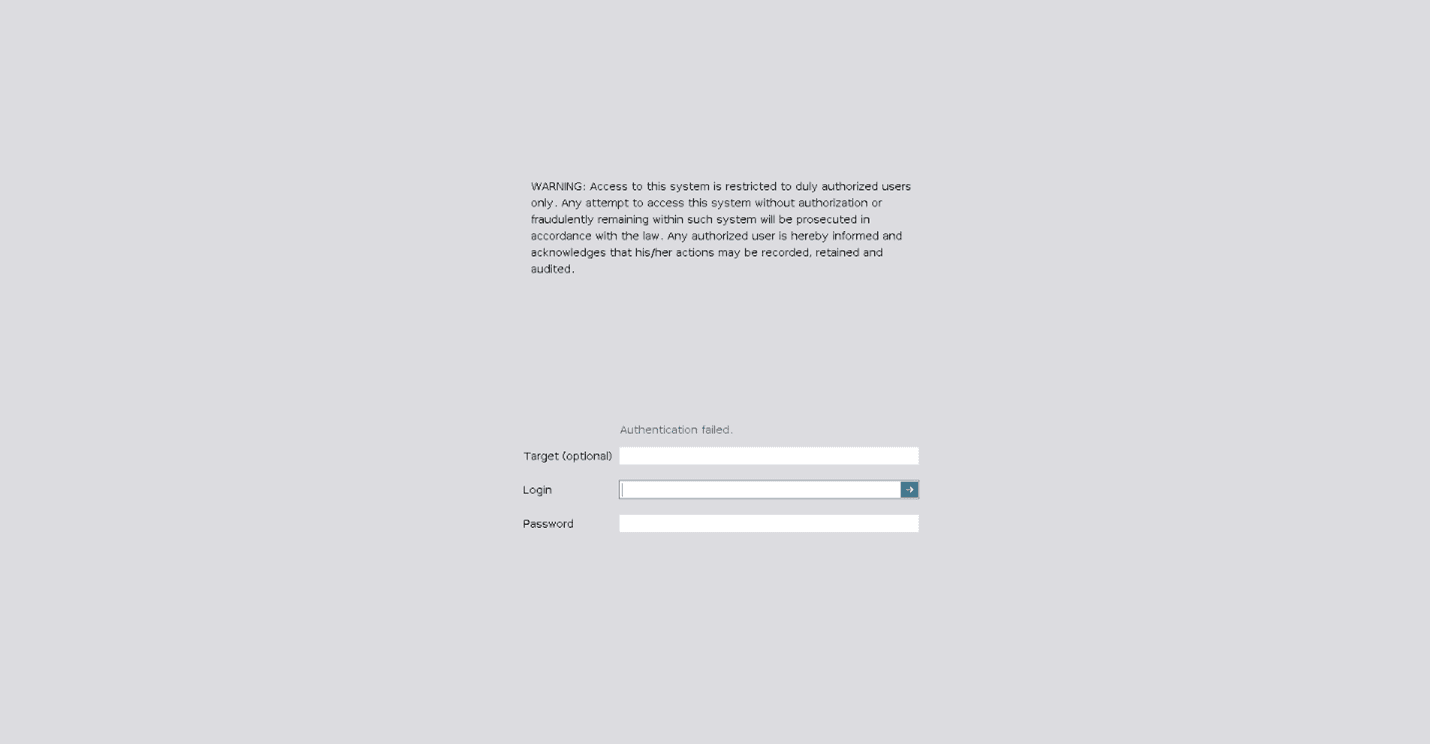
*Note: In case of password issue please use this link to reset: https://reset.cloud.site.sa/
For how to: https://docs.cloud.site.sa/MyCloudPortal/user-reset-password
7- The available/assigned Jump server will appear in the portal if you have more than one jump servers.

8- After selecting a jump server, authenticate locally or with corporate credentials (if AD is used), which differ from your SITE Access and PAM credentials.
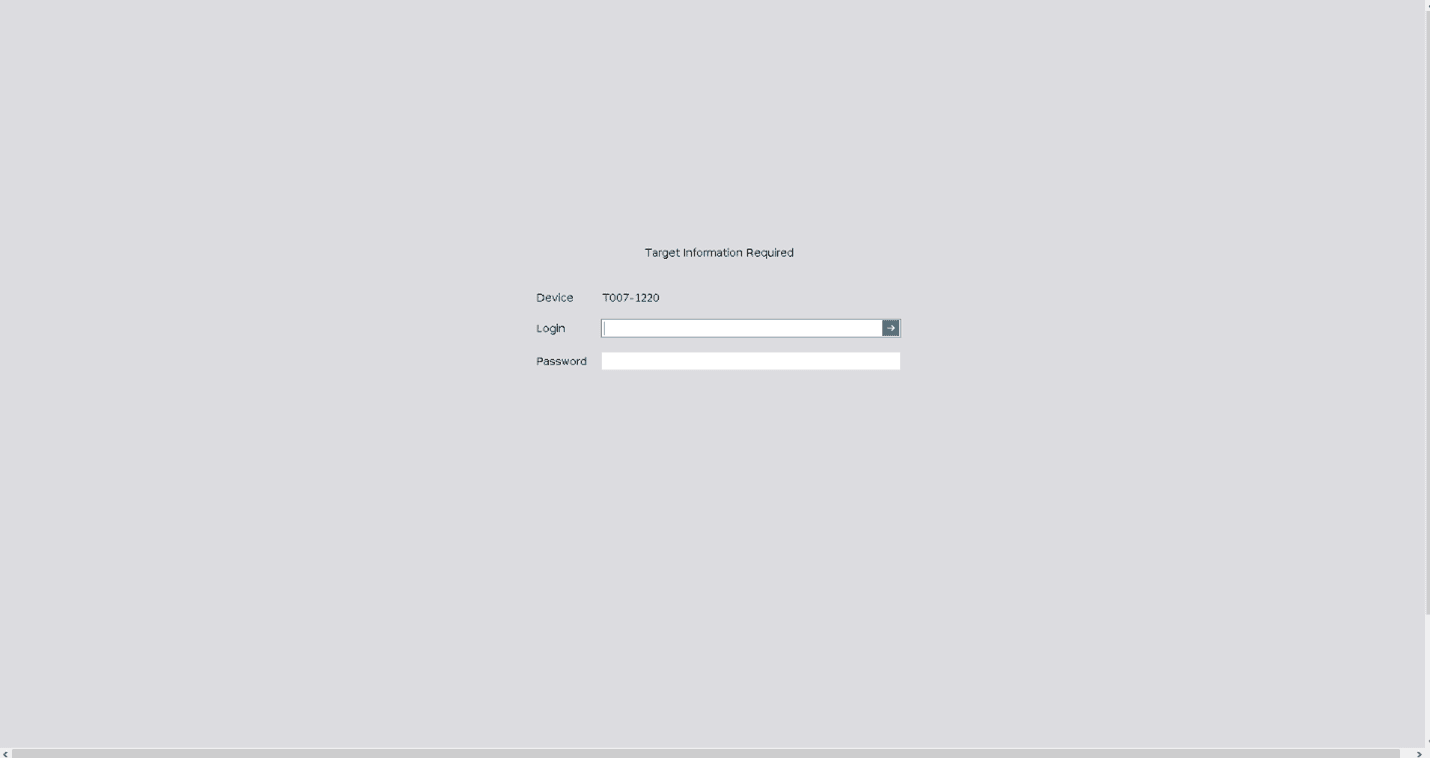
Note: In case of password issue the client needs to refer to the local AD Admin, but if managed by SITE raise a ticket using this link: https://support.cloud.site.sa/servicedesk/customer/portal/1