


Fileshare Mobile Integration
How to Integrate your Fileshare with your Mobile
This guide provides simple, step-by-step instructions to help you connect your fileshare account to your mobile application using the QR code method. By completing the steps below, you’ll be able to access your files directly from your mobile device.
Step-by-step Guide
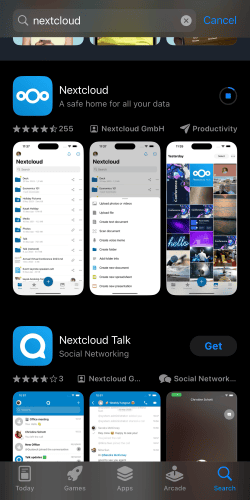
1- Install Nextcloud App
- The fileshare service is running on Nextcloud.
- Download the Nextcloud app from the App Store (iPhone) or Google Play Store (Android).
2- Open the App and Start the Login Process
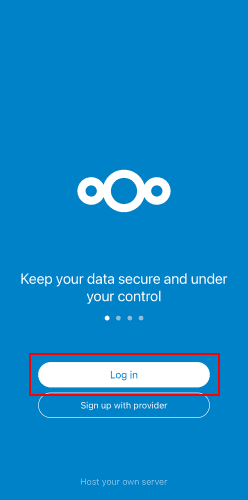
- After installation, open the app and tap “Log in”.
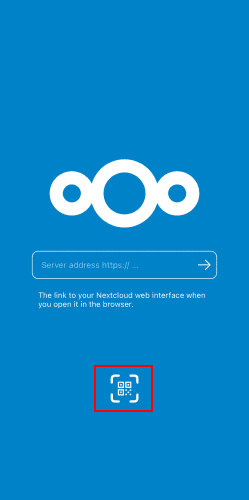
- You will see a field asking for the server address.
- Alternatively, below that field, there’s an option to “Scan QR code” — this is the method used in this guide.
3- Access Your Fileshare Account from Desktop
- On your computer, log in to your fileshare account via your web browser.
4- Navigate to Your Personal Settings
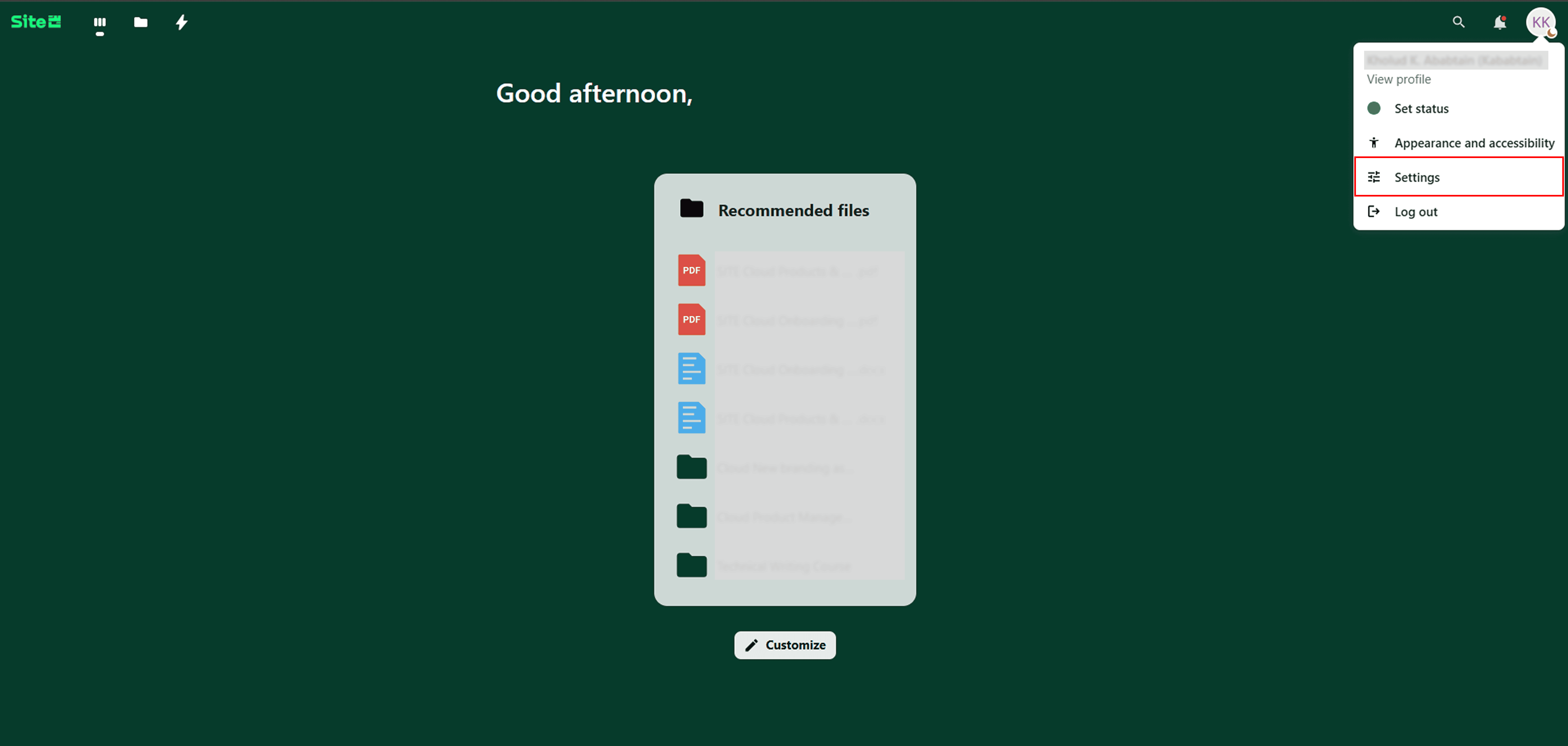
- In the top-right corner, click the circle icon (usually displaying your initials).
- Select “Settings” from the dropdown menu.
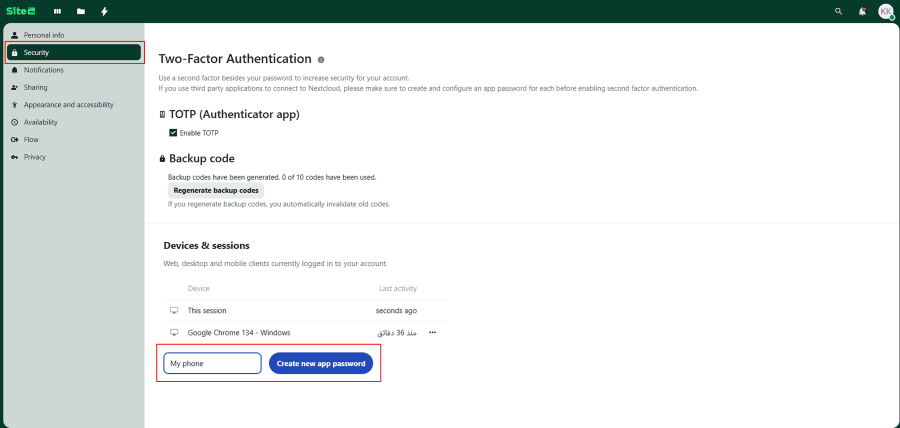
5- Go to the Security Section
- On the new page, you’ll find several tabs on the left side.
- Click on “Security”.
6- Create a New App Password
- Scroll down until you see the “App name” field.
- Enter a name for this connection (for example: “My Phone”).
- Click “Create new app password”.
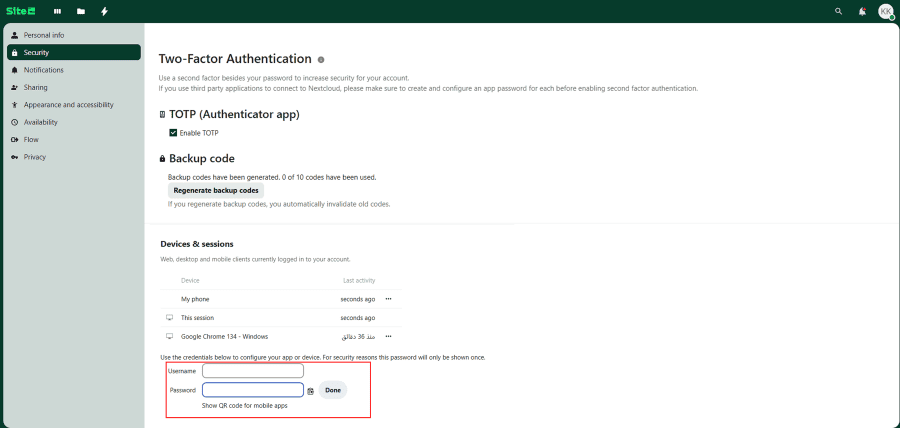
7- Generate the QR Code
- A new section will appear with several fields, but you can ignore most of them.
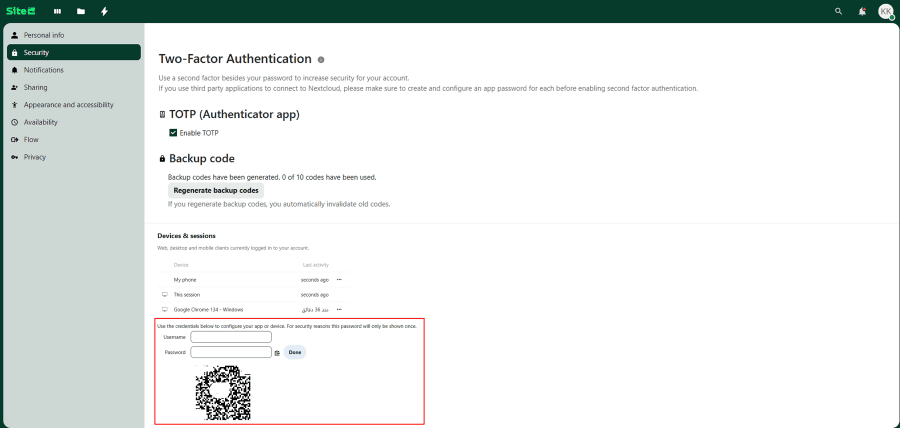
- Click on “Show QR code for mobile apps” — a QR code will be displayed on your screen.
8- Return to the Mobile App and Scan the QR Code
- Go back to your phone and select “Scan QR code” (as mentioned in Step 2).
- If prompted, allow camera access for the app.
9- Scan the QR Code
- The camera will open — point it at the QR code displayed on your desktop screen.
All Done!
Your fileshare account is now successfully linked to your mobile app. You can start accessing your files directly from your phone.
Need Assistance?
If you face any issues, please don’t hesitate to reach out through our support ticketing system: https://support.cloud.site.sa