

Search...


Light PAM
Definition
Light PAM is a lightweight and flexible tool for Managing Privileged Access, ensuring that only authorized users can access critical systems and data. It is designed to provide essential access management features with minimal overhead, enhancing security without compromising performance.
Features:
- Centralized Authentication Management: Simplifies and standardizes authentication policies.
- Fine-Grained Access Control: Precise control over user access.
- Audit and Logging Capabilities: Tracks and logs authentication events for auditing and monitoring.
- Lightweight and Efficient: Minimal impact on system performance.
Use Cases:
- Securing Remote Access: Ensures authorized remote access to critical systems.
- Compliance with Security Regulations: Provides detailed logging for regulatory compliance.
- Centralized Authentication for Diverse Systems: Consistent authentication across varied IT environments.
- Protecting High-Value Assets: Enforces strict access controls for sensitive data.
- Enhancing Security for Cloud Environments: Secures cloud infrastructure and resources.
Step-by-Step Guide
Prerequisites
- Ensure you have setup the following
- Assign Jump server
- Assign Jump server Users
- Create Firewall rules to control access permissions.
- Ensure you an access to a Windows VM with a shared IP .
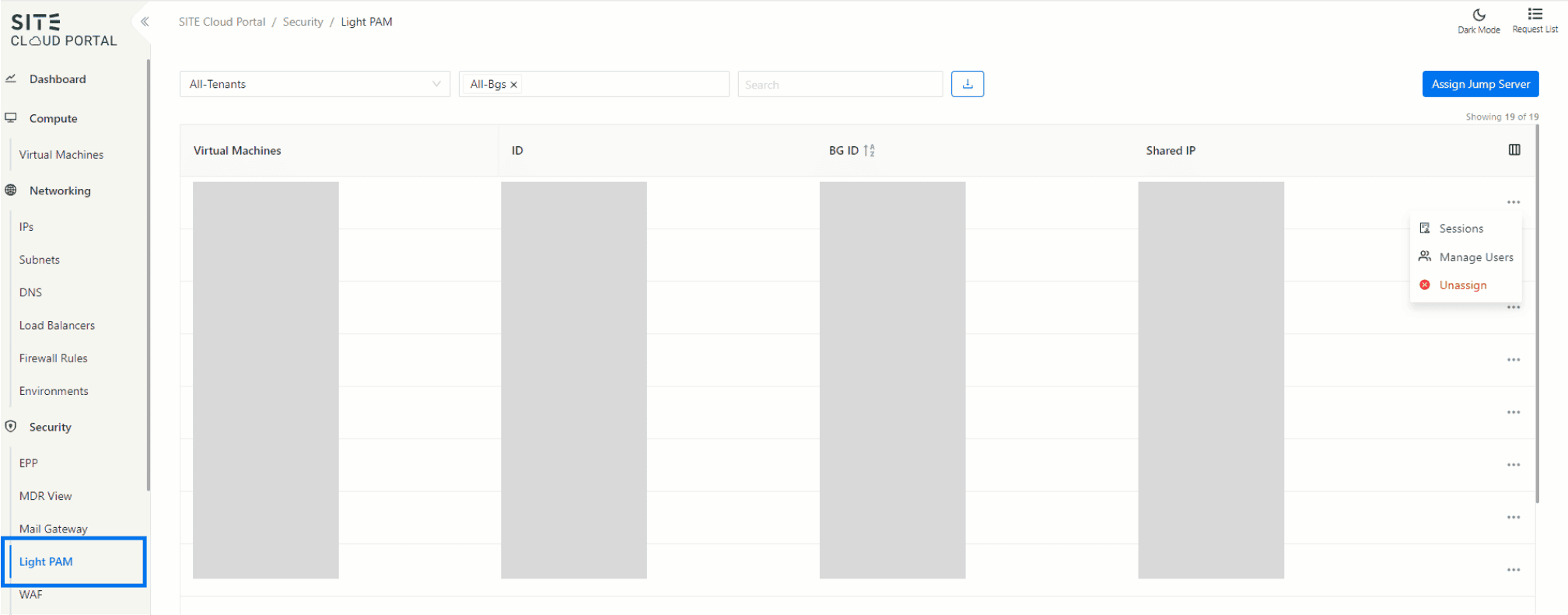
1. Navigating to Light PAM
- Access the Security Section: In the side menu, navigate to the Security section and select Light PAM.
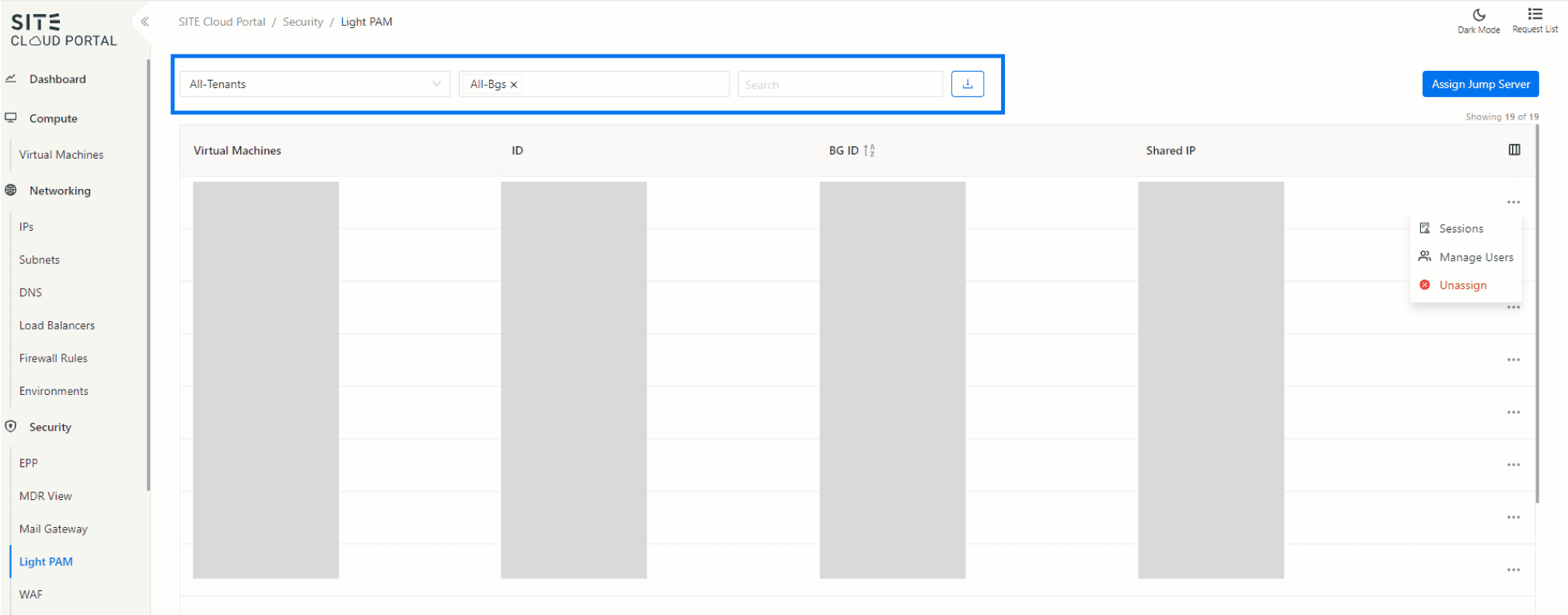
2.Filtering and Managing Data
- Filter by Tenant or BG: Use the filter options to view data by tenant or business group (BG).
- Search: Utilize the search function to find specific records.
- Export Table: Click the export button to download the table data as an Excel sheet.
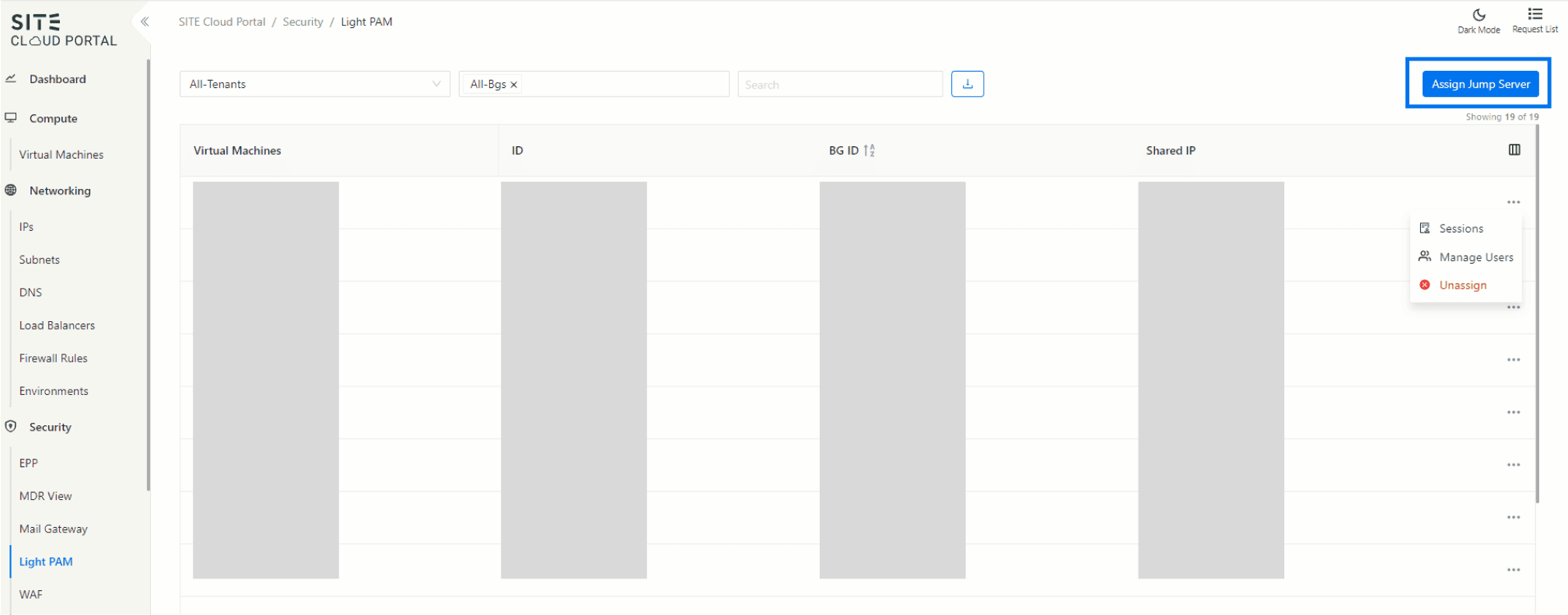
3.Assigning a Jump Server
- Click Assign Jump Server: In the top right corner, click the "Assign Jump Server" button.
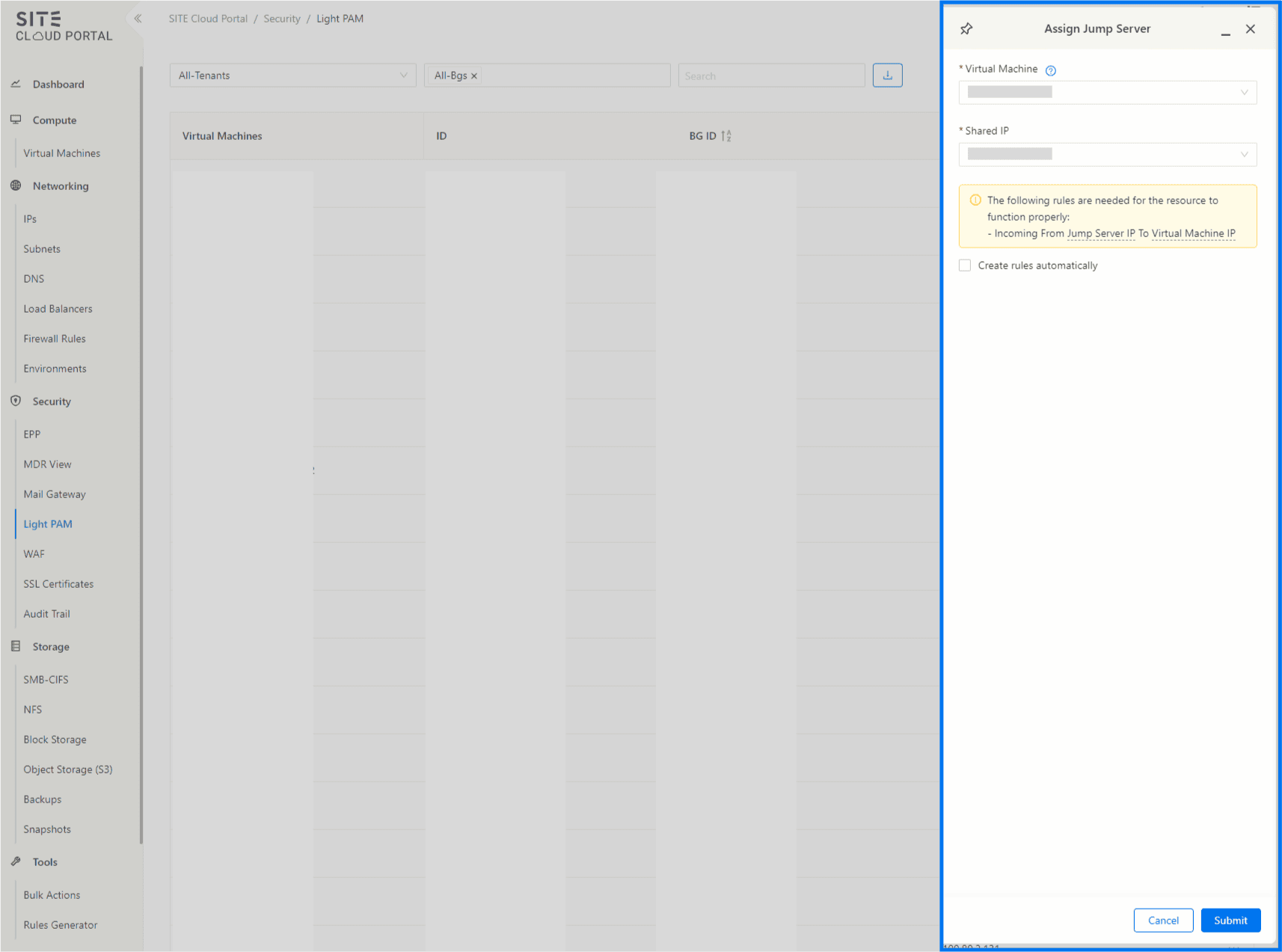
In our current setup, users can assign a jump server that is configured with only Windows VMs. Each jump server is assigned a shared IP to facilitate secure access.
- Windows VMs: Utilized as the primary environment for jump servers.
- Assigned Shared IP: Ensures a controlled and secure access point.
- Create Rules Automatically: Creates the required rules automatically for the resource to function properly. (the dash underline indicate to hoverable item )
4.Viewing Request Progress
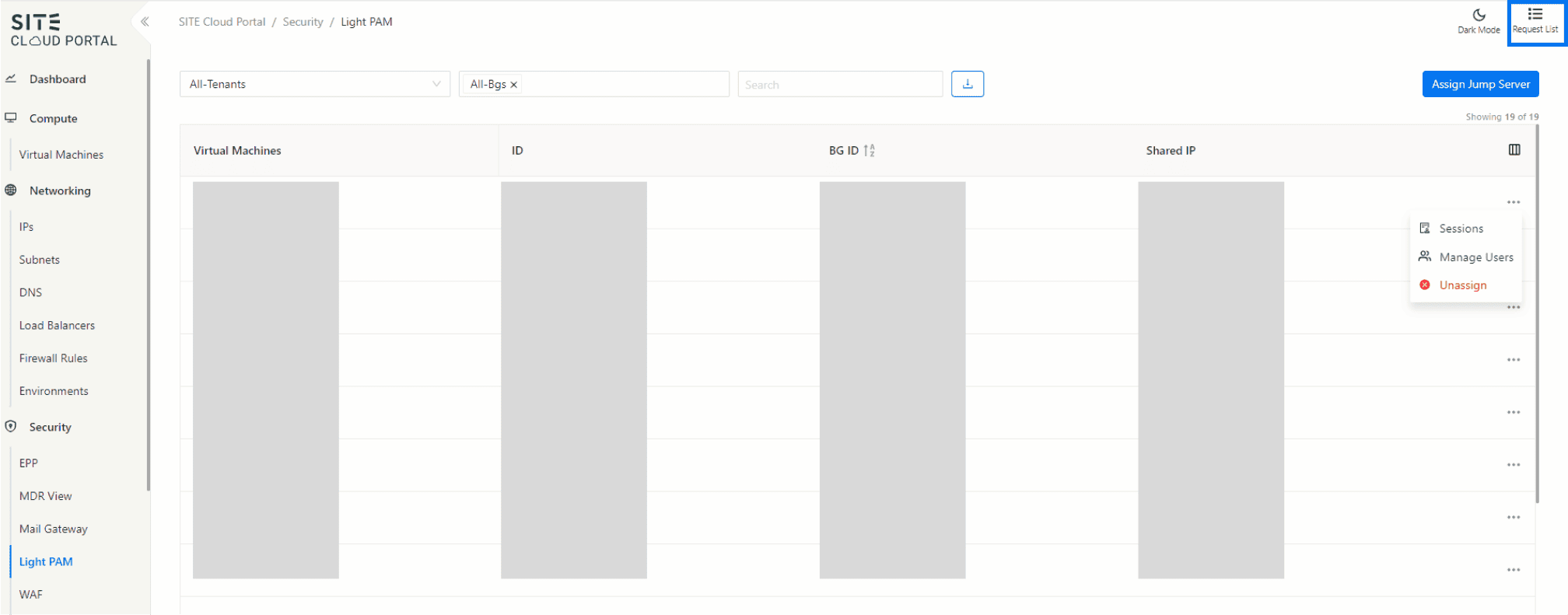
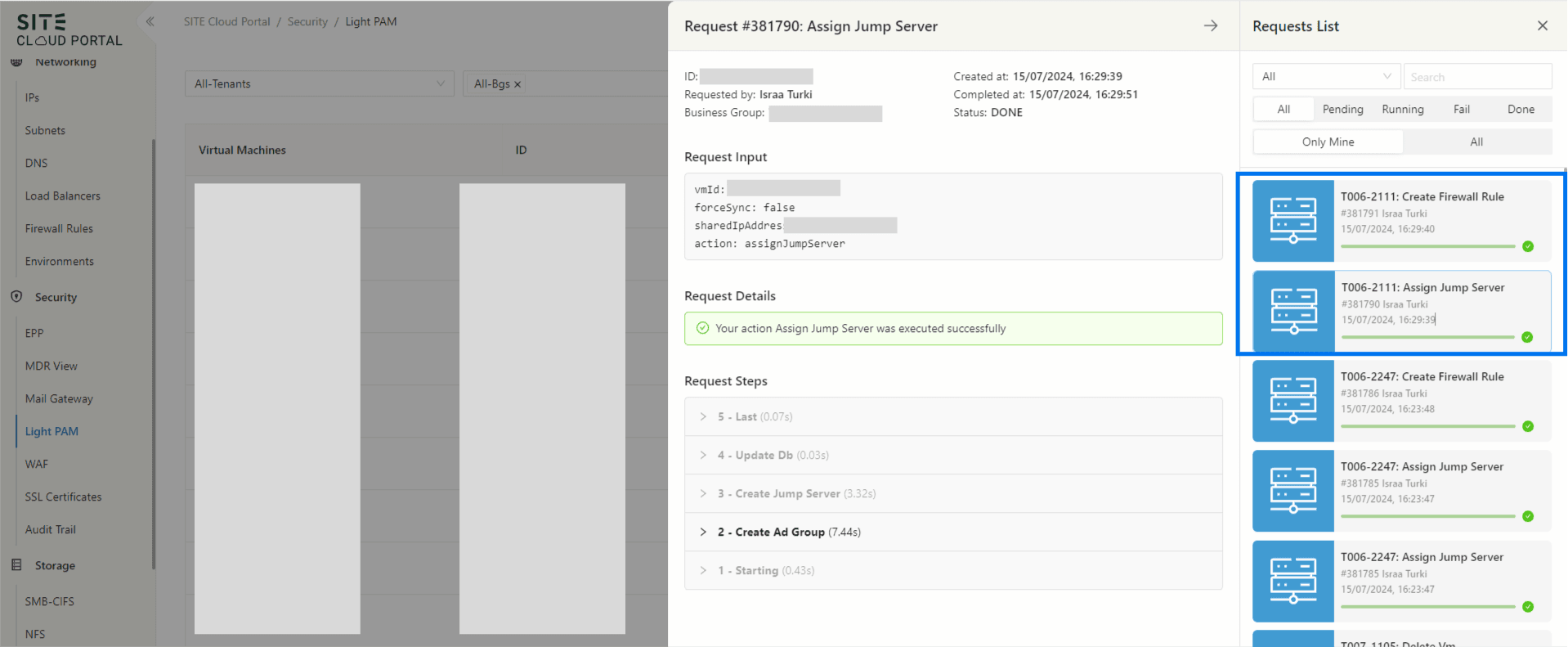
- Access Request List: Navigate to the request list at the top right of the page.
- View Requests: See the progress of the "Assign Jump Server" and "Create Firewall Rule" requests.
- Explore Details: Click on each request to explore its details.
5. Managing the Light PAM
View Data Table: The table displays all relevant data including VM, ID, BG ID, and Shared IP.
Action Button: For each row, use the action button to perform the following actions:
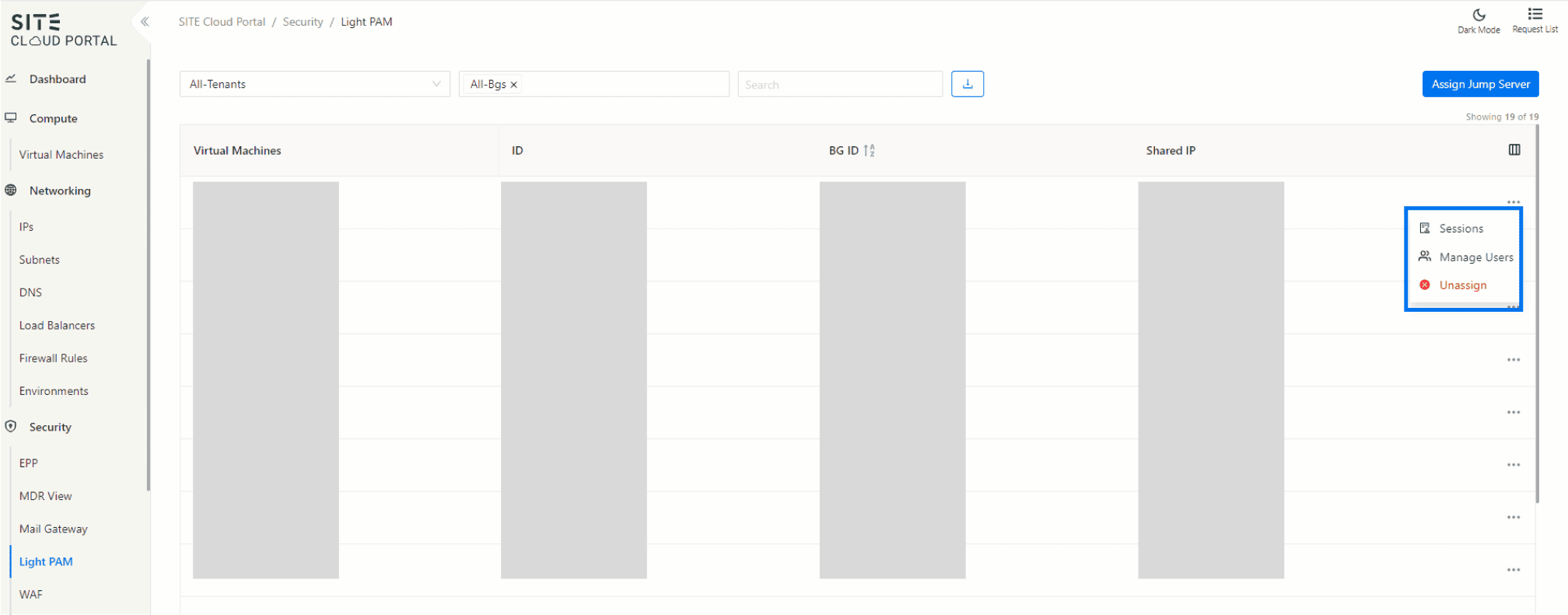
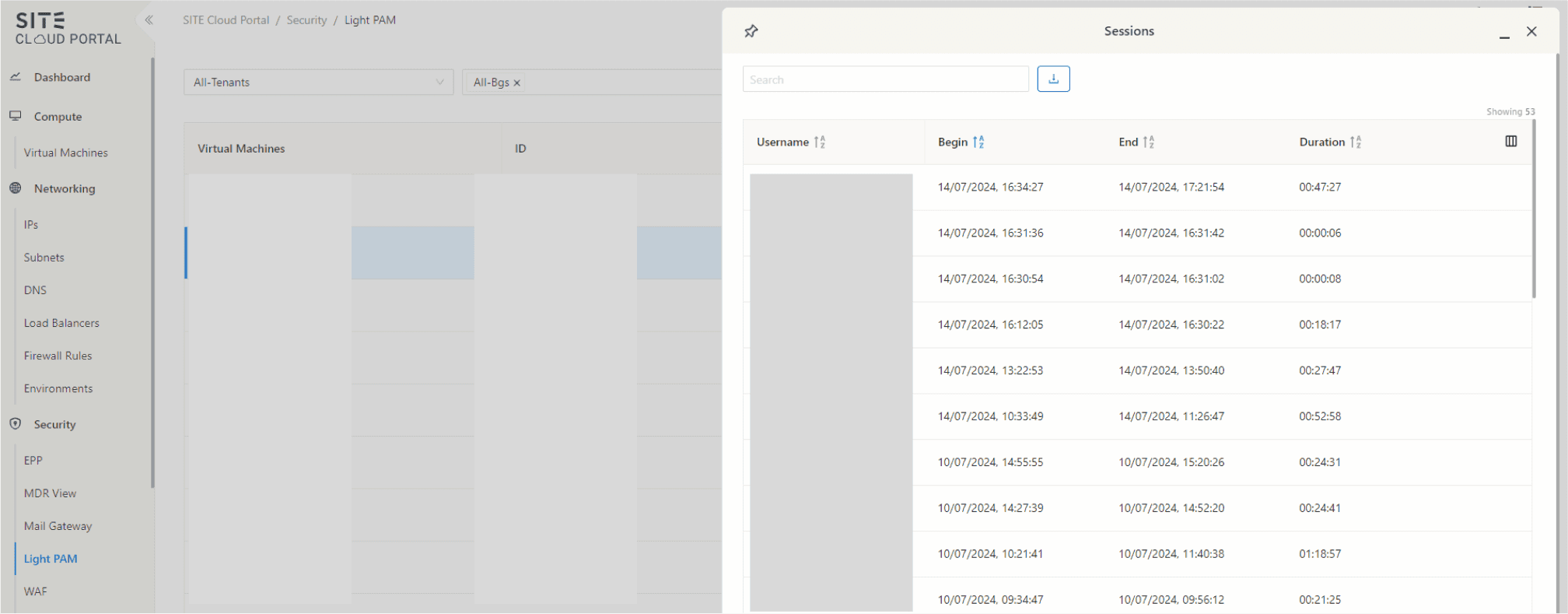
- Sessions: View active sessions associated with the selected VM. This includes details such as session duration, active user, and any ongoing activities.
- Manage User: Manage users associated with the VM. This includes adding or removing users.
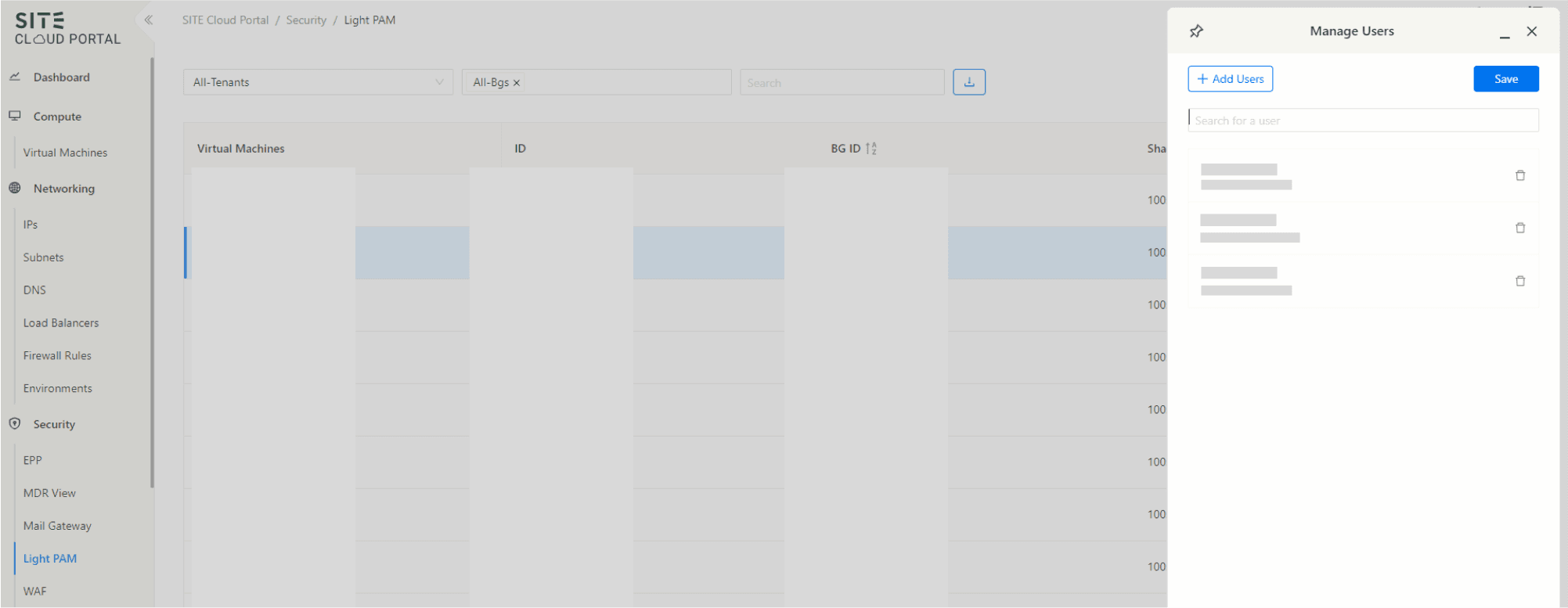
- Unassign: Unassign the jump server from the VM. This will remove the assigned shared IP and revoke access, This will not delete The VM or the automatically created Firewall .
Glossary
- PAM (Privileged Access Management): A framework that integrates multiple access management methods.
- VM (Virtual Machine): A software-based emulation of a physical computer.
- Jump Server: A special-purpose computer used to manage devices in a separate security zone.
- Shared IP: An IP address that is shared among multiple devices for controlled access.
Guided Steps for Using SITE PAM Access
If you need guided steps for using SITE PAM Access, please see this link.
Updated at 2024-08-04