


Mail Gateway Policy Builder
Definition
SITE Cloud Mail Gateway Policy Builder enables administrators to manage rules that control the flow of email traffic within an organization. This ensures security, compliance, and efficient email management.
Features:
- Configure Spam Prevention Policies: Offers an advanced spam filtering techniques
- Configure Virus Prevention Policies: Automated virus detection, attachment scanning and filtering
- Configure Quarantine Actions: Present a preferred method for managing end-user interaction with User-Quarantine
- User-friendly interface: for policy rule management
- Compliance and Security: Policy enforcement for regulatory compliance
Use Cases:
- Preventing Spam and Phishing Attacks: Utilize multi-vector mechanisms including SPF (Sender Policy Framework), DMARC, DKIM, Threat intelligence, sender validation and many more to mitigate unsolicited or harmful emails, reducing the risk of phishing attacks on employees.
- Protecting Against Malware and Viruses: Real-time scanning for emails to detect and quarantine suspicious content, ensuring that malware does not reach user inboxes.
- Handling Spammed IP Addresses : Checking the history of the IP address for spam, malicious activity, and compliance with IP reputation check.
- URL Detection and Analysis: Scan for malicious links within email content, blocking or quarantining emails with suspicious URLs to protect users from phishing and other threats.
- Email Quarantine Management: Isolate emails flagged for spam, viruses, or other threats, allowing users or administrators(based on the policy action selected) to review and decide on further actions.
Step-by-Step Guide
Prerequisites:
- Domain Selection:
- Existing Domain: Choose an already created domain.
- New Domain: Register and configure a new domain through the portal.
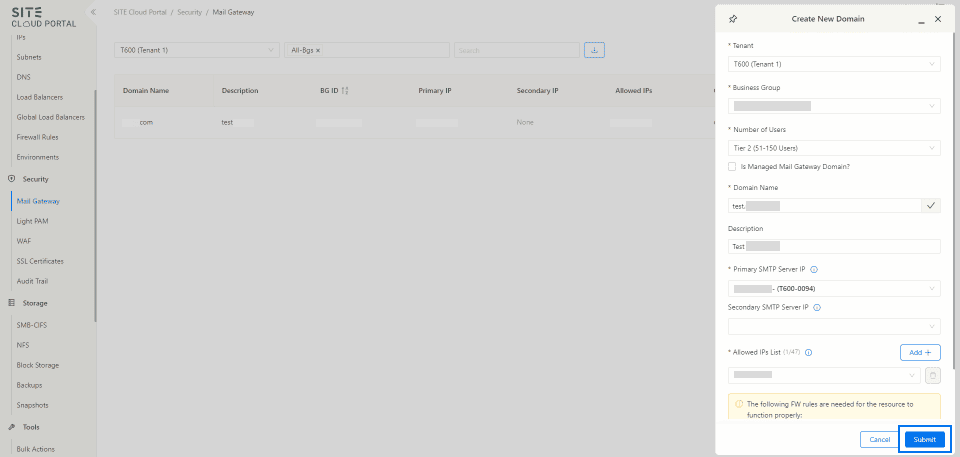
these are the required fields to create a new domain:
1- Tenant
2- Business Group
3- Number of Users
4- Domain Name (should be mapped to site MX records)
5- Primary SMTP Server IP
6- Allowed IPs List
7- FW Rules (either click the checkbox for automatic creation by the Portal or manually open the FW Rules to ensure traffic between the Mail Exchange Server and SITE Mail Gateway)
1- Navigation to Mail Gateway Policy Builder
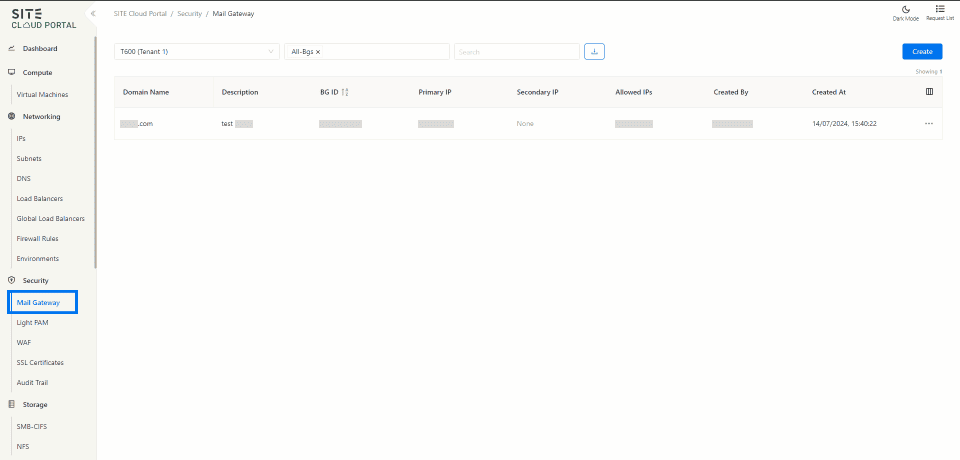
- Access Through Security Section: On the side menu, through security section select “Mail Gateway”.
2- Domain Management
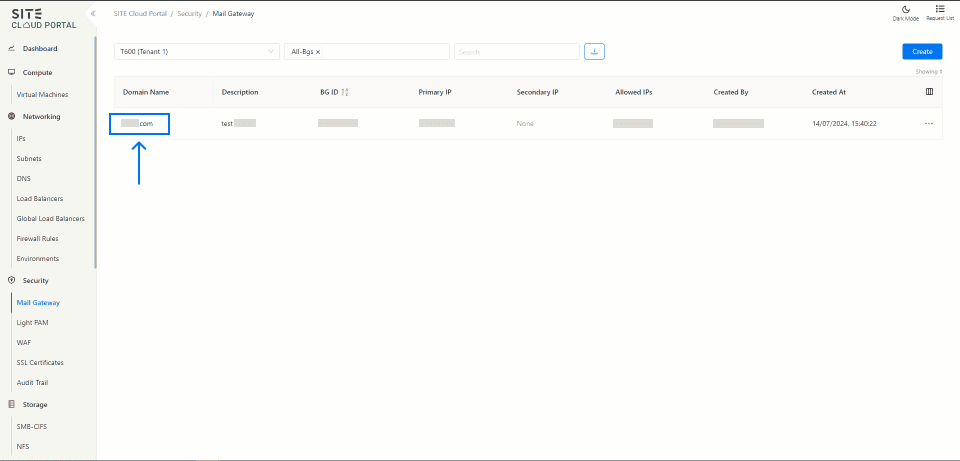
- Existing Domain: If there is already registered domain, the settings can be accessed by clicking on the domain name, which will be directed to the domain management interface.
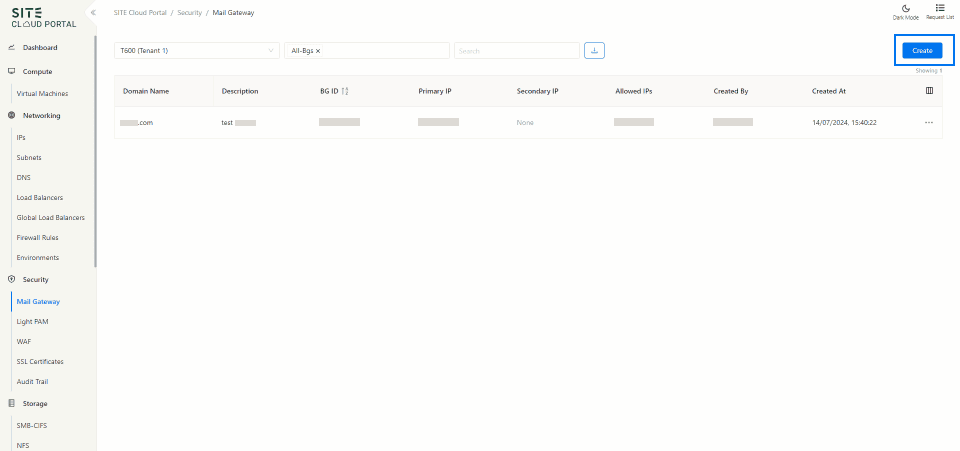
- Create a New Domain: Click on “Create”, fill in the required information, and then press “Submit”.
3- Access Policy Builder
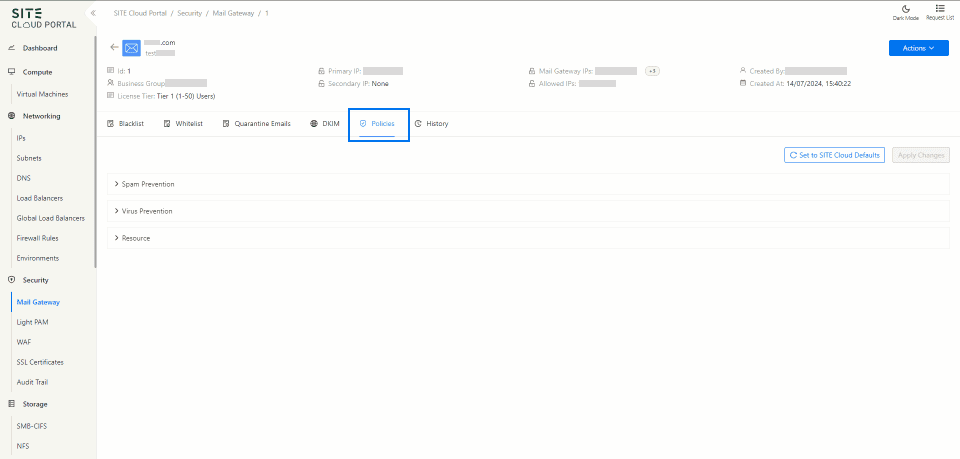
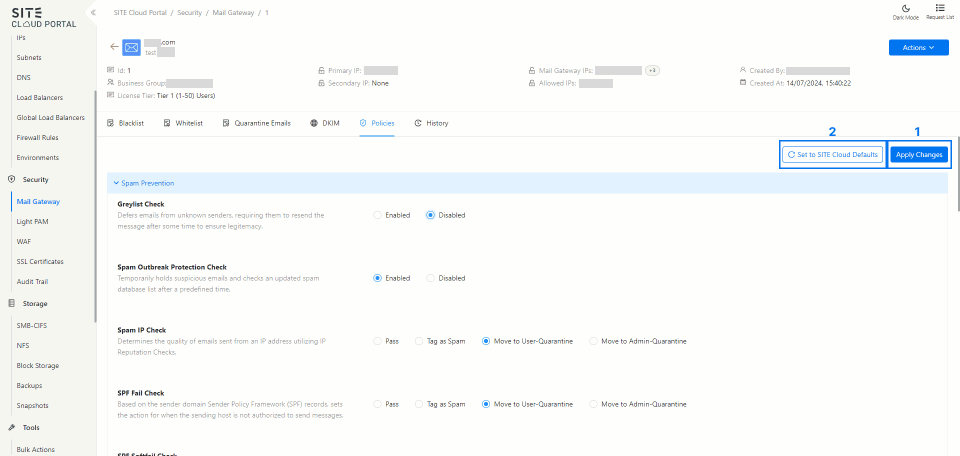
- Policies Tab: To access the policy management interface, click the policies icon.
4- Customize Policy
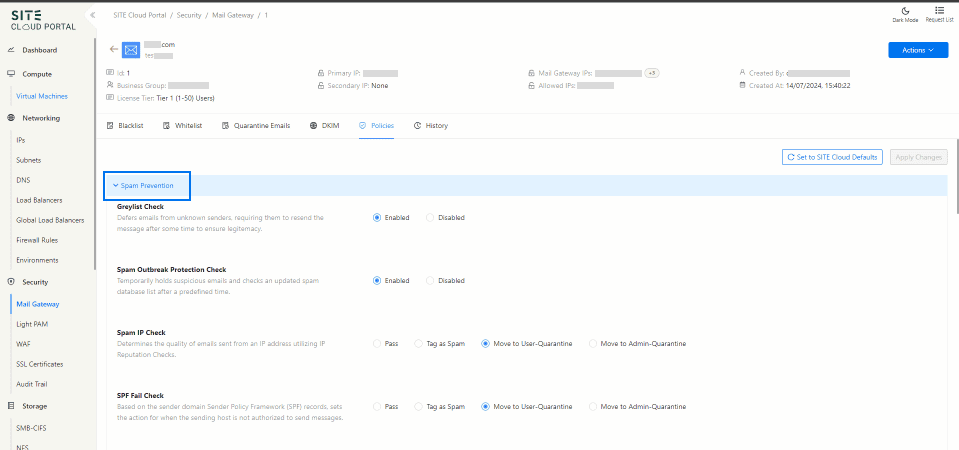
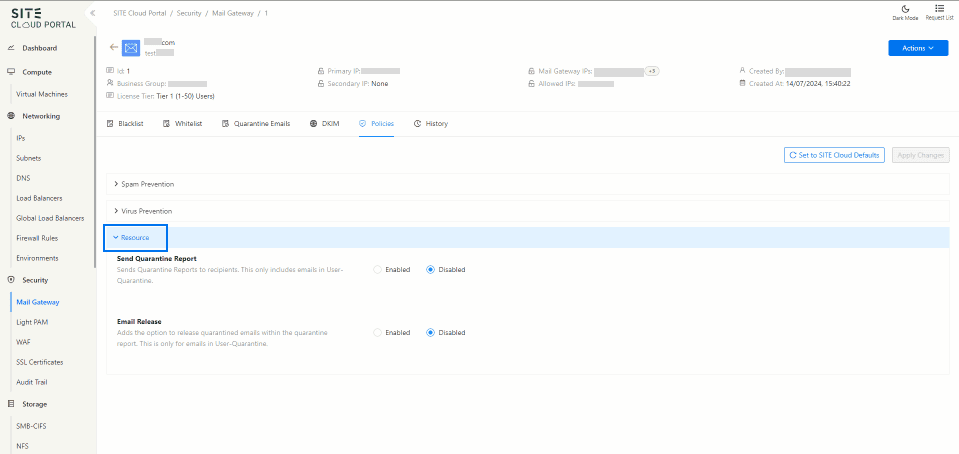
Users have three categories for managing domain policies:
1. Spam Prevention: Employs and provides the ability to configure 14 types of spam controls
2. Virus Prevention: Employs and provides the ability to configure 16 types of virus controls

3. Resources: Employs and provides the ability to configure User-Quarantine email actions
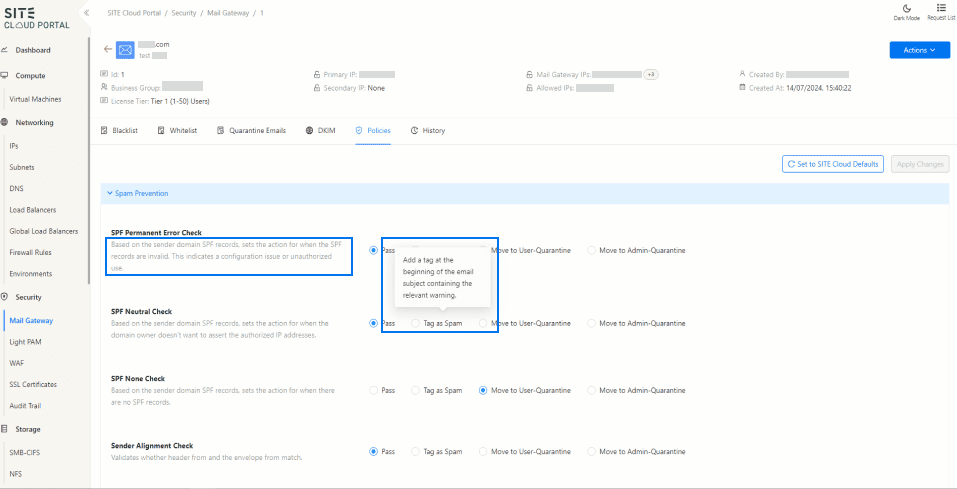
4. Tip: Each policy in the Policy Builder includes a self-descriptive paragraph beneath it. Additionally, each action (e.g., Tag as Spam, Pass, etc.) has a description that appears when you hover over it.
5- Finish Setting Up The Policies
1. The final step is to click "Apply Changes" after configuring your preferred policies.
2. The "Set to SITE Cloud Defaults" button is used to revert all policies and settings to the default configurations provided by the SITE cloud. This can be useful if you want to reset your changes or ensure that your settings align with the standard default options.
Glossary
- Mail Gateway: A server that safeguards an organization's or user's internal email servers. It acts as a gateway, processing every incoming and outgoing email.
- MX Record: Based on its value, it will directs emails to the specified mail server/gateway, such as SITE Mail Gateway in this case.
- SPF Record: Specifies the mail servers and domains authorized to send email on behalf of a specific domain.