


VM Replication
Definition
VM Replication creates exact copies on another host, synchronized with the source VM [2]. Replication duplicates the entire VM initially, then only copies changed data blocks in subsequent sessions, following a user-defined schedule.
This technology is a crucial component of disaster recovery (DR) [4], ensuring minimal downtime and data loss by maintaining up-to-date copies of VMs
Difference between Replication and Back up
Disk backup and VM replication are two overlapping yet different techniques
A backup copies physical or virtual files and databases to a secondary location for recovery when needed, either on-premises or in the cloud.
A replica maintains up-to-date copies of entire VMs in a second location for instant failover if the primary source fails, ensuring mission-critical applications have minimal downtime. Data is stored across two on-premises instances or separate locations using cloud-based services.
Features
- Continuous Data Protection (CDP): Ensures that changes to the source VM [2] are continuously replicated to the targeted environment.
- Automation Preference: Ability to customize the replication schedule according to a specific need, every 4 hours, 8 hours, daily, weekly or monthly.
- Manual Failover: Allows for manual initiation of failover process, providing control over when to activate the DR environment.
- Seamless Replication: The process operates independently of the VM's operating system & applications, requiring no changes to their configuration or ongoing management.
- Centralized Management: Provides a unified interface through the portal for managing both the replicated VM and the source VM [2], simplifying administration and monitoring.
- Data Deduplication: Implementing replication strategies that filter out unnecessary data blocks & perform data deduplication.
Use Cases:
- Geographically Distributed Disaster: Replicating VM to a geographically distant site to safeguard against regional natural disasters.
- Disaster Recovery (DR): Implementing a replication strategy with scheduled replications and minimal active resources at the DR [4] site until a disaster occurs.
- Business Continuity Planning: Integrating replication into a comprehensive business continuity plan to prepare for unforeseen disruptions.
Prerequisites:
- Target environment is available
- Private IP is available in target environment
- Network is available in target environment
Step-by-Step Guide
1- Navigation to Virtual Machine
- Access Through Compute Section: On the side menu, through Compute section select “Virtual Machine”.
- Select the VM: Choose the virtual machine you want to replicate.
- Create a new VM: If you don't have an existing VM, refer to Virtual Machine Document to make a new VM.
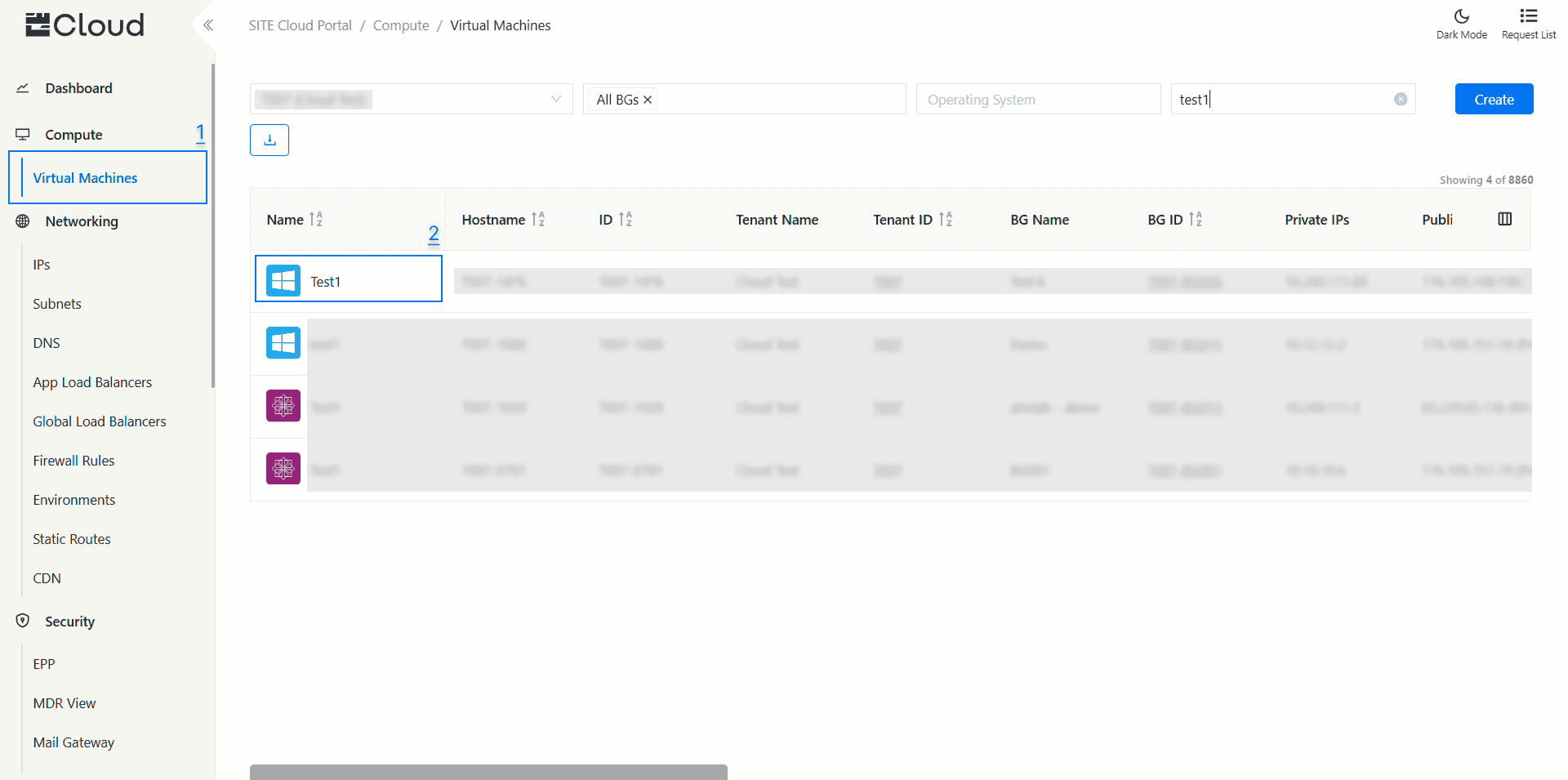
2- Requesting Replication
- In the source VM, navigate to the Replication tab and select "Manage Replication".
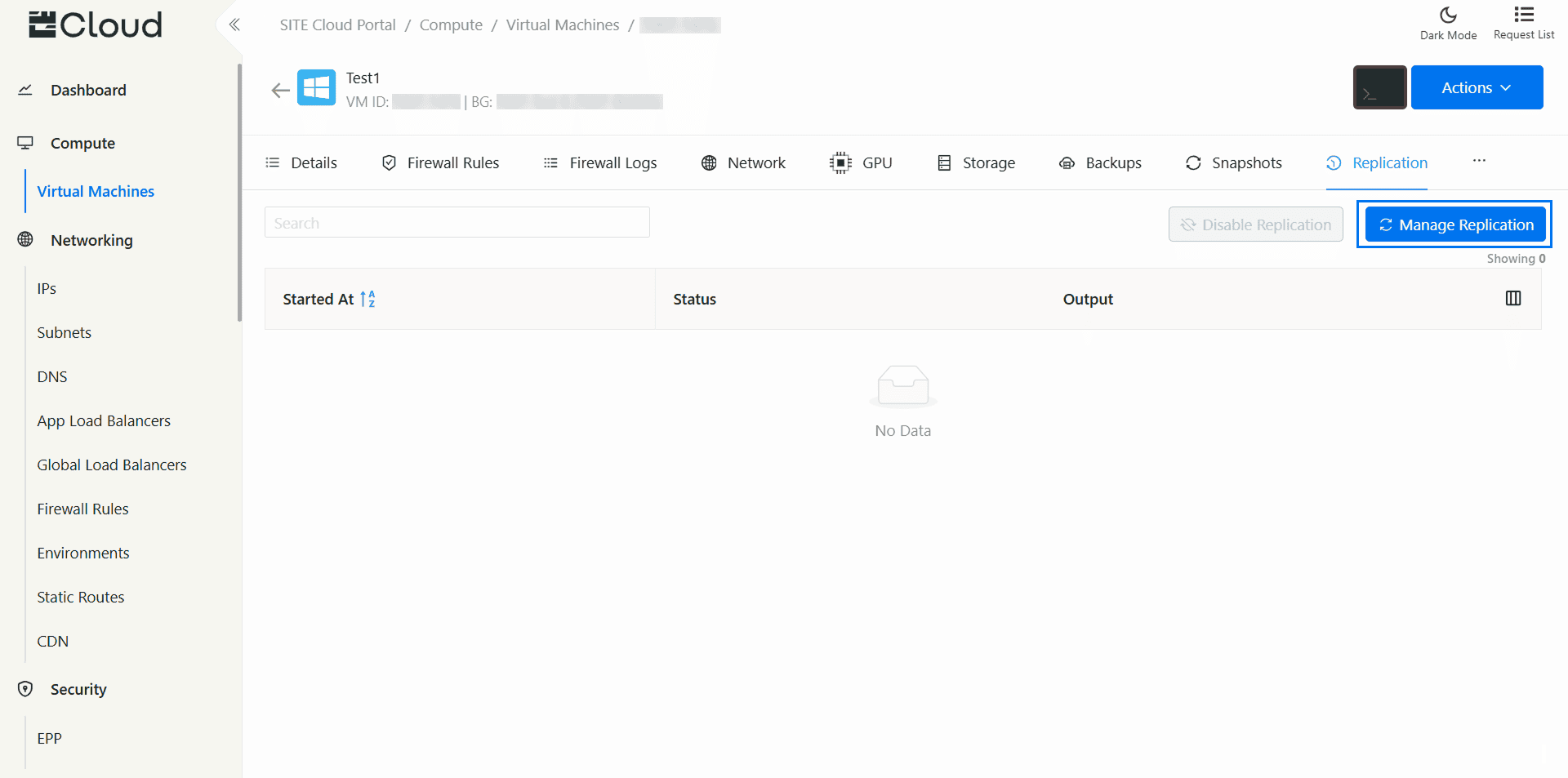
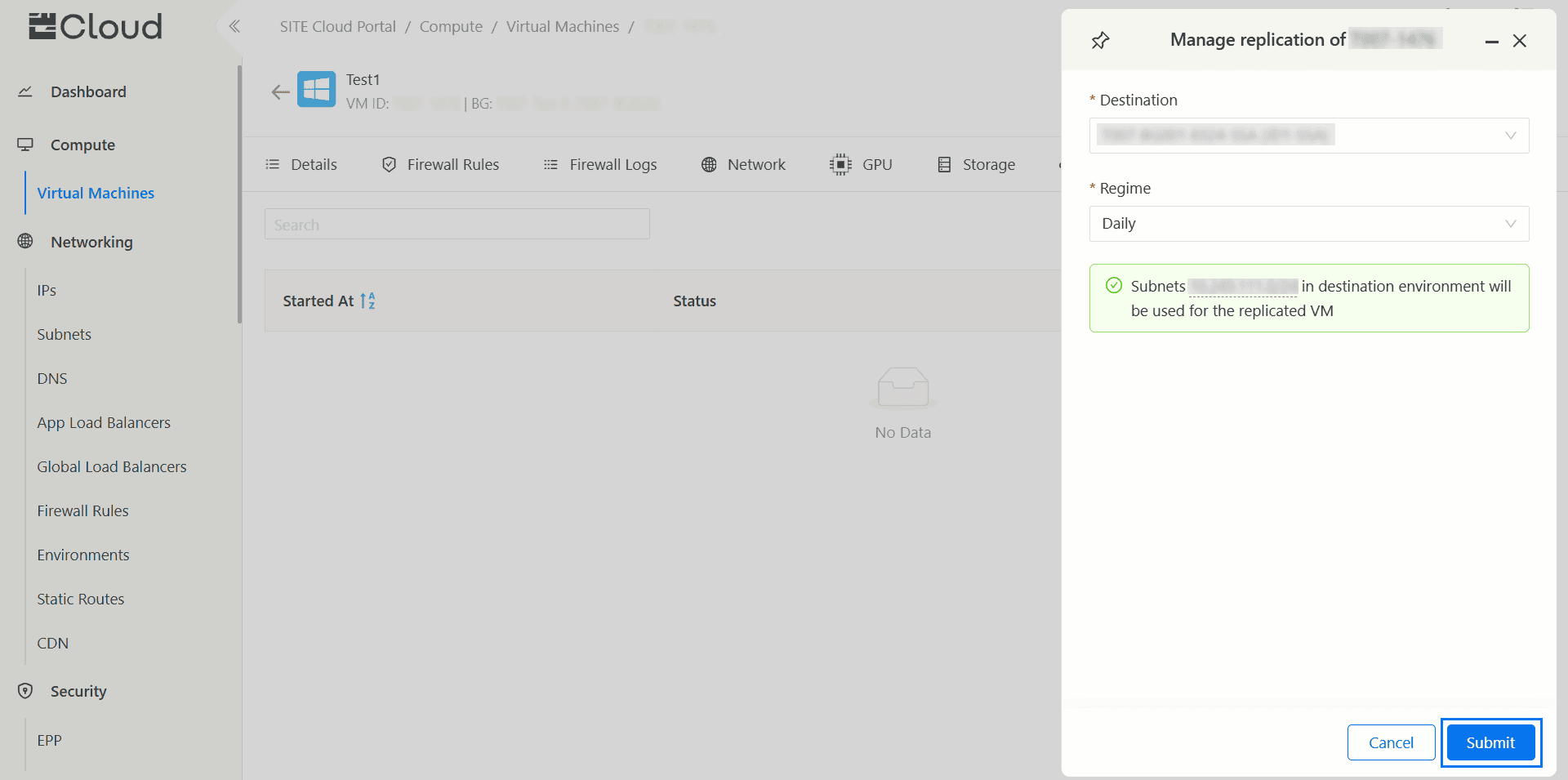
A modal window will appear, prompting you to provide the following information:
- Destination: Choose a destination environment for the replica
- Regime: Set the replication frequency, such as every 4 hours, 8 hours, daily, weekly, or monthly
- After filling the requirements press “Submit” to create the replication
* A green note will appear if the private IP is available in the destination environment, allowing you to make the replication. If the private IP is not available, a red message will appear, preventing you from creating the replication
- Replication request: Once you submit the replication request, the replica will not be accessible until the replication process is finished
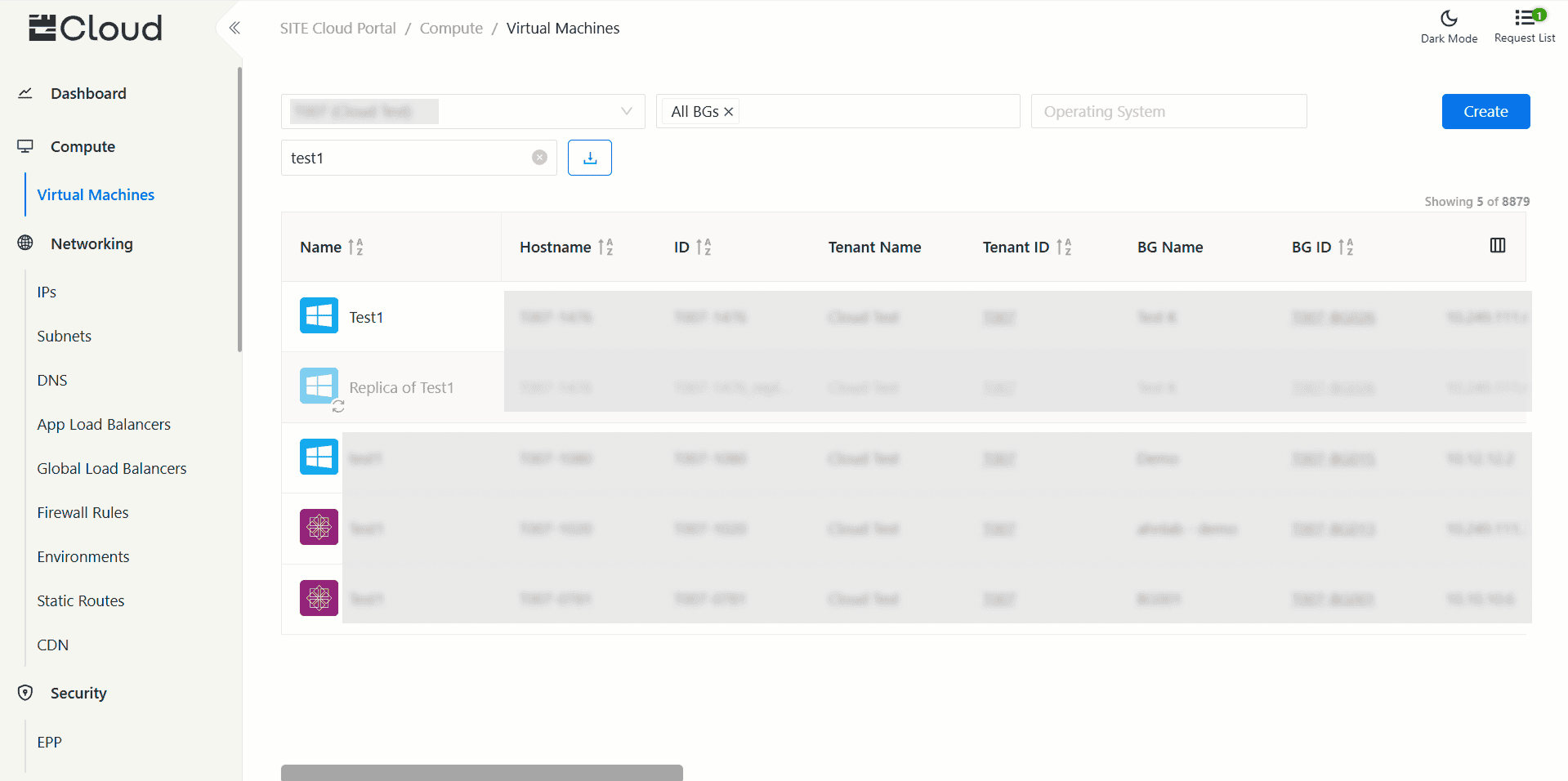
3- Managing Replication
From The Source VM
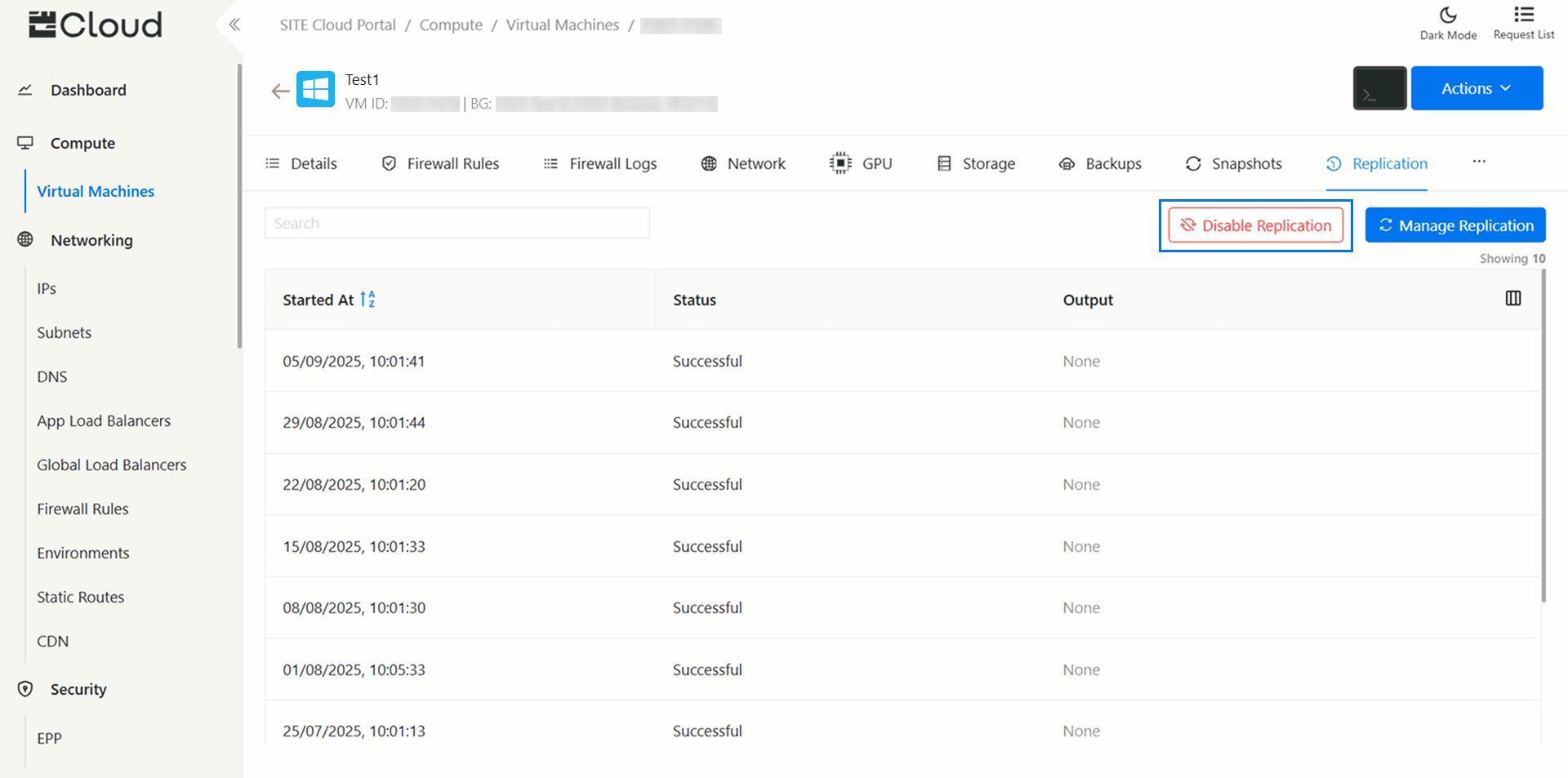
- Replication Table: The replication table displays the activities performed based on your replica regime, including the date, time, status and output
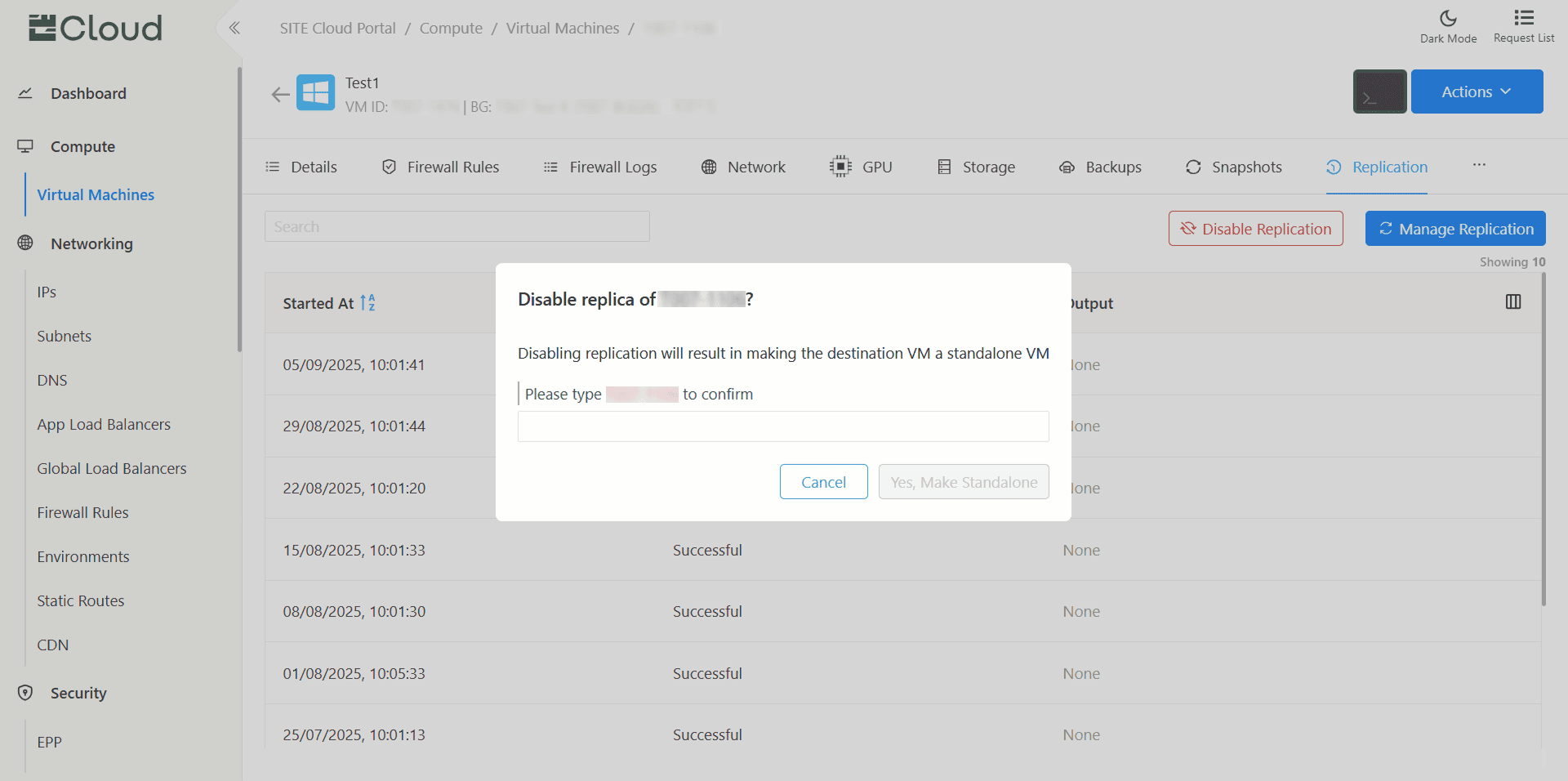
- Disable Replication: By entering the confirmation word and clicking “Yes, Make Standalone” you will disable replication and convert the destination VM into a standalone VM [1]
3- Limited Actions:
- Network interfaces cannot be added or removed.
- Each source VM [2] is limited to a single replica. This means for every VM you have, you can create only one corresponding replicated VM.
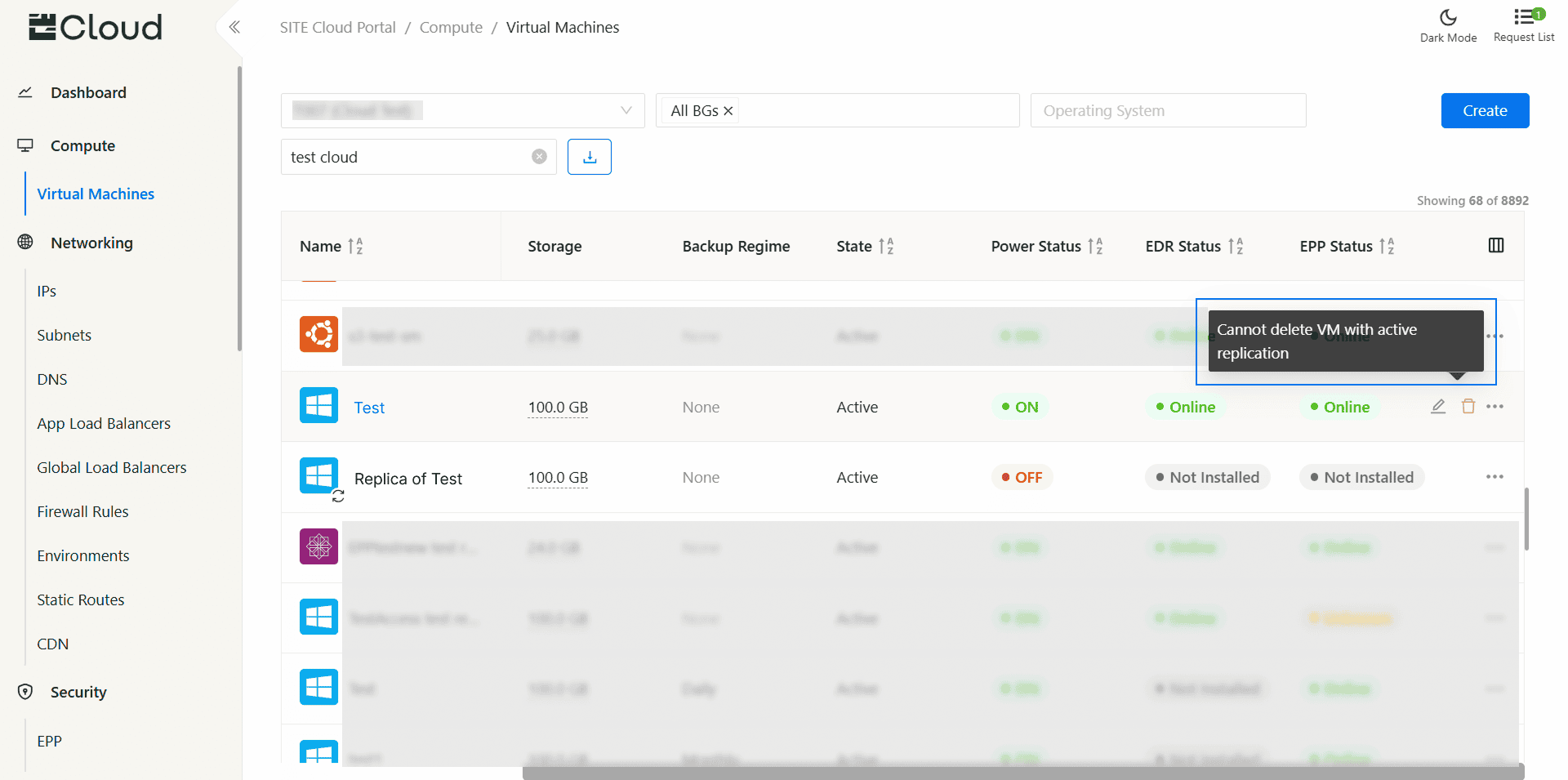
- Source VM cannot be deleted, until the replication is off
4- Managing The Replica
From The Replica VM
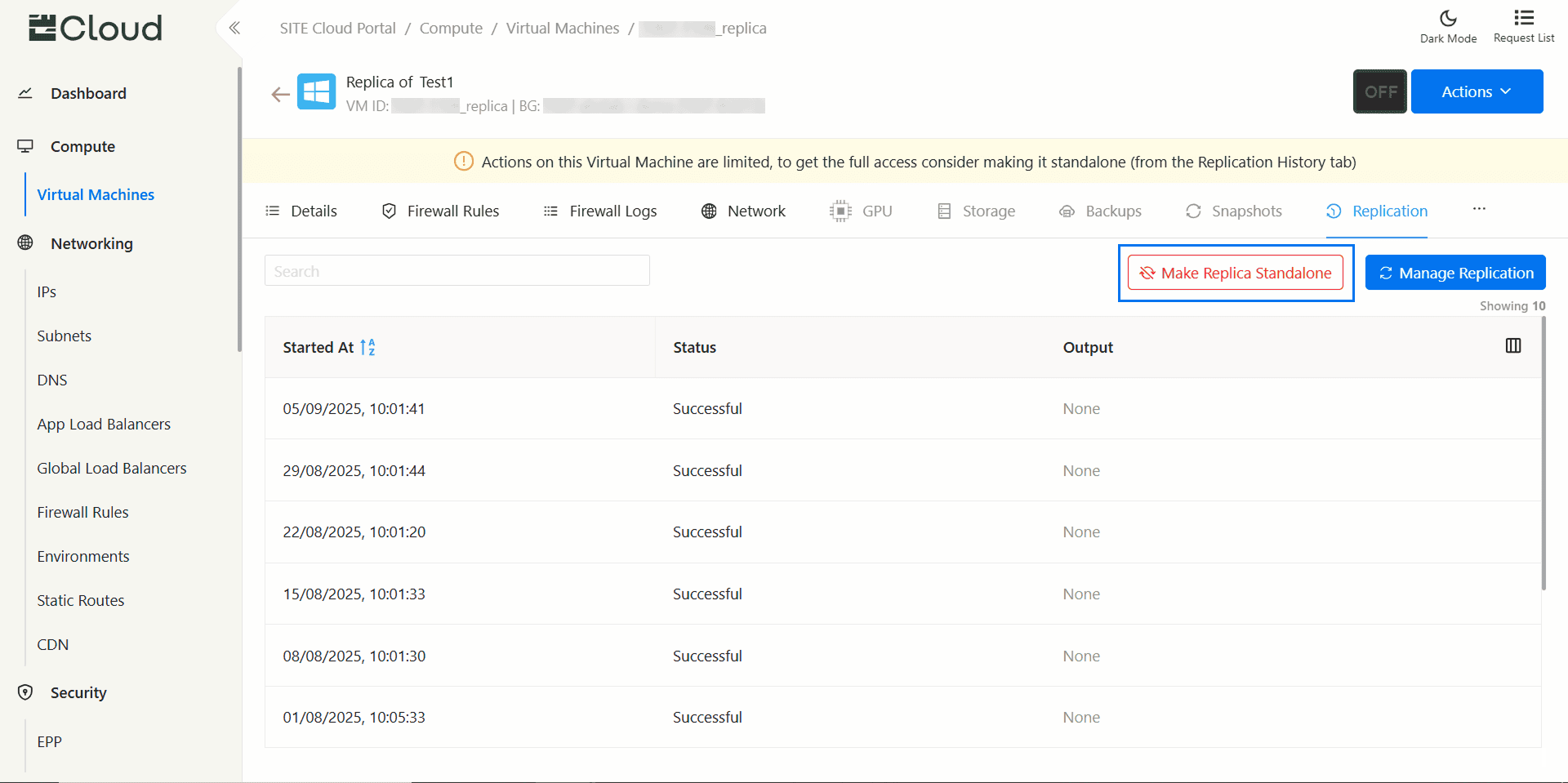
- Make Standalone [1]
Allowed Actions on Replica
1- Firewall Rules: The firewall rules are not replicated from the source VM [2] and must be managed manually. you can add, delete, and edit firewall rules as needed
- Add a Firewall Rule: Allows you to manually add a firewall rule, which will only applied to the replica
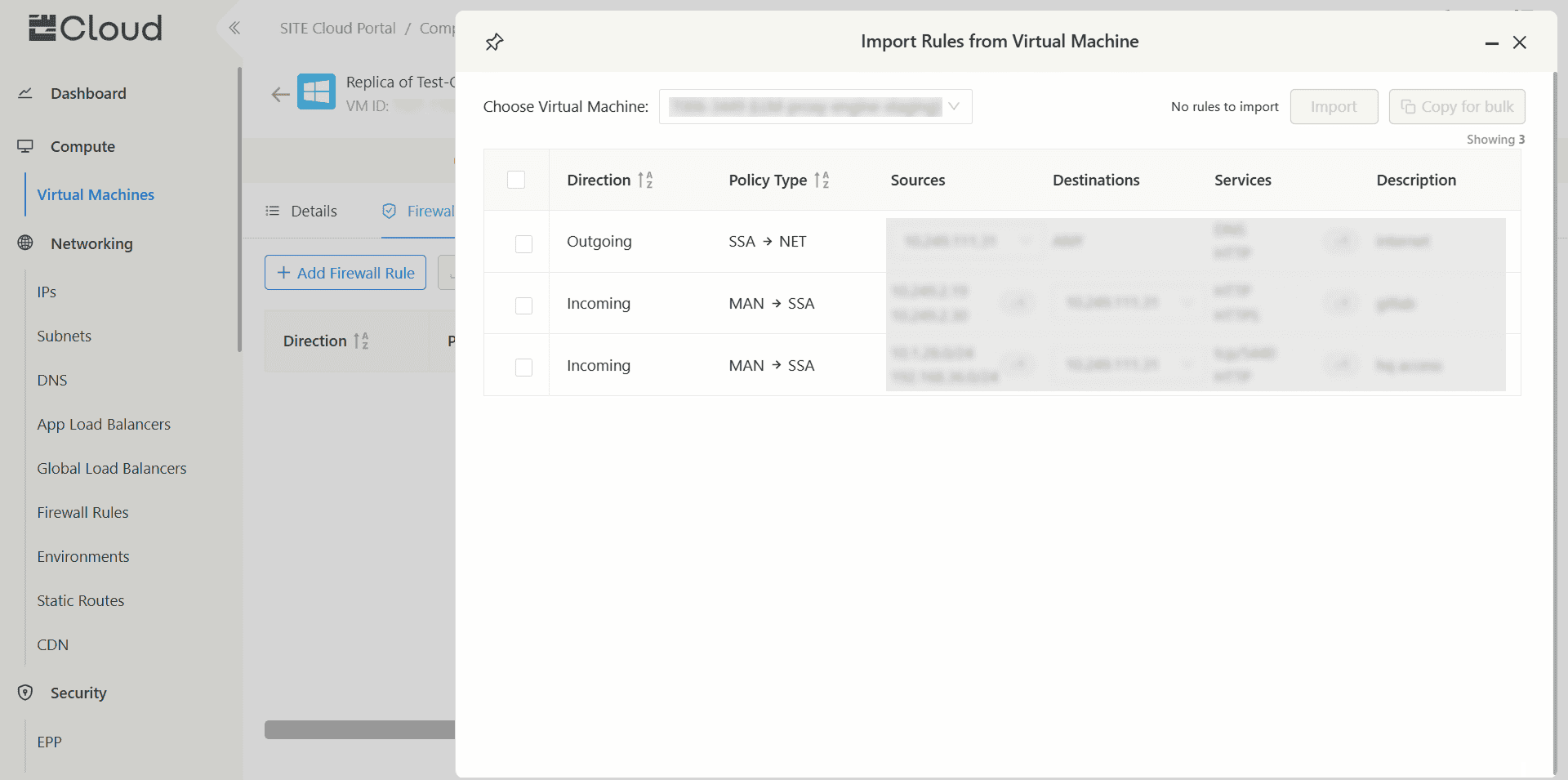
- Import from VM: Enables you to import firewall rules from other VMs, not just from the source VM you replicated. you can also choose which specific rules from those VMs to import
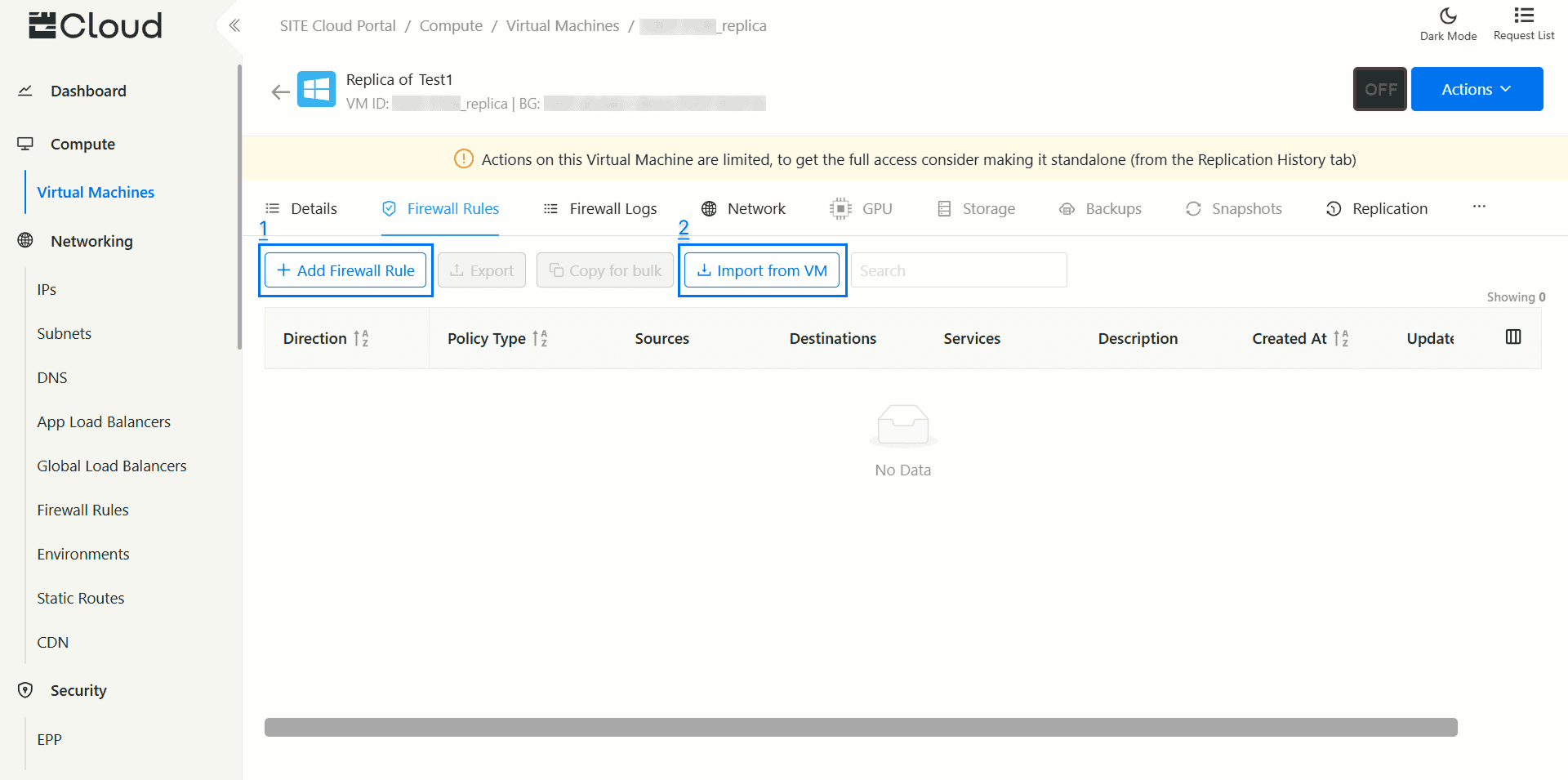
- Remove the Firewall Rules you don't want
- Press "Import" to apply the selected rules
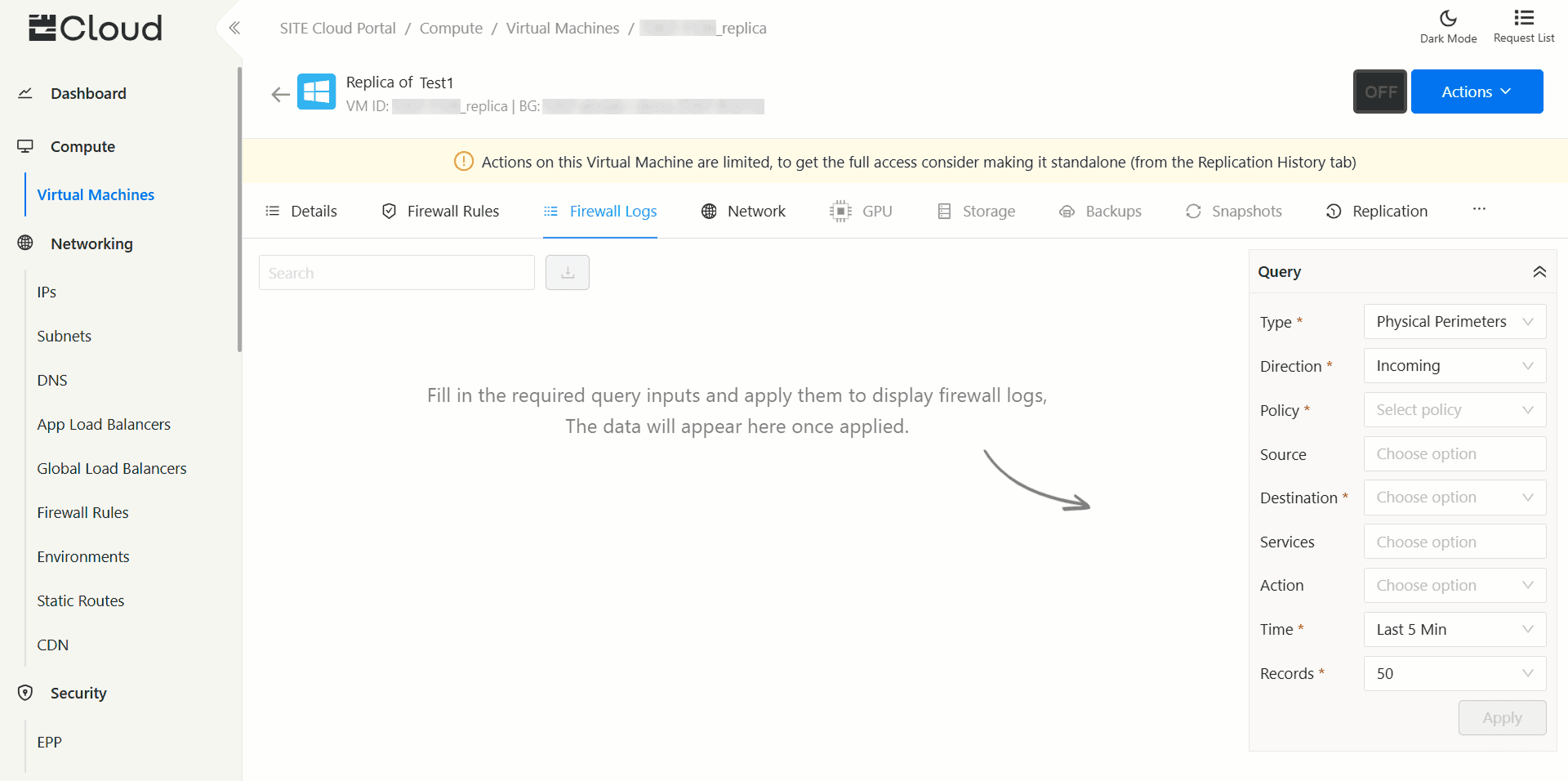
2- Firewall Logs: This tab allows you to monitor your network traffic flowing through your VDC, refer to Firewall Logs Documentation for more info.
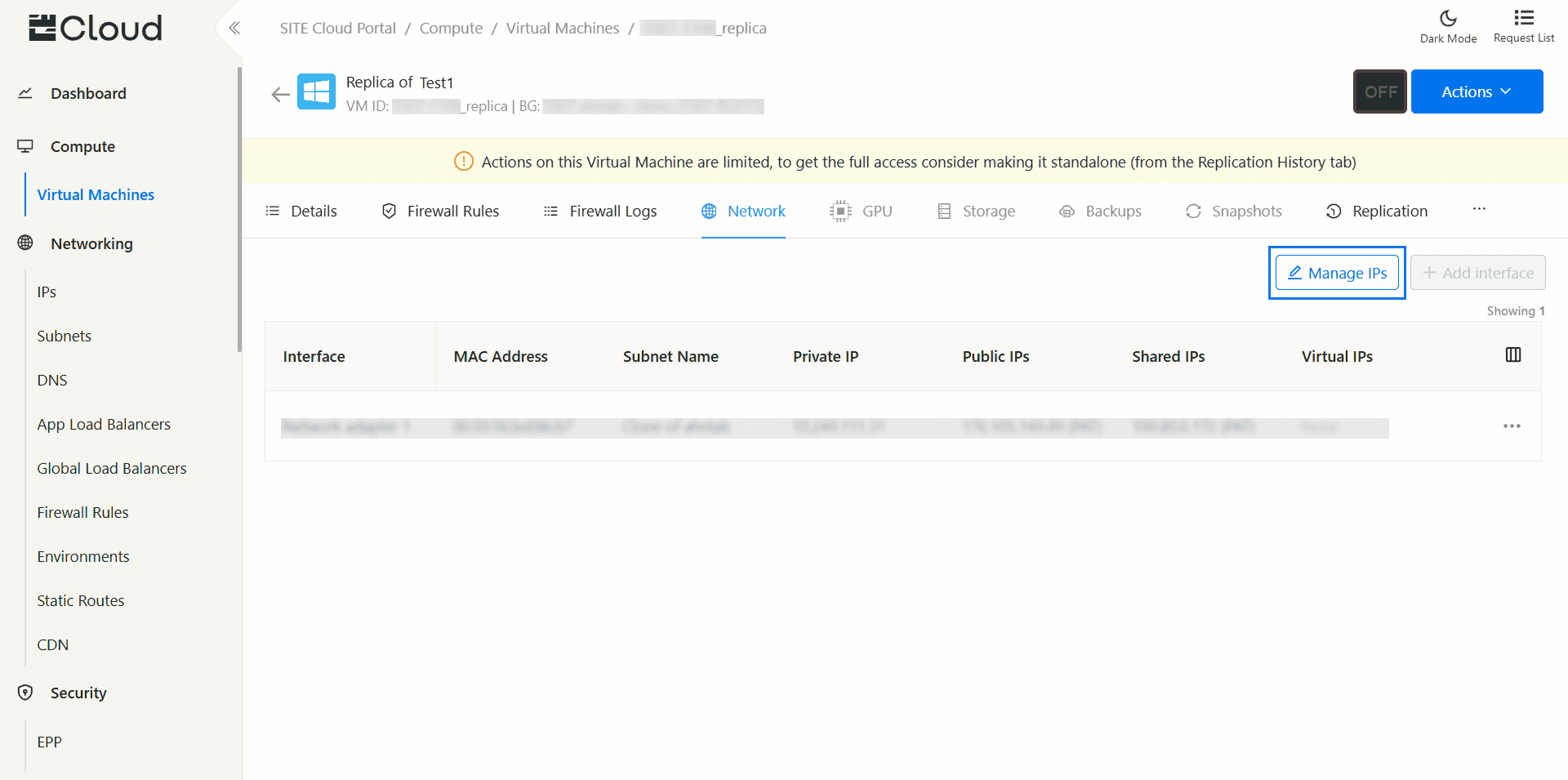
3- Networks: This panel displays the network information of the replica VM and allows you to manage IPs using “Manage IP” button, for more info refer to Allocate IPs Documentation.
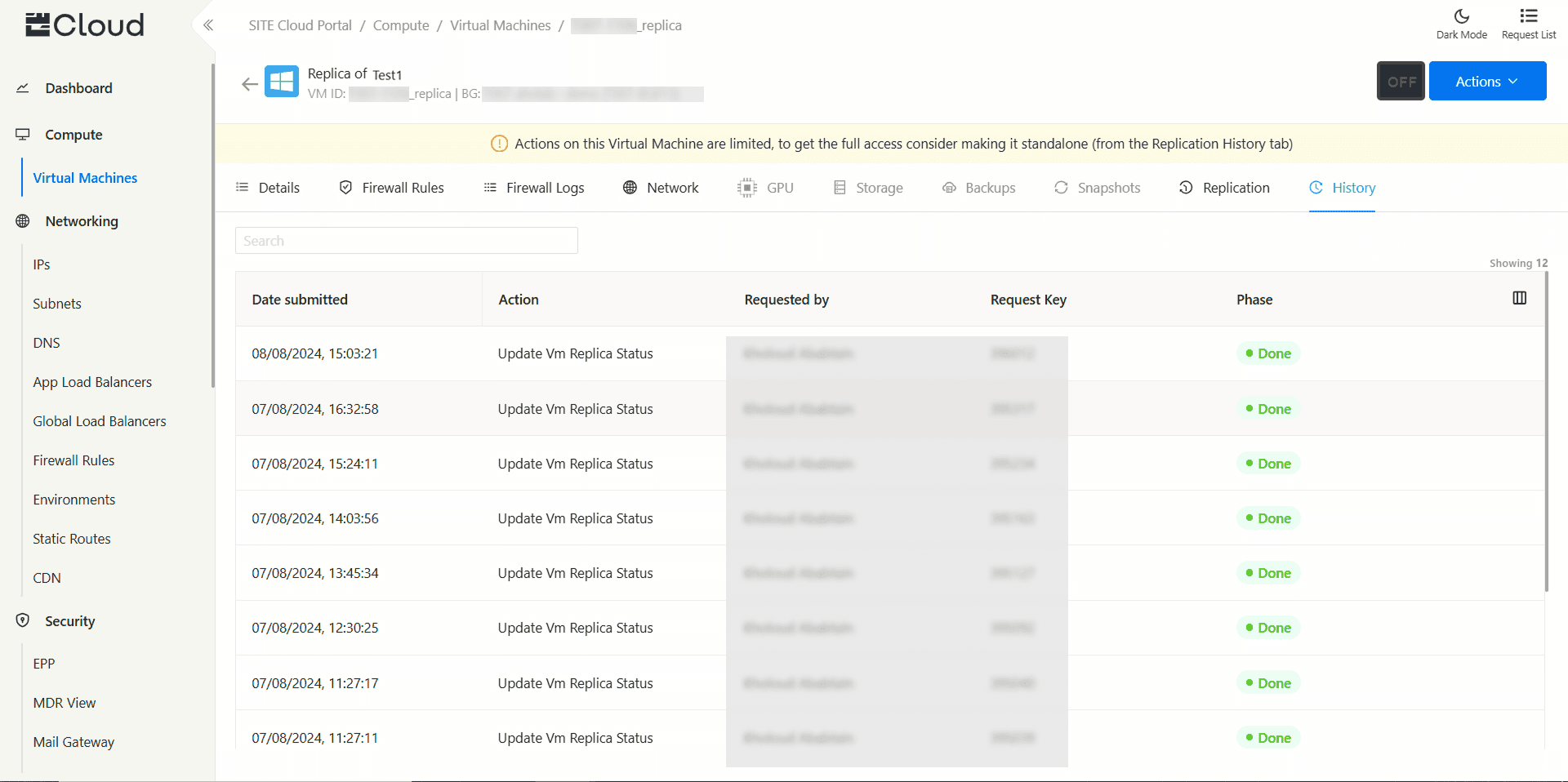
4- History: This panel shows the activities that has been done to the replica
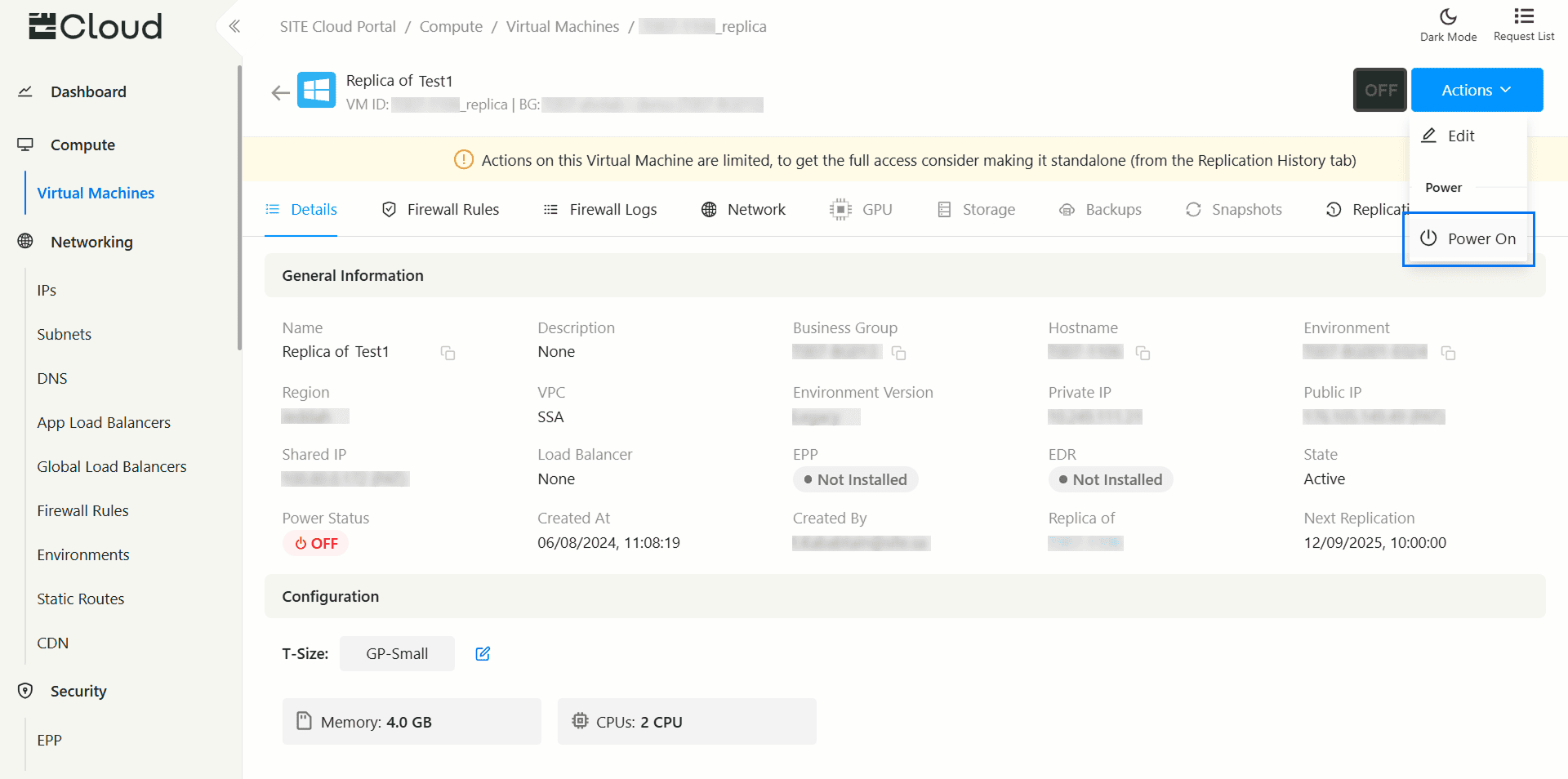
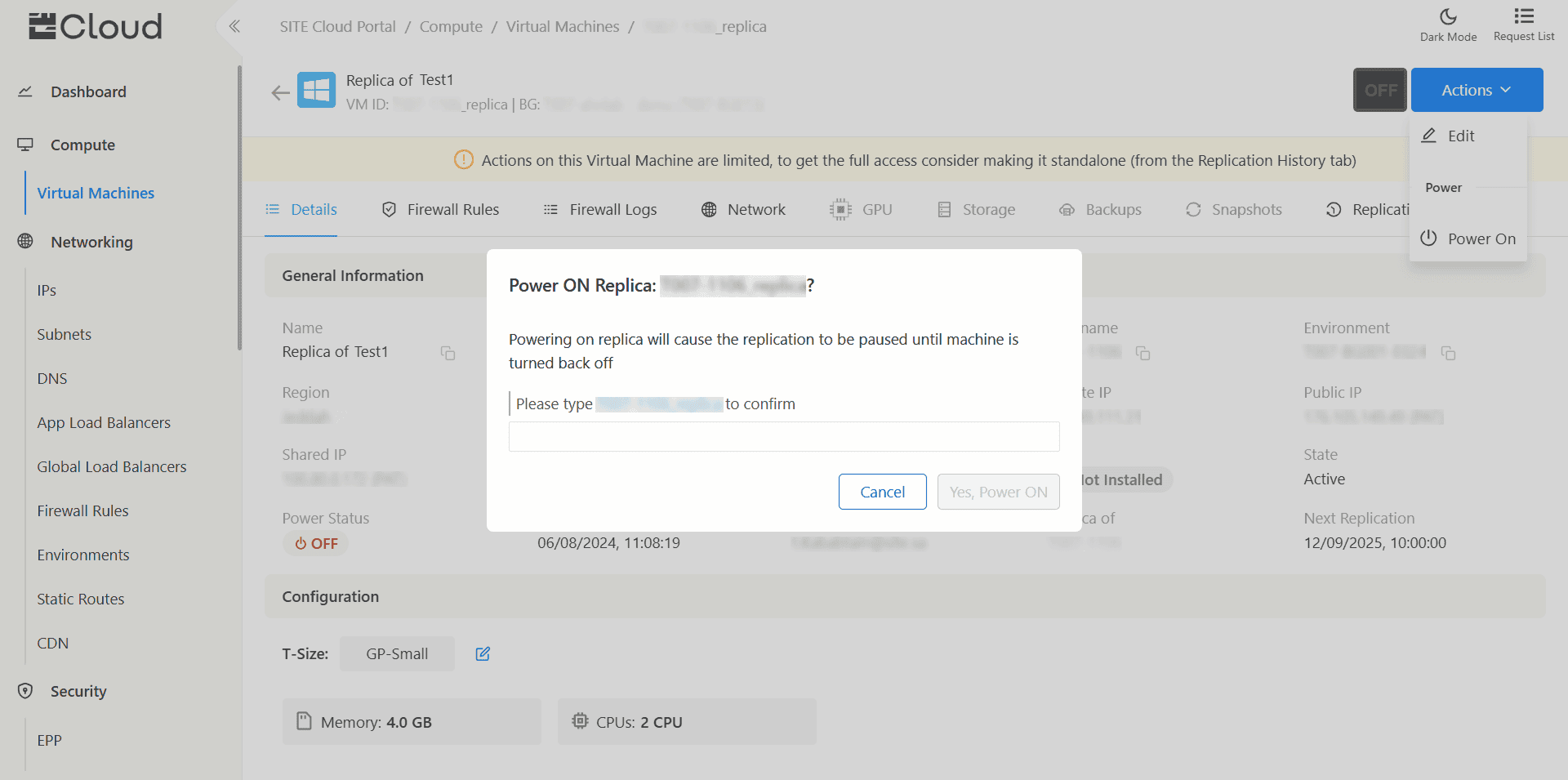
5- Power On Replica: To power on your replica, press the "Action" button, then select “Power On”. Once the replica is powered on
*Note:
- The replication process will pause until you turn it off again
- It's not recommended to leave the replica powered on for extended periods
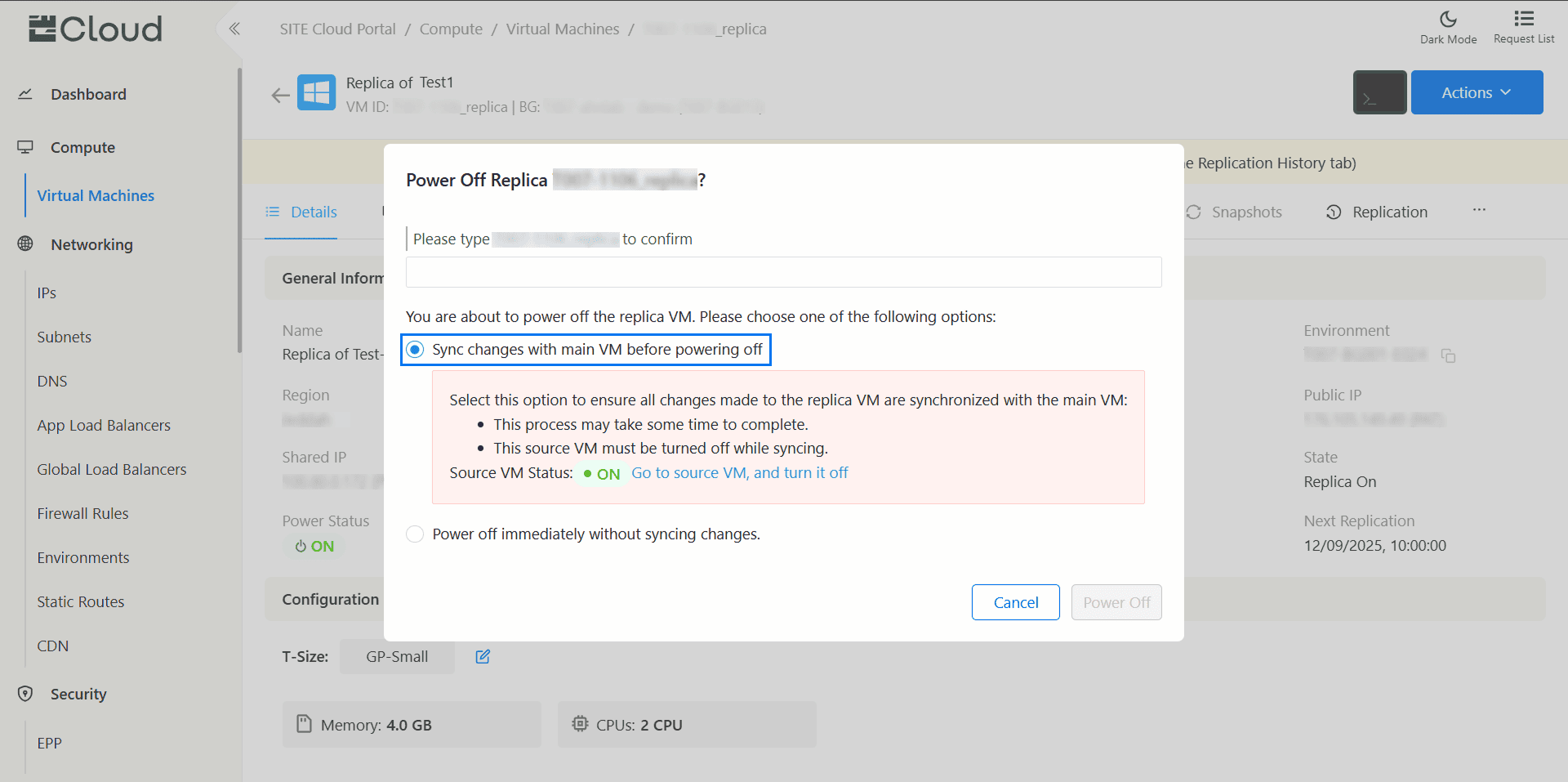
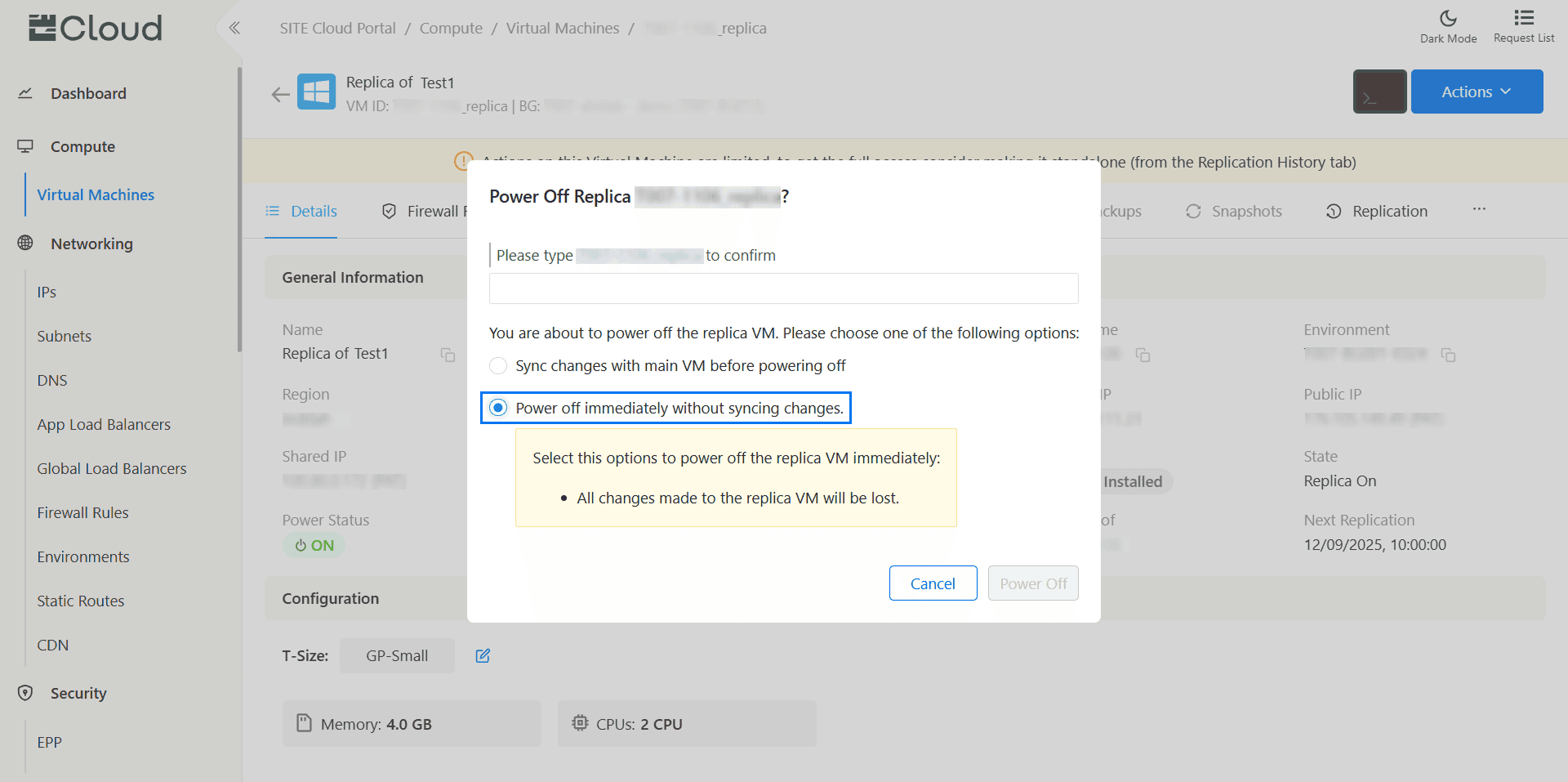
5-Power Off Replica: Follow the same steps in point 4 to turn off the replica. you have two options:
- Sync Back: Reflect any changes made to the replica in source VM.
*Note:
- First you must turn off the source VM [2]
- Sync back is a very slow operation
- Power off Immediately: Turn off the replica without syncing any changes made to it
6- Limited Actions:
- When Replica is on or syncing back the disks on source VM [2] cannot be changed
- When replica is on or syncing back snapshots [3] cannot be reverted
- When replica is syncing back you cannot make it standalone [1]
Glossary:
VM: Virtual Machine
[1] Standalone VM: Convert the replica VM into independent entity, separate from the source VM. This allows the replica VM to operate on its own without relying on source VM for updates or synchronization.
[2] Source VM: The primary VM that you are aiming to replicate
[3] snapshots: A quick recovery point of a server (including its files, software and settings) at a particular point in time.
[4]Disaster Recovery (DR): Is a second location where organizations store critical data to ensure quick recovery and business continuity in case the primary site becomes unavailable.