


Mail Gateway
Mail Gateway
Definition
A Mail Gateway is a type of email server that serves as a protective barrier between an organization's internal email servers and external networks. Every incoming and outgoing email pass through the mail gateway, where it is inspected and filtered for potentially malicious content, such as spam or malware. This server is designed to analyze large volumes of email flow to identify and block harmful messages, ensuring the security and integrity of the organization's email communication.
Features
- Changes History: Ability to track and view the history of any changes on the mail gateway via SITE portal.
- Managing Whitelist Senders: Ability to add or remove email addresses or IP addresses to be whitelisted.
- Managing Blacklist Senders: Ability to add or remove email addresses or IP addresses to be blacklisted.
- Release Personal Quarantine Emails: Ability to search for any personal quarantine email and take action to release the email.
- Generate a Key Selector for DKIM Record: Ability, when creating a new domain, to generate a key selector for the new domain to be added to the DKIM[1] record.
- Create New Domain: Ability to create a new domain or add additional domains to the mail gateway.
Use Cases
- Email Encryption: Encrypting email communications to ensure that sensitive information remains secure during transmission.
- Data Loss Prevention: Monitoring and blocking emails containing sensitive or confidential information from being sent outside the organization.
- Malware Protection: Scanning incoming and outgoing emails for malicious attachments or links, helping to prevent malware infections.
- Spam Filtering: Filtering out unwanted spam emails to protect users from unnecessary and potentially harmful messages.
Prerequisites
- To create a new domain, the MX[2] record must be mapped to SITE Cloud MX records.
- To create a new domain, an incoming rule must be established from Mail Gateway IPs to Mail Server VM/LB[3] IPs.
- To create a new domain, an outgoing rule must be established from Mail Gateway IPs to Mail Server VM/LB[3] IPs.
Step-by-Step Guide
Navigation to Mail Gateway
- Access Through Security Section: On the side menu, through security section select “Mail Gateway”.
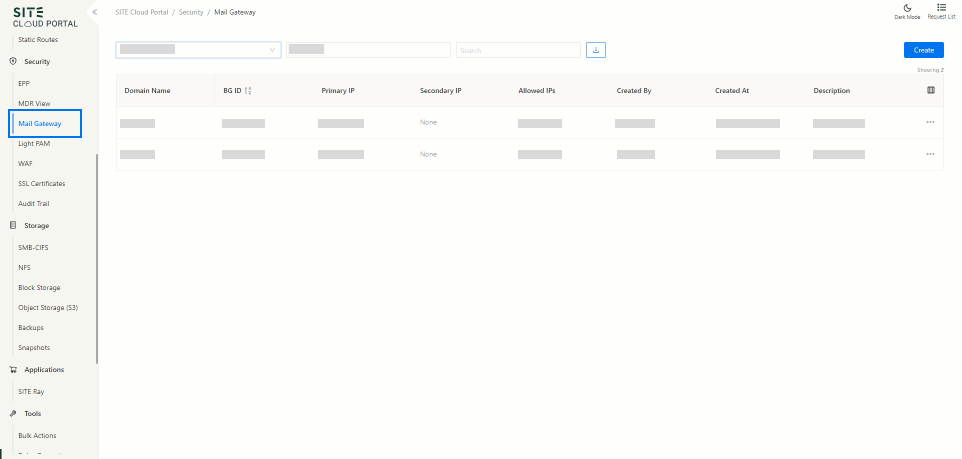
Access Domain
Existing Domain: If there is already registered domain, the settings can be accessed by clicking on the domain name, which will be directed to the domain management interface.
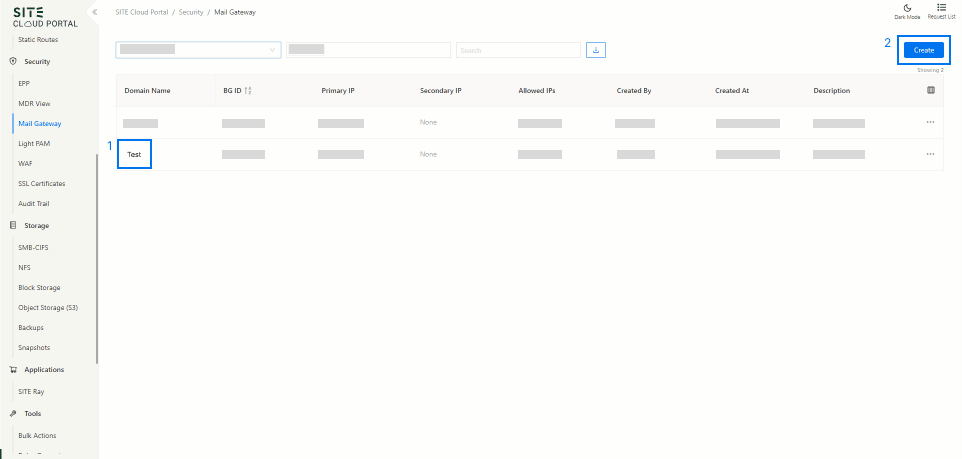
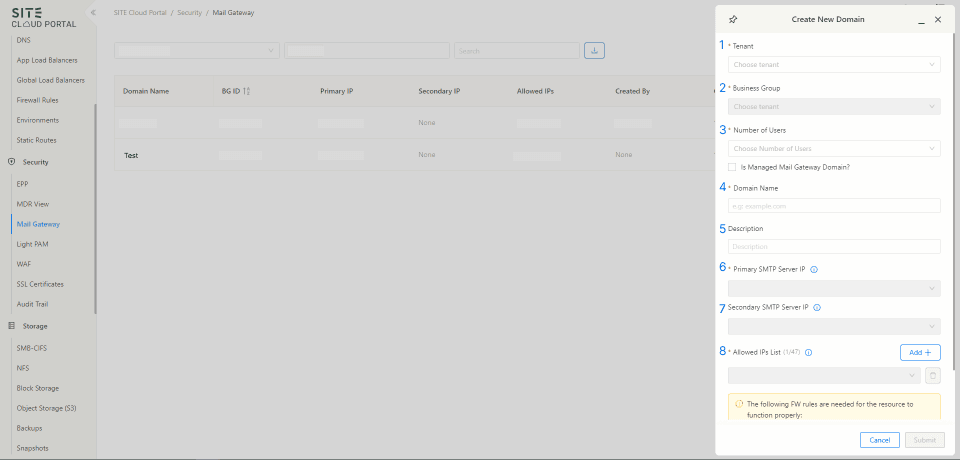
Create a New Domain: Click on “Create”, fill in the required information, and then press “Submit”.
- Choose your Tenant
- Choose the Business Group for the new domain
- Select the range for the number of users
- Enter your new domain
- Add a description
- Enter your Primary SMTP[4] server IPs for inbound emails
- Enter your Secondary SMTP[4] server IPs for inbound emails
- Enter your allowed SMTP[4] sever IPs list that allowed to be accepted to send from your domain for outbound emails
Generate Key Selector for DKIM Record
- Click on the New domain that you have created from list of domains (Point 2.1)
- Click on "DKIM"[1] tab and then "Create"
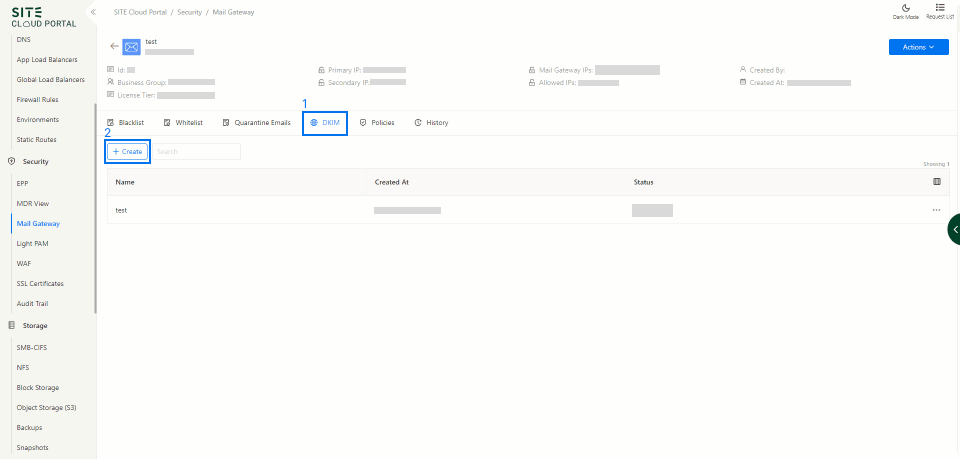
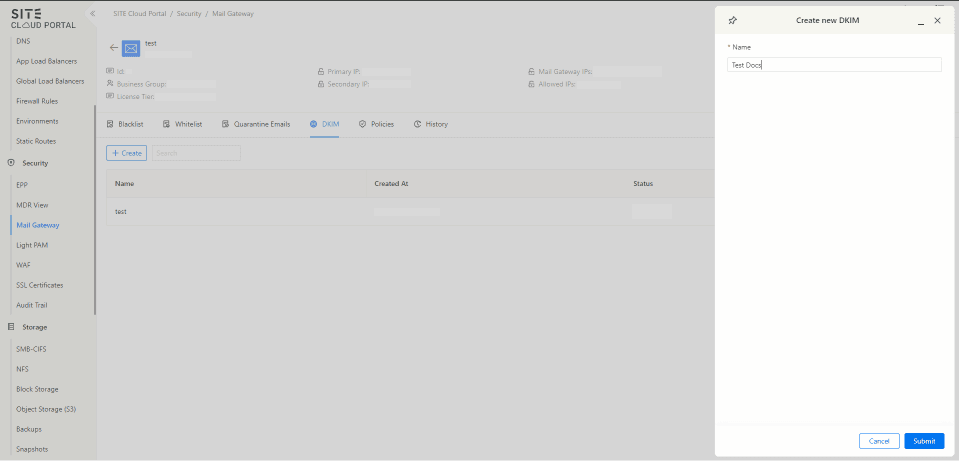
- Type a name for your key selector, and press “Submit”
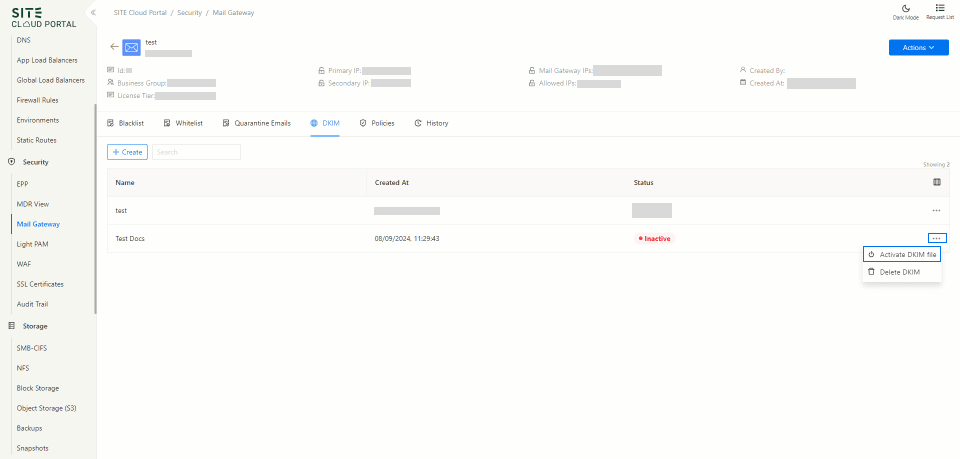
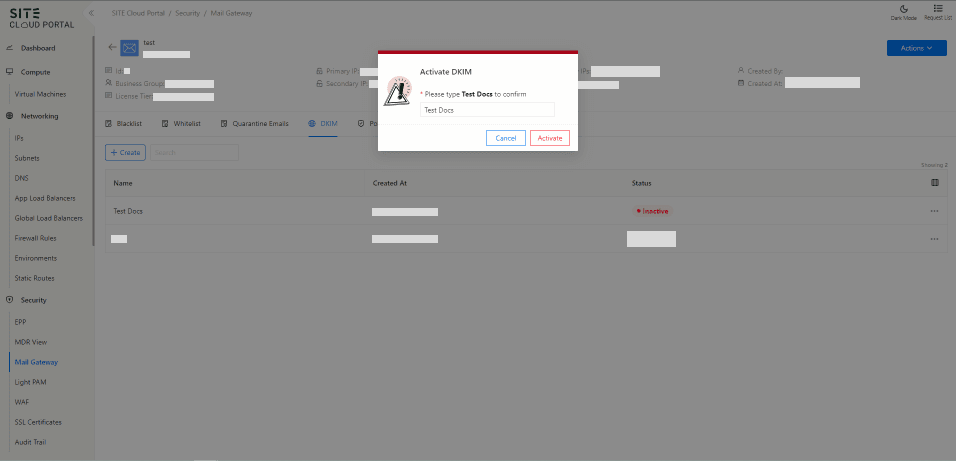
- From the three dots click on “Activate DKIM file”, and confirm that you generated key selector
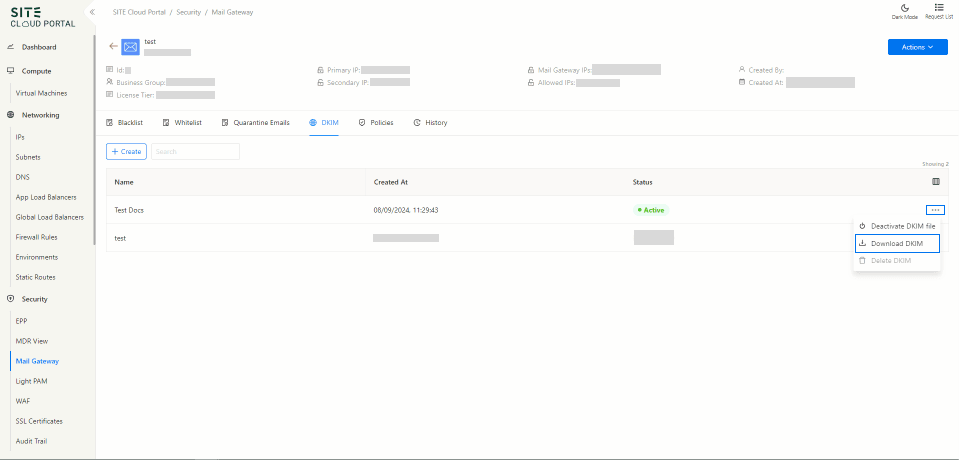
- You can download the new DKIM[1] by clicking on the three dots and "Download DKIM" and add it to the client DNS record
Manage Quarantine Policies
This describes two key features related to email security and user-quarantine. These features designed to give both administrators and end-user control over emails that has been flagged as suspected spam, phishing, or malicious content.
Navigation Path
- Go to Mail Gateway
- Select the appropriate Domain
- Click the Policies tab
- Navigate to the Resources section
Send Quarantine Report
Sends quarantine reports to recipients. These reports include only emails found in the User Quarantine.
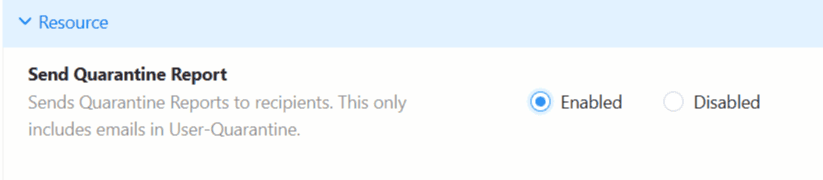
Enabled
- If Send Quarantine Report is enabled, the user will receive an email containing their quarantine report.
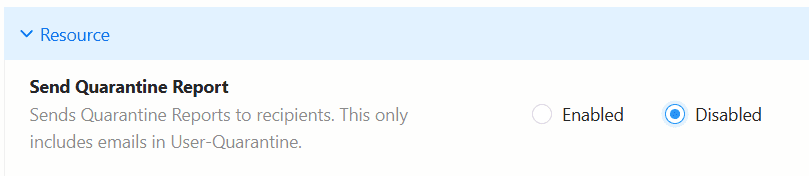
Disabled
- If Send Quarantine Report is disabled, the user will not receive any email regarding the quarantine report
Email Release
Adds the option to release quarantined emails within the quarantine report. This is only for emails in User-Quarantine.
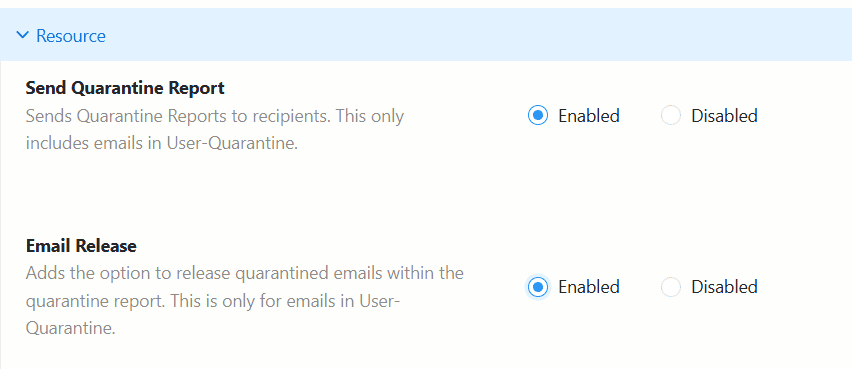
Enabled
- If Send Quarantine Report is enabled, then only Email Release can be enabled, and users will be able to release emails directly from the quarantine report.
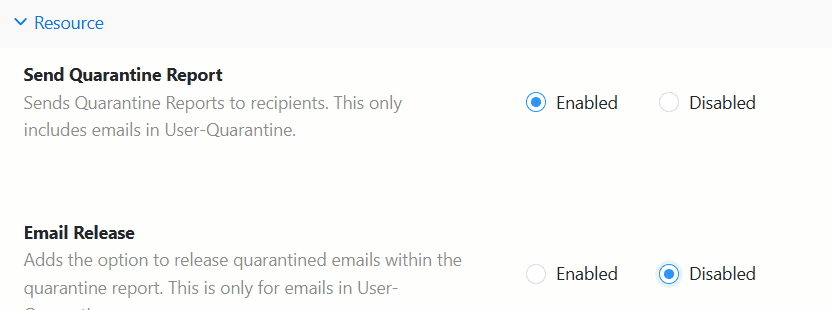
Disabled
- If Send Quarantine Report is enabled but Email Release is disabled, users will receive the report but will not be able to release emails from it.
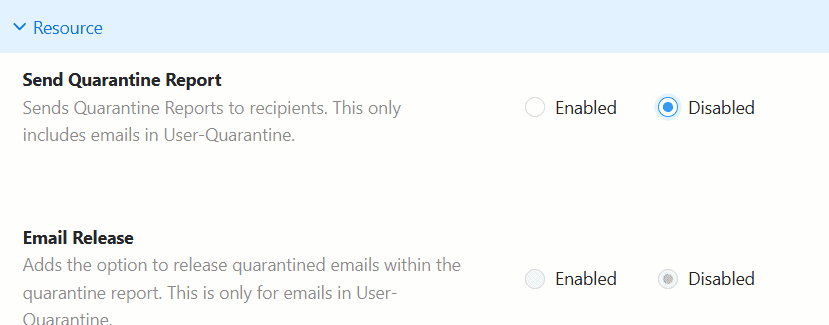
- If Send Quarantine Report is disabled, Email Release will be disabled by default, and users will not receive the report or be able to release any emails.
For further to know about Quarantine Email Mangement ref - Click here
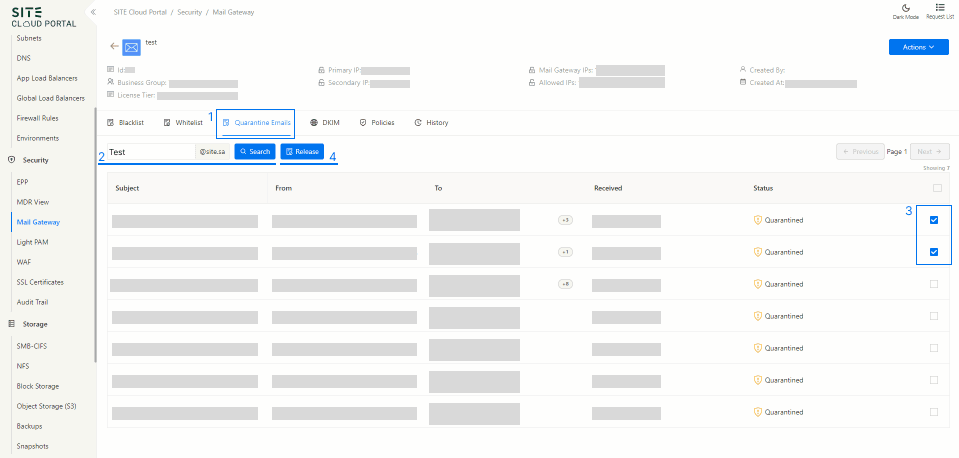
Release Personal Quarantine Emails
- From tabs click “Quarantine Emails”
- Type the email address to view the quarantined emails
- Once the quarantine emails are listed, select which email you would like to release, check the boxes on the right of the email
- Click "Release"
Managing Blacklist Senders
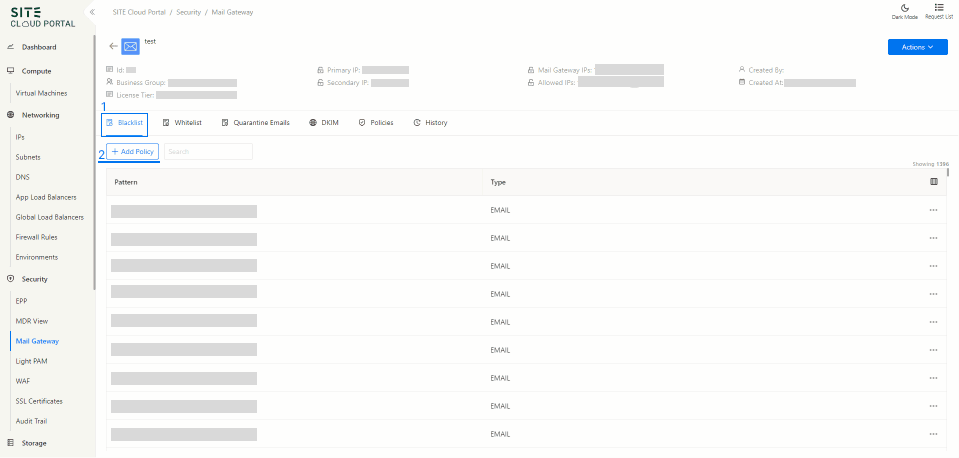
- From tabs click on “Blacklist”
- Click on “Add Policy” for policies creation
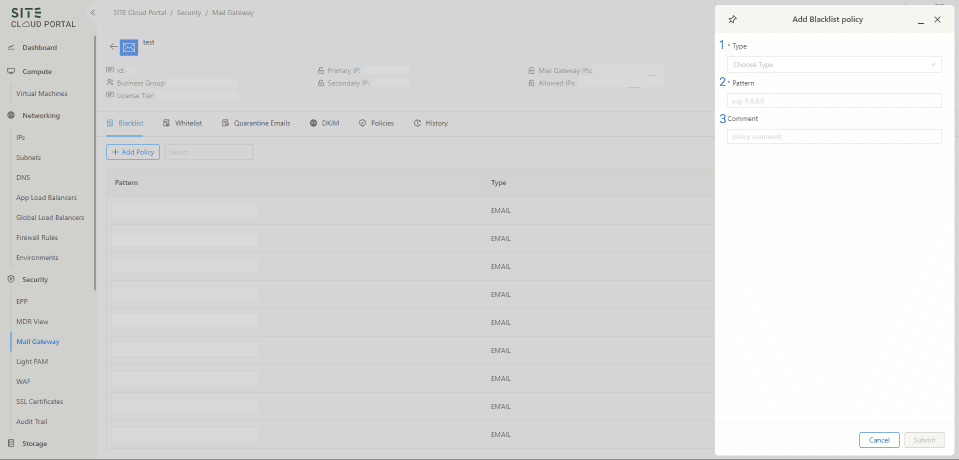
- Select the type of blocking either email address or IP address
- Enter the email address or IP address
- Example for blocking domain ( *@test.sa )
- Example for blocking email address ( test1@test.sa )
- Example for blocking IP address ( 192.168.1.1 )
- Write comment for reference for the blocking
Managing Whitelist Senders
- From tabs click on “Whitelist”
- Click on “Add Policy” for policies creation
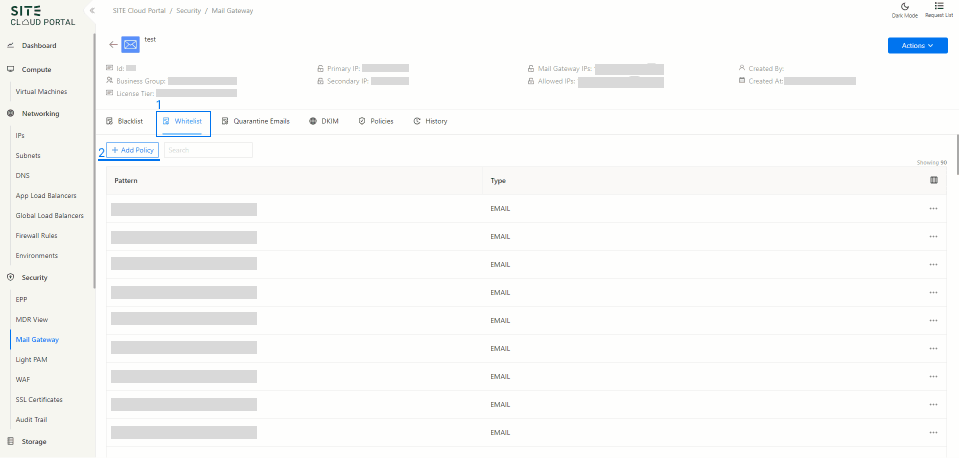
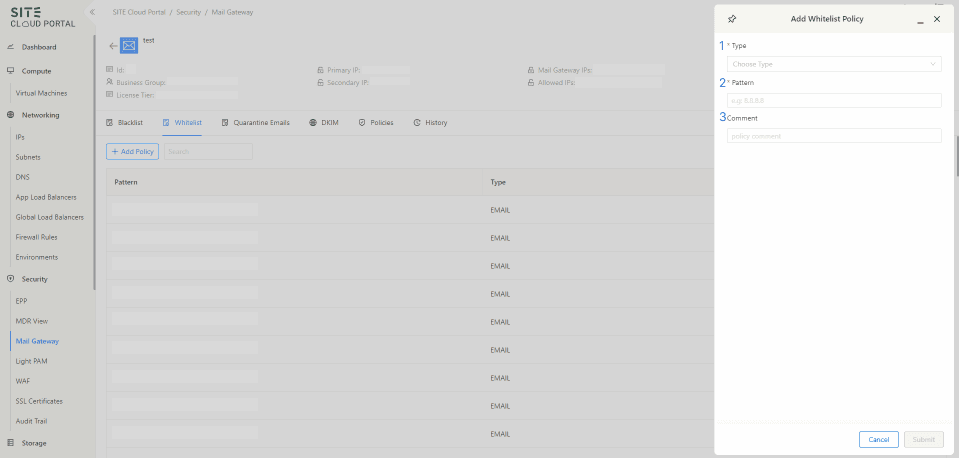
- Select the type of whitelisting, either email address or IP address
- Enter the email address or IP address
- Example for whitelisting domain ( *@test.sa )
- Example for whitelisting email address ( test1@test.sa )
- Example for whitelisting IP address ( 192.168.1.1 )
- Write comment for reference for the whitelisting
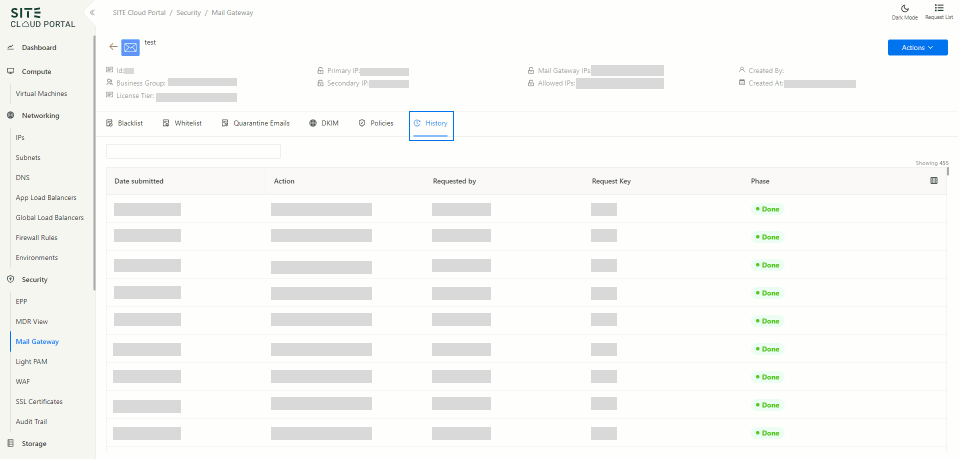
Track Updates and Modifications
- From the tab click on History and you will see all the changes that have been made
Glossary
[1] DKIM: DomainKeys Identified Mail, is an email authentication method that uses a digital signature to verify the legitimacy of an email's sender.
[2] MX Record: Based on its value, it will directs emails to the specified mail server/gateway, such as SITE Mail Gateway in this case.
[3] LB: Load Balancer, distributes incoming network traffic across multiple servers to ensure efficient utilization, maximize availability, and enhance application performance.
[4] SMTP: Simple Mail Transfer Protocol, is an internet standard for transmitting electronic mail between servers and other message transfer agents.