


Global Load Balancer
Definition
Global Load Balancing (GLB) is a powerful technology designed to enhance the performance, reliability, and availability of web applications on a global scale. By distributing incoming traffic across a network of servers located in various geographic locations, GLB optimizes response times and reduces the likelihood of downtime for users around the world. This ensures consistent, high-quality user experiences regardless of location.
Features
- Intelligent Traffic Distribution: GLB smartly allocates web traffic across multiple servers based on location and server load, reducing latency and improving network efficiency.
- Health Monitoring and Fault Tolerance: GLB continuously checks server health. If a server fails, it reroutes traffic to maintain uptime, ensuring reliable performance.
- Dynamic Failback Mechanism: When a failed server recovers, GLB seamlessly reintroduces it to the traffic flow, optimizing resource use.
- DNS-based Load Distribution: GLB leverages DNS to balance loads, often using round-robin or other methods to distribute traffic evenly.
- Cloud Integration Requirement: Hosting the DNS zone in SITE Cloud maximizes GLB performance for seamless traffic management.
Use Cases
- High-Traffic Websites and Applications: Distributes traffic across servers to prevent overload, ideal for large websites or apps.
- Disaster Recovery and Continuity: GLB redirects traffic during server outages, ensuring service continuity.
- Geo-Location Based Content Delivery: Directs users to the nearest server, improving speed for global audiences.
- Enterprise-Scale Applications: Balances load for large platforms, ensuring fast, reliable access for all users.
Note: The above are sample of many add-ons, and they are not limited to these examples.
Prerequisites:
- The DNS zone must be hosted within SITE Cloud
Step-by-Step Guide
1. Access the Networking Section: In the side menu, navigate to the Networking section and select Global Load Balancer.
2. Create a new GLB: To set up a new GLB, press Create on the top right corner.
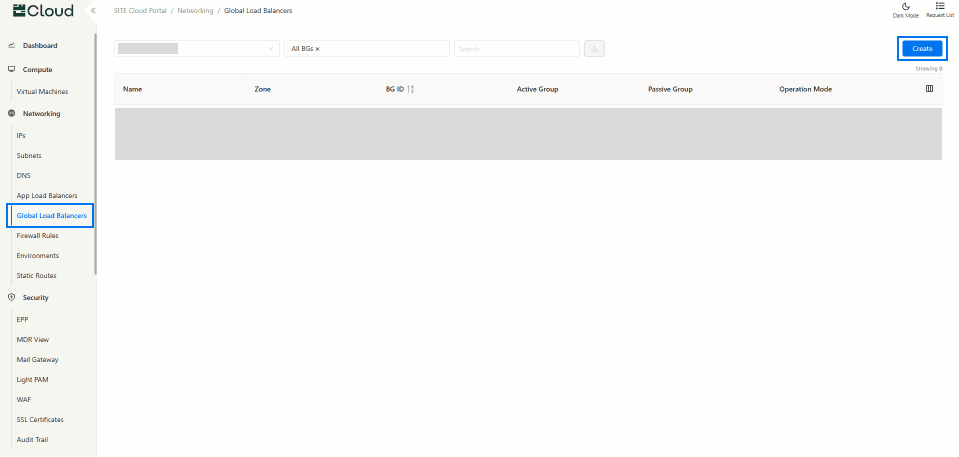
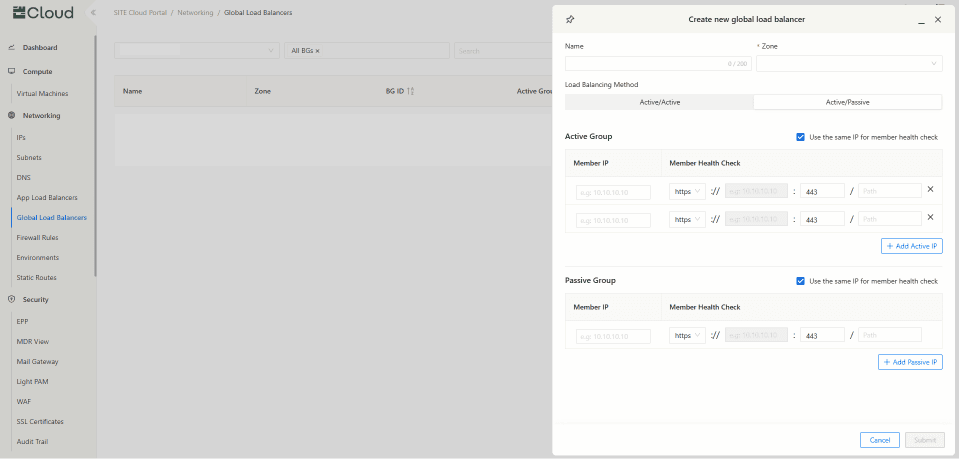
2.1 To create a new GLB, you need to fill in the following information:
- Enter Member IP: Input the IP address of the server.
- Choose DNS Zone: Select the appropriate DNS zone for the GLB.
- Select Load Balancing Method: Pick the desired traffic distribution method.
- Set Health Check Parameters: Configure health checks for members.
- Click "Submit" to finalize and create GLB.
Note: Only Public and Shared IPs are supported in member health checks.
3. Manage Global Load Balancer
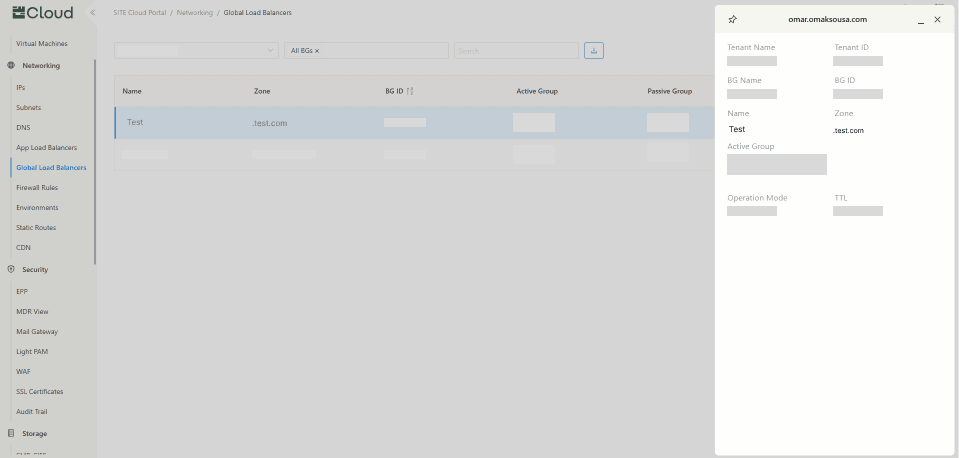
3.1 After creating a Global Load Balancer, click on your GLB to view detailed information about the instance.
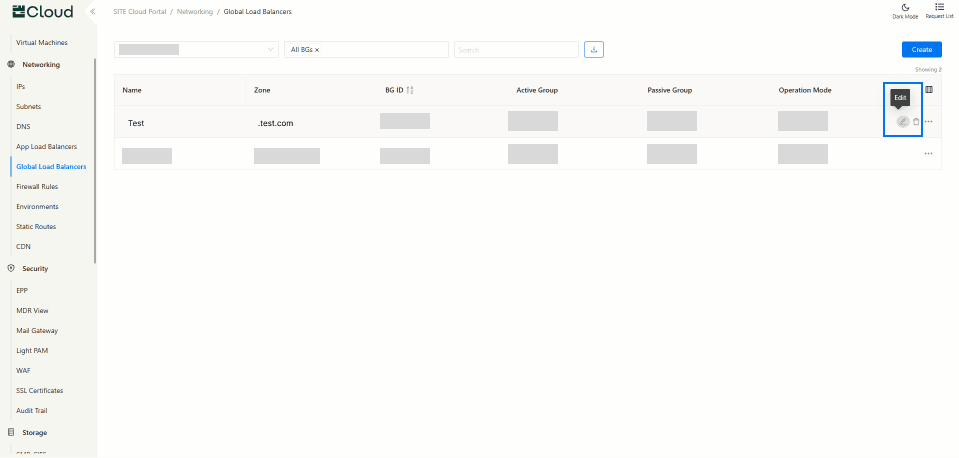
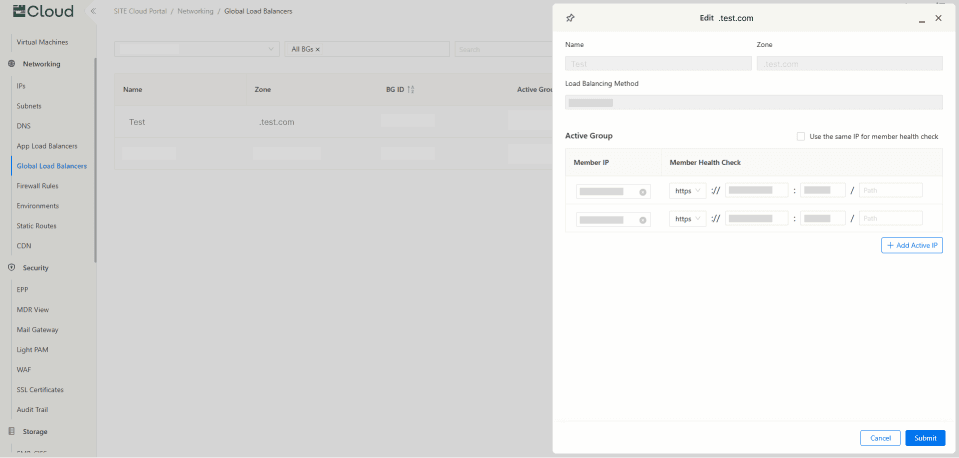
3.2 To edit your GLB, click the edit button located on the far left of the instance.
Supported Health Check Types
Configuring firewall rules is required for all health check IPs regardless of the type.
- HTTP Health Check : Commonly used for web applications.
- HTTPS Health Check : Commonly used for secure web applications.
- TCP Health Check : Commonly used for non-HTTP services like databases and custom applications.
- If one member is set to TCP, all health check members must also use TCP (this change will be applied by default, and the option to change it will be disabled).
- Path, health check IP, and port are disabled for TCP. For the health check IP, the same member IP is used. For the port, all health check members use the same port, which is the port of the first item in the active group.
Note: When editing your instance you cannot edit the Name, Zone, and Load Balancing Method.