


Firewall Rule Generator & Bulk Actions
First we will start with the rule generator.
What is Rule Generator?
As the name implies, it is a tool used to generate firewall rules. This tool can help with generating firewall rules, and applying them with the help of Bulk Actions.
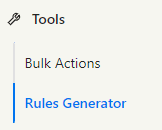
How to use Rule Generator?
The process of using the rule generator is straightforward. As shown below, there are many fields that need to be filled in the correct order.

We will go over the fields in the correct order below:
- Tenant: Choose the required tenant.
- Environment: Choose the required environments (if applicable)
- Policy Type: This will determine the direction of the policies and the zones (SSA, HSA, MAN. INET)
- Source Subnet: The source subnets or IPs. You can add multiple IPs by separating them with commas.
- Source Nodes: This option might be greyed out depending on the policy type (only required for nodes within SITE Cloud)
- Destination Subnet: The destination subnets or IPs. You can add multiple IPs by separating them with commas.
- Destination Nodes: This option might be greyed out depending on the policy type (only required for nodes within SITE Cloud)
- Services: Add the required services or ports. You can choose from the dropdown list, or add your own ports.
- TCP Ports: tcp/xxx
- UDP Ports: udp/xxx
- Description (Optional): You can add a description for additional clarification.
For more information on firewall rules, you can refer to the following guide https://docs.cloud.site.sa/MyCloudPortal/firewall-rules
Once the required fields are filled, the generated rules will appear in the bottom text box, and you can use the copy button on top right corner to copy the generated rules.

Once the newly generated rules are copied, they can be applied using Bulk Actions.
What is Bulk Actions?
Bulk actions is a tool used to create or make changes in bulk.
The actions that can be done include, but are not limited to: Creating VMs, Rebooting VMs, Creating firewall rules, and more.

For this case, we will use the bulk actions to apply firewall rules that were generated using Rule Generator.

From the dropdown menu, you can choose the “Create Firewall Rule” option.
After that, you can paste the previously copied rules from rule generator, and click on the “Submit” button.
Shortly after, you will see the firewall rule requests appear in the “Request List”.