Object Storage (S3) Backup and Restoration
Object Storage (S3) Backup and Restoration refers to the process of creating a copy of an existing bucket and its contents to safeguard against accidental deletion, data corruption, or system failure. This approach enables restoration of the bucket and its objects to a previous state when necessary.
Features
- Full Bucket Backup: Creates a complete copy of all objects and metadata within the bucket.
- Scheduled or On-Demand: Supports both scheduled and on-demand backup creation.
- Bucket Restoration: Allows recovery of the entire bucket to a newly created restored bucket.
- Storage Isolation: Stores backups in a centralized backup repository, along with other resources, to ensure separation from the original bucket and enhance recovery reliability.
Use Cases
- Accidental Deletion Recovery: Recovers data mistakenly deleted from a bucket.
- Disaster Recovery: Restores critical data after system outages or data loss incidents.
- Development/Test Cloning: Duplicates production data for use in non-production environments.
- Data Integrity Protection: Maintains clean, restorable copies in case of corruption or unauthorized changes.
Step-by-Step Guide
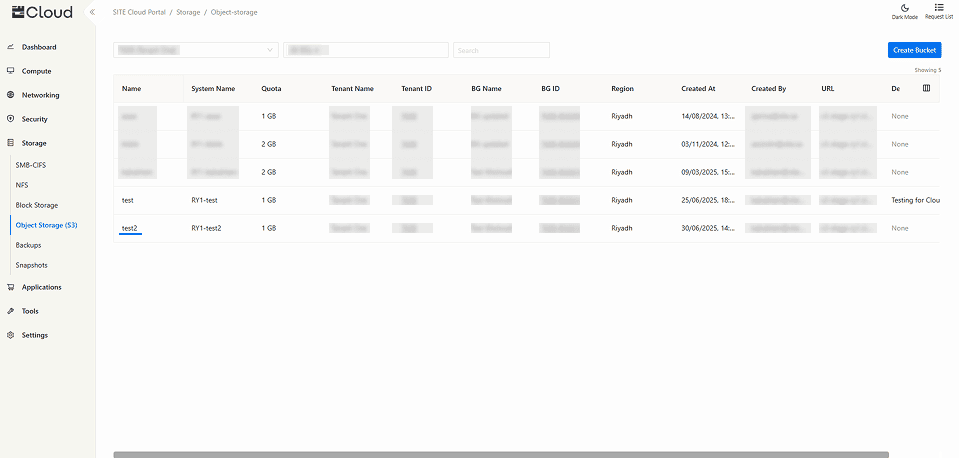
1- Access your bucket, navigate to the “Backups” tab, and click the “Manage Backup” button. If you do not have an existing bucket, please refer to the Object Storage (S3) documentation for guidance on creating one.
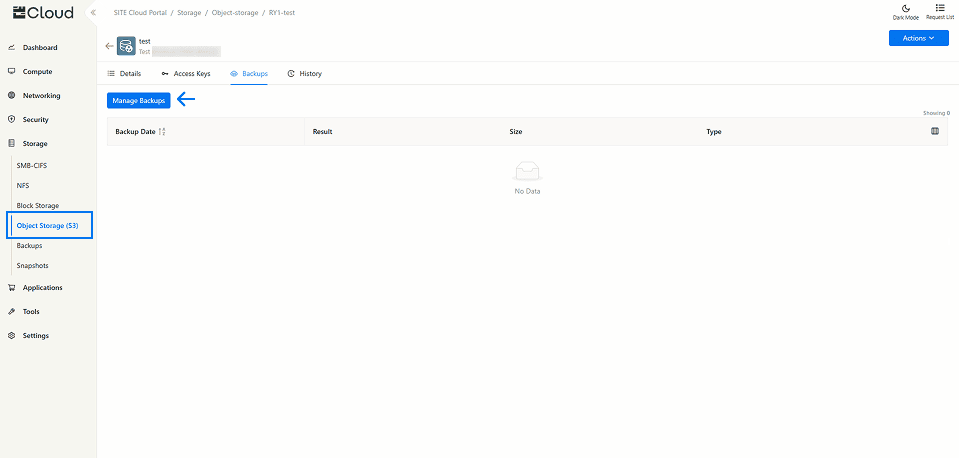
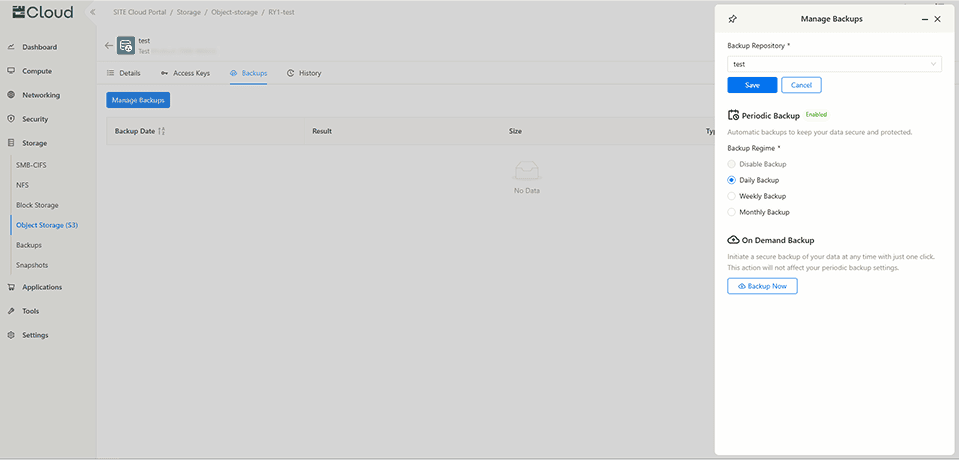
2- When the “Manage Backup” modal appears:
- Select the backup repository where you want your bucket to be stored.
(For more information, refer to the Backup Repository Documentation) - Choose a backup regime: Disable Backup, Daily, Weekly, or Monthly.
- Use the On-Demand Backup option to immediately back up your bucket, regardless of the selected backup regime.
(Note: Running an on-demand backup will not affect your configured backup regime.)
Then, click “Save” to apply your changes.
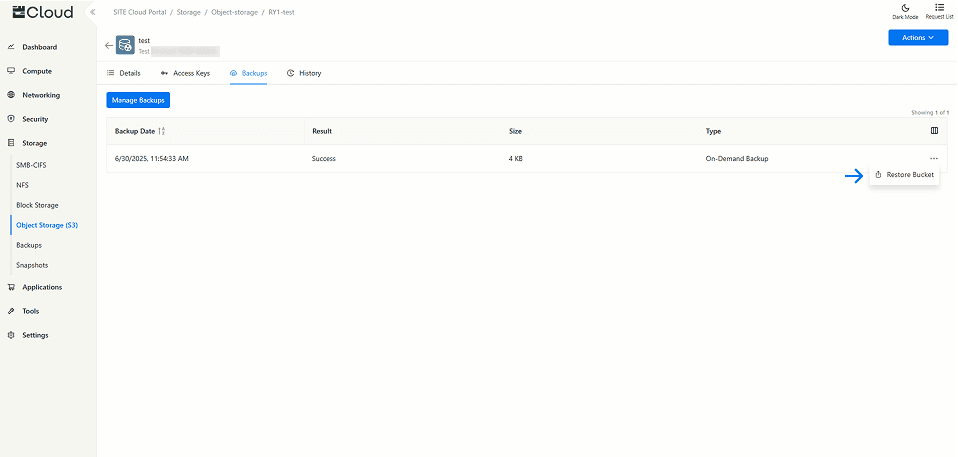
3- On the desired backup version, click the three-dot menu on the right and select Restore Bucket.
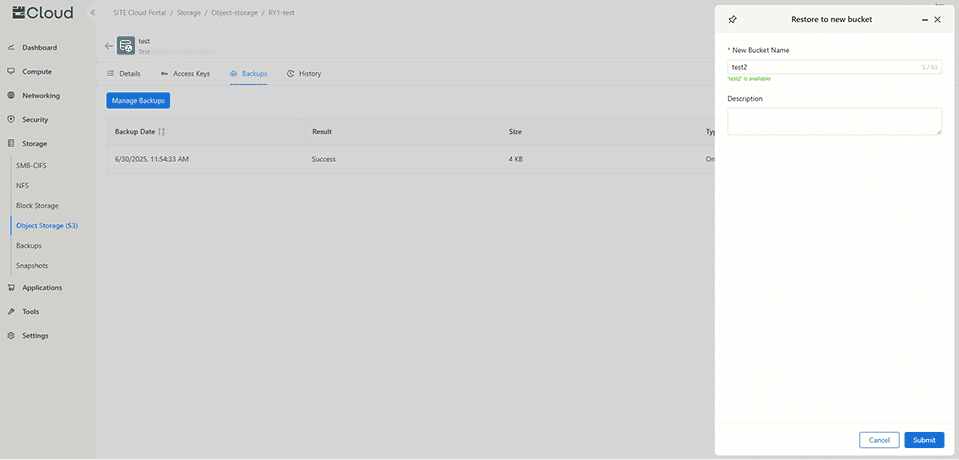
4. A "Restore to a New Bucket" modal will appear, prompting you to enter the name and description for the new restored bucket.
5. Return to the Buckets list, where you will find your newly restored bucket.