


Quarantine Email Management
Introduction
When emails are suspected to be spam, phishing, or containing malicious content (or any configuration you've set in the Policy Builder), they are flagged and placed in an isolated environment for your action (to either release or ignore/delete).
There are three ways for your organization employees to manage their quarantined emails:
- Through the Email Quarantine Portal (Recommended, instant visibility)
- Through the Cloud Portal's Mail Gateway (limited to users that have access to the Cloud Portal)
- Through an email notification
Email Quarantine Portal
A dedicated email quarantined portal for your organization to instantly access, view, and manage their quarantined emails with ease.
Depending on your Policy Builder configurations, users can only release emails that are flagged as “Personal Quarantine”, not “Admin Quarantine” for security purposes.
Note: users will able to manage their Personal Quarantine emails after your organization administrator enables the option "Email Release” in the “Policies” tab under your organizations mail gateway instance in Cloud Portal.
Here's how to start using the Email Quarantine Portal:
- Go to https://quarantine.cloud.site.sa
- Enter your work email to login
- You will receive a one-time passcode in your inbox
- Enter the OTP you received to login
- Review and search for the quarantined email
- If your administrator gave the organization permissions, you will be able to view and release “Personal Quarantine” emails
Cloud Portal
Users who have access to the Cloud Portal, can manage their quarantine emails in a single unified portal.
Here's how to do it:
- Go to Mail Gateway page
- Select your mail domain instance
- Go to Quarantine Emails tab
- Select either User Quarantine or Admin Quarantine, and enter the recipient's email address handle.
- Click on Show button to fetch quarantined emails.
- You can then release false-positive emails.
Quarantined Email Notification
After an email is detected and flagged, our system will automatically send a quarantined email notification to the user's inbox to take action.
Note: users will get these emails after your organization administrator enables the option “Send Quarantine Report” in the “Policies” tab under your organizations mail gateway instance in Cloud Portal.
The notification usually includes details such as
- The sender of the quarantined email.
- The subject of the email.
- Instructions or a link for the recipient to review and release the email if it is safe
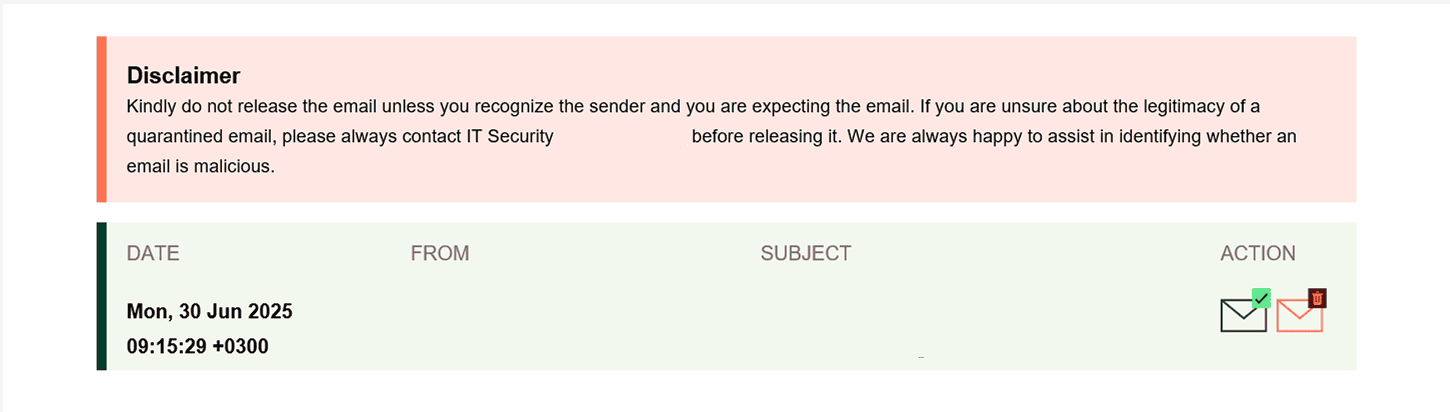
The actions that can be taken:
- Release the Email: If you trust the sender and the email appears legitimate, you can release it from quarantine. This will deliver the email to your inbox.
- Delete: If you identify the email as spam, phishing or harmful, delete it from quarantine.
Email Awareness
To recognize the signs that point to a malicious email
The Push
Phishing emails are designed to get the victim to do something. If an email elicits a sense of urgency or pushes a particular action, then it may be malicious.
Tone and Grammar
Phishing emails won't sound right and may include spelling and grammar issues.
Mismatched Links
Check the target of a link in an email on a computer by hovering over it with your mouse. If the link doesn't go where it should, the email is likely to be malicious.
Odd Attachment Type
Phishing emails are frequently used to spread malware. If you an "invoice" that is a ZIP file, an executable, or something else unusual then it's probably malware.