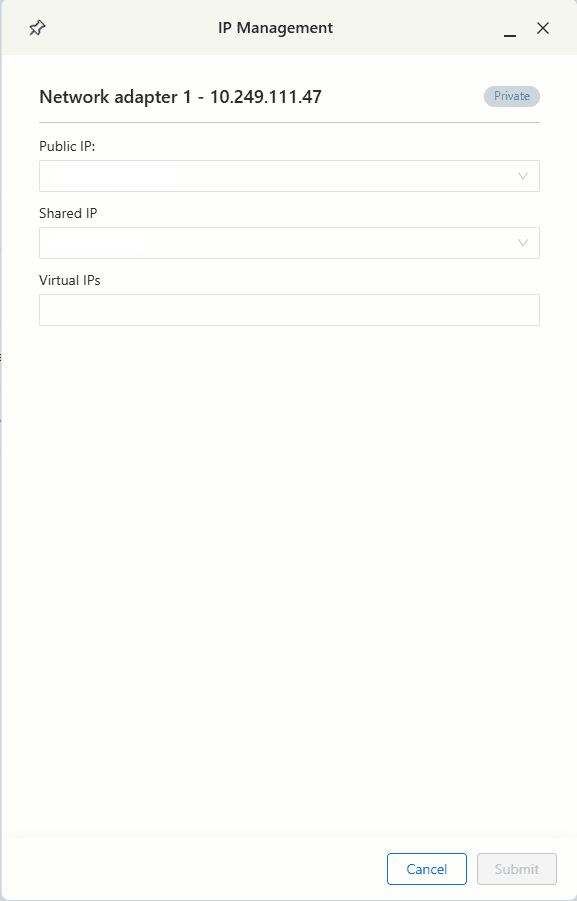
Multiple PAT
Multi PAT Feature Documentation
1. Definition
Multi PAT (Port Address Translation) is a feature that enables users to assign a PAT at the environment level to multiple virtual machines (VMs) for outbound traffic. This allows VMs to share the same IP address when accessing external networks. The PAT can be configured as either a shared IP, for accessing a shared area, or a public IP for accessing internet. By using the same IP for multiple VMs, this feature helps streamline traffic flow and provides consistency in outgoing communication.
2. Sample Use Cases
• Centralized Outbound Traffic: When multiple VMs within an environment need to connect to the same external service, using Multi PAT allows all traffic to originate from a single IP, simplifying network management and logging.
• Controlled Access Zones: Multi PAT can facilitate access to shared resources or public networks while keeping outgoing traffic consistent, making it ideal for secure or compliance-focused environments.
• Cost-Effective Public IP Use: Instead of assigning a public IP to each VM, Multi PAT lets multiple VMs share one public IP, reducing the overall public IP allocation and cost.
3. Step-by-Step Guide: Setting Up Multi PAT
Step 1: Log in to My Cloud Portal
• Access your cloud account and navigate to the Environment page from the left menu.
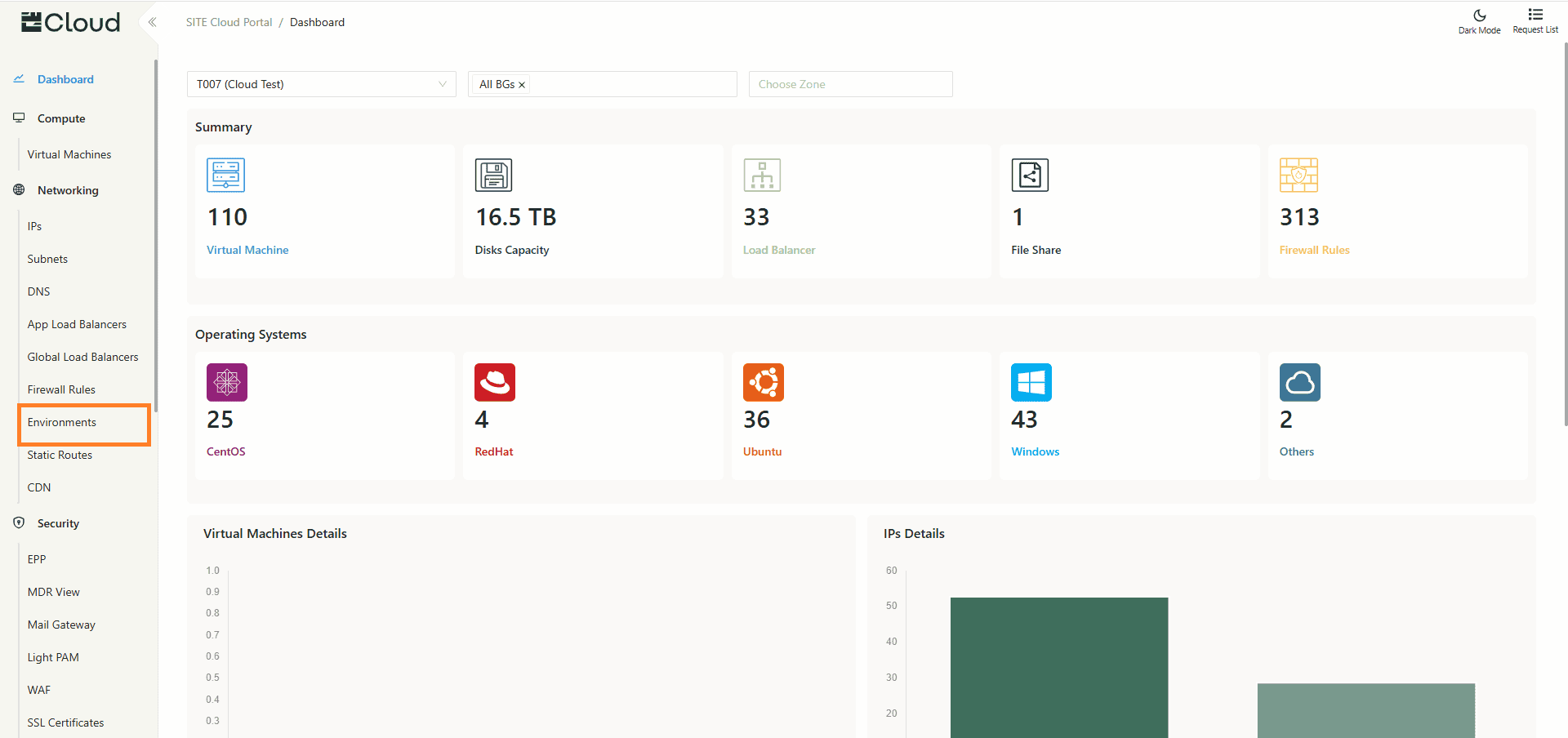
Step 2: Access Multi PAT Configuration
• Inside Environment page, find the environment you want to manage multi PAT on and click on Manage IPs action from the row actions menu
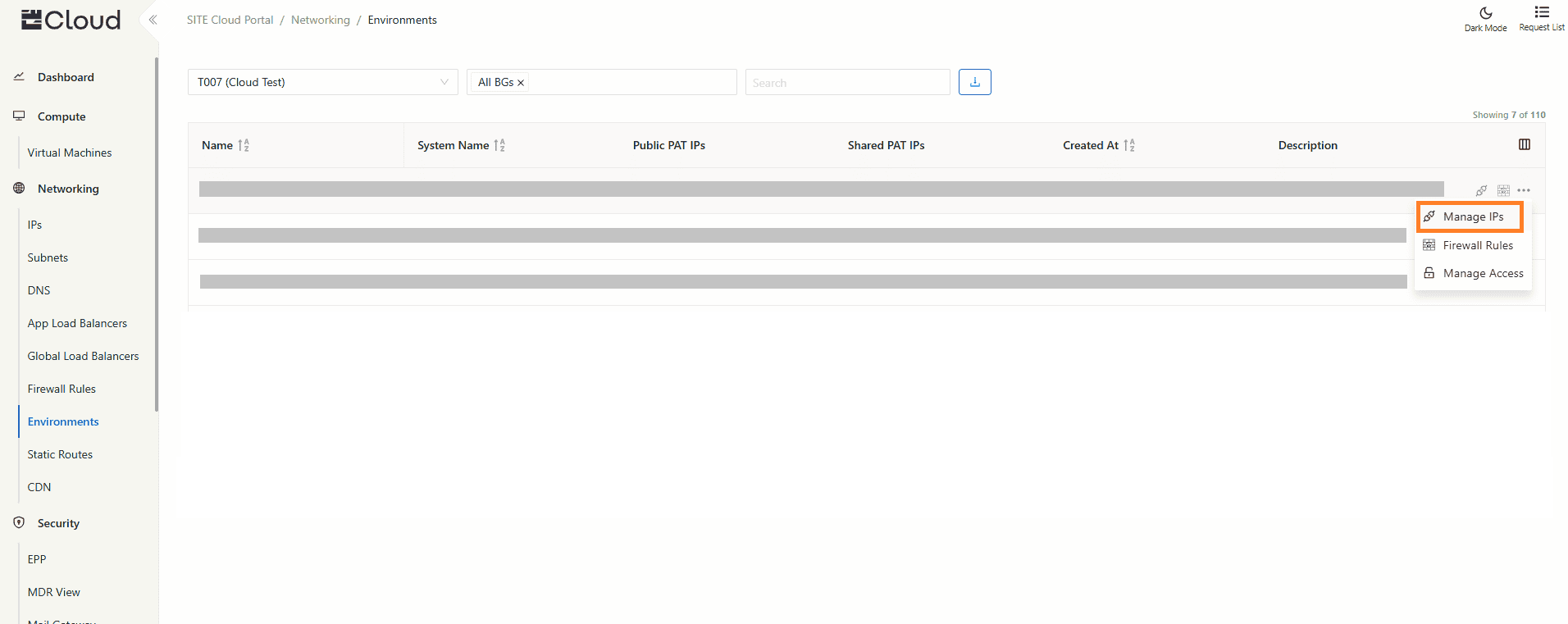
Step 3: Create a New PAT
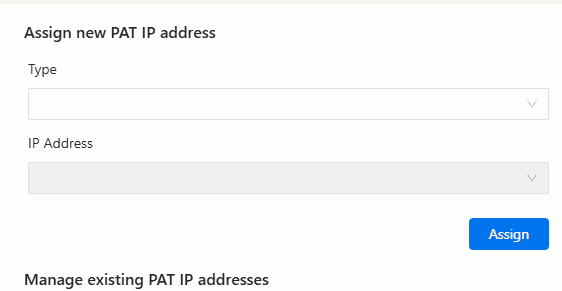
• Select the type of the PAT you are creating.
• Select the IP Address you want to use. The dropdown will list the already allocated IPs.
Step 4: Review and Apply the Configuration
• Double-check the configuration details before applying. Once confirmed, the PAT setup will be effective immediately.
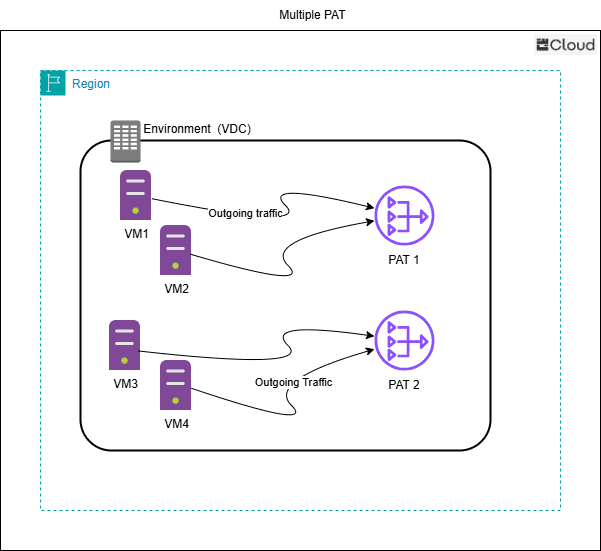
Step 5: Assign the PAT to a virtual machine
• From virtual machine details page - network tab, click on Manage IPs
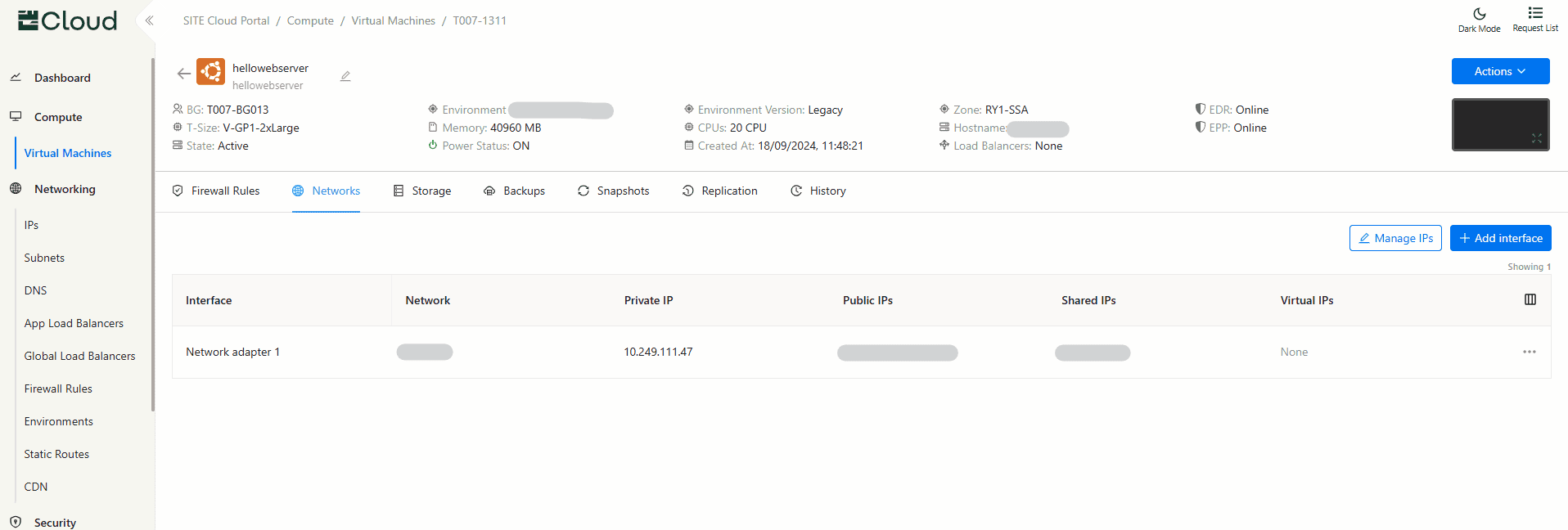
• Select the PAT in order to make the virtual machine use it for its outgoing traffic