Certificate Manager
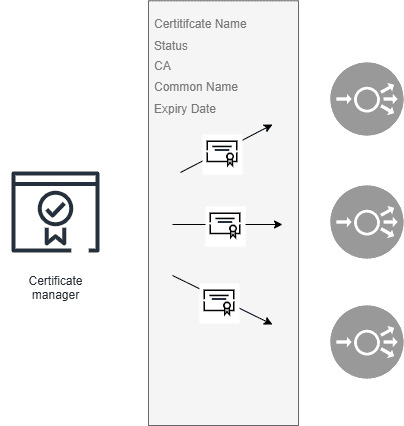
Certificate Manager is a centralized dashboard for managing SSL/TLS certificates across cloud infrastructure.
Overview
Use Certificate Manager to generate auto-renewing certificates, import existing certificates, associate certificates with cloud resources such as load balancers, and monitor certificate expiration. Certificates can be automatically issued and renewed through a configured Certificate Authority or manually imported and managed.
Key Features
| Feature | Description |
|---|---|
| Certificate inventory | Shows certificates and their current status. |
| Resource association | Associates certificates with resources such as load balancers and CDN services. |
| Auto-renewing certificates | Automatically issues and renews certificates using a configured Certificate Authority. |
| Certificate import | Supports third-party CA certificates, trusted CA certificates, and self-signed certificates. |
| Renewal update | Lets you manually update certificates after external renewal. |
| Expiration visibility | Shows certificate expiration status. |
Getting Started
- Log in to Cloud Portal.
- Open Security.
- Open Certificate Manager.
Managing Certificates
By clicking on any certificate, you can manage and view related certificate information through dedicated tabs:
| Tab | Description |
|---|---|
| Details | View the certificate's general information and key metadata. |
| Load Balancers | View, associate, or change the certificate assigned to Load Balancers. |
| CDN | View, associate, or change the certificate assigned to a CDN. |
| TLS Inspection | View the associated VM and Load Balancer firewall rules using this certificate. |
| History | Track actions and changes performed on the certificate. |
The certificate inventory includes:
| Field | Description |
|---|---|
| Certificate Name | Certificate name. |
| Status | Valid, Expiring Soon, or Expired. |
| Associated Resources | Resources using the certificate. |
| Expiration Date | Certificate expiration date. |
| You can filter and sort certificates by status or association. |
Adding a Certificate
Click Add Certificate and choose one of the supported methods.
| Method | Description |
|---|---|
| Generate Auto-Renewing Certificate | Generate a certificate that automatically renews through a configured Certificate Authority. |
| Add PFX Certificate | Upload a .pfx file containing the certificate and private key. A password is required. |
| Add Certificate Using Private Key | Import an existing certificate along with its private key. |
| Generate CSR and Add Certificate | Generate a Certificate Signing Request (CSR) to be signed by a Certificate Authority, then import the signed certificate. |
| Add Certificate Using Saved CSR | Import a signed certificate using a previously saved CSR. |
Auto-Renewing Certificates
Auto-renewing certificates are renewed automatically 30 days before expiration without user intervention. When renewed, the renewed certificate automatically replaces the previous certificate while preserving service continuity. Automatic renewal continues for as long as the certificate exists.
Manually Managed Certificates
Manually imported certificates are not automatically renewed. These certificates must be renewed externally through the issuing Certificate Authority and updated in Certificate Manager.
Updating a Certificate
For manually managed certificates, after renewing the certificate with the Certificate Authority:
- Import the updated certificate into Certificate Manager.
- Open the action menu for the target certificate.
- Click Manage.
- Disassociate the existing certificate.
- Associate the new certificate.
- Save the changes. Auto-renewing certificates do not require these manual renewal steps.
Best Practices
- Use Auto-Renewing Certificates whenever possible to reduce manual certificate maintenance.
- Keep external renewal reminders at least 90 days before expiration for manually managed certificates.
- Include the full certificate chain during manual certificate import.
- Periodically review certificates and their associated resources.
- Disassociate and delete unused certificates to keep the inventory clean.